How to Connect Manba Controller to PC for Gaming
Table of Contents
You’ve just unboxed your brand-new Manba controller, the RGB lights are looking sharp, and you’re ready to dive into your game library — then the question hits: how exactly do you connect this thing to your PC? It shouldn’t be complicated, but between Bluetooth pairing modes, driver installations, and Steam configuration, it can feel overwhelming if you haven’t done it before. This guide walks you through exactly how to connect Manba controller to PC, whether you’re going wired or wireless, so you can skip the frustration and get straight to gaming.
What Is the Manba Controller and Why Gamers Love It
Manba has rapidly become one of the most popular budget-friendly controller brands for PC gamers, and for good reason. Their controllers offer an Xbox-style layout that feels immediately familiar, customizable RGB lighting, dual vibration rumble motors, and both wired and wireless connectivity — all at a fraction of the price of first-party controllers.
Manba controllers use the XInput standard, which is the same protocol Xbox controllers use. This means Windows recognizes them natively without fuss, and the vast majority of PC games support them out of the box. Whether you’re playing on Steam, Epic Games, or running games directly, the Manba controller integrates smoothly.

What You Need Before Connecting Manba Controller to PC
Ensure you have all necessary items prepared before beginning:
- ✅ Manba controller (fully charged for wireless use, or with fresh batteries)
- ✅ USB cable (included in the box) for wired connection
- ✅ Bluetooth 4.0 or later on your PC (for wireless connection)
- ✅ Windows 10 or Windows 11
- ✅ A working USB port or Bluetooth adapter
To check if your PC has Bluetooth, go to Settings > Devices (Windows 10) or Settings > Bluetooth & devices (Windows 11). If Bluetooth isn’t listed, you’ll need an external USB Bluetooth adapter — affordable ones are widely available on Amazon for under $15.
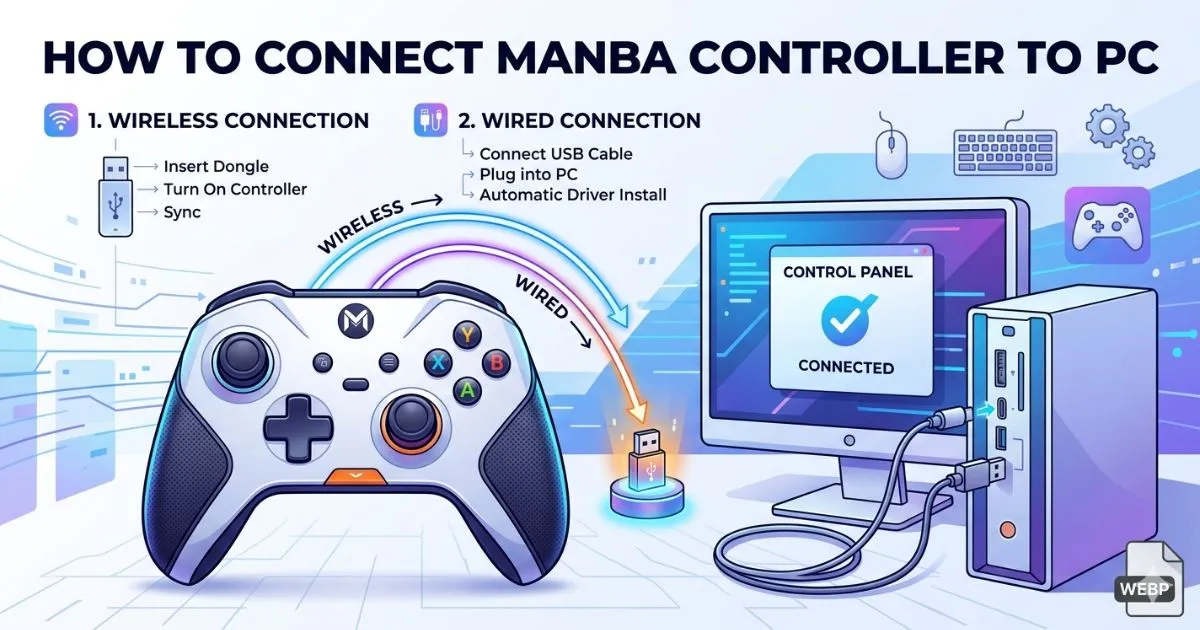
How to Connect Manba Controller to PC via USB (Wired)
Step-by-Step Wired Connection
The wired connection is the fastest and most reliable option, especially for competitive gaming where every millisecond matters.
- Plug the USB-C (or Micro-USB, depending on model) end of the cable into your Manba controller
- Connect the USB-A end to a USB port on your PC.
- Windows will automatically detect the controller and install the XInput driver — this takes about 10–30 seconds
- You’ll see a “Device connected” notification in the bottom-right corner of your screen
- The controller’s indicator light will become steady, confirming it’s connected
That’s it — no software installation required for wired connection in most cases.
Verifying the Connection
Always verify the controller is working before launching your game:
- Press Windows Key + R, type
joy.cpl, and press Enter - The “Game Controllers” window opens — your Manba controller should appear as “Controller (Xbox Compatible)”
- Click on it and select Properties
- Press buttons and move the analog sticks — you’ll see the corresponding inputs light up on the test screen
- If everything responds correctly, you’re ready to play
How to Connect Manba Controller to PC via Bluetooth (Wireless)
Enabling Pairing Mode on the Manba Controller
- Make sure the controller is powered on (hold the Power/Home button for 2–3 seconds)
- Press and hold the Bluetooth pairing button — on most Manba models, this is a small dedicated button on the back or top of the controller, sometimes labeled with a Bluetooth symbol
- The LED indicator will begin flashing rapidly — this means the controller is in pairing mode and actively searching for a connection
- You have approximately 3 minutes to complete the pairing before it times out
Note: The exact button location varies slightly between Manba models. If you’re unsure, consult the small instruction card included in the box — it shows the button layout for your specific model.
Pairing Manba Controller on Windows 10
- Go to Settings, then select Devices, and click on Bluetooth & other devices.
- Toggle Bluetooth to ON if it isn’t already
- Click “Add Bluetooth or other device”
- Select “Bluetooth” from the device type menu
- Wait for “Manba Controller“ (or similar name) to appear in the list
- Click on it to pair
- Wait for the confirmation message “Your device is ready to go”
- The controller’s LED will stop flashing and show a steady light
Pairing Manba Controller on Windows 11
- Open Settings > Bluetooth & devices
- Ensure Bluetooth is On
- Click “Add device”
- Select Bluetooth
- Choose your Manba controller from the discovered devices list
- Follow the same confirmation steps as Windows 10
| Connection Type | Input Latency | Battery Usage | Best For |
|---|---|---|---|
| USB Wired | ~1ms (near zero) | None | Competitive, fighting games |
| Bluetooth Wireless | ~8–12ms | Moderate | Casual, open-world games |
Installing Manba Controller Drivers on PC
For the vast majority of users, no special driver installation is required. The Manba controller uses the XInput standard, which Windows supports natively since Windows 7. When you plug it in or pair it via Bluetooth, Windows does the rest automatically.
However, in rare cases — particularly with older Windows versions or specific Manba models — you may need to install drivers manually:
- Visit Manba’s official website (or the product listing where you purchased) and navigate to the Downloads or Support section
- Download the driver package for your specific controller model
- Run the installer as Administrator
- Restart your PC after installation
DS4Windows as an alternative: If you want advanced features like button remapping, dead zone adjustment, or custom profiles, DS4Windows (despite the name, it works with any XInput controller) is a powerful free tool available on GitHub.
Guide to Using a Manba Controller on PC Games (Steam and Non-Steam)
Steam has excellent built-in controller support that makes the Manba controller work even better with your game library.
- Launch Steam, then navigate to Steam > Settings > Controller.
- Select “General Controller Settings” in Steam Big Picture Mode.
- Check “Generic Gamepad Configuration Support”
- Steam will now recognize your Manba controller and allow per-game configuration
For games outside Steam, the Manba controller typically works immediately in any title that supports XInput. Games like GTA V, Elden Ring, and Fortnite will detect it automatically.
Troubleshooting: Manba Controller Not Connecting to PC
- Controller not detected via USB: Try a different USB port, swap the cable, and ensure the cable supports data transfer (not just charging)
- Bluetooth pairing fails: Reset the controller by holding the pairing button for 10 seconds, then try pairing again from scratch
- Input lag in wireless mode: Switch to the wired connection — Bluetooth introduces slightly more latency
- Buttons mapping incorrectly: Open Steam Input or DS4Windows to remap buttons to your preference
- Controller disconnects randomly: Check for Bluetooth interference from other devices, and ensure the controller is adequately charged
- Vibration not working: In Steam, verify that rumble is enabled in the controller settings for that specific game
Conclusion
Connecting your Manba controller to PC is genuinely straightforward once you know the steps. The wired connection is plug-and-play in under a minute, and Bluetooth pairing on Windows 10 or 11 takes only a few moments more. With XInput compatibility, Steam integration, and solid build quality, your Manba controller is ready to elevate your PC gaming experience across virtually every game in your library.
FAQ: How to Connect Manba Controller to PC
1. How to connect Manba controller to PC without Bluetooth? Simply use the included USB cable. Plug it into the controller and any USB port on your PC. Windows installs the driver automatically, and you’re ready to play within seconds — no Bluetooth required.
2. Why is my Manba controller not being recognized on PC? Try a different USB port or cable first. For Bluetooth issues, make sure the controller is in pairing mode (LED flashing rapidly) and that Bluetooth is enabled on your PC. Restarting Windows and re-pairing often resolves detection issues.
3. Do I need to install drivers to connect Manba controller to PC? In most cases, no. Manba controllers use the XInput standard, which Windows supports natively. Drivers install automatically. Manual driver installation is only needed in rare cases with specific models or older Windows versions.
4. How to connect Manba controller to PC for Steam games? After connecting via USB or Bluetooth, open Steam Settings > Controller > General Controller Settings and enable “Generic Gamepad Configuration Support.” Steam will detect your Manba controller and allow full configuration for any game in your library.
5. Can I connect Manba controller to PC and PS4/PS5 at the same time? The Manba controller can only maintain one active connection at a time. You’d need to disconnect from one device before pairing with another. Some Manba models support quick-switch between saved paired devices — check your specific model’s manual.
🎮 Ready to game? If this guide got your Manba controller connected and running, share it with a fellow PC gamer who’s struggling with the same setup. Got a tip or ran into an issue we didn’t cover? Drop it in the comments — the community always appreciates the help!