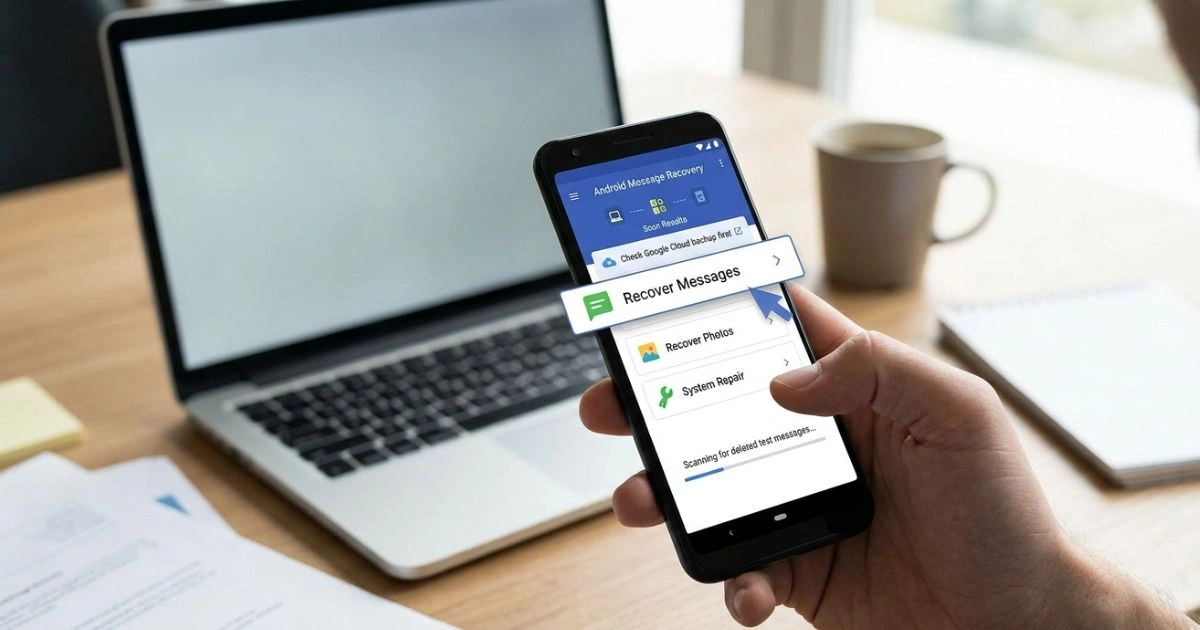
How to Retrieve Deleted Text Messages on Android – Powerful Recovery Tips
Table of Contents
That moment hits differently when you realize it’s gone.
Maybe it was a voice message your late grandmother sent you last winter. Maybe it was a contract confirmation your client texted you — the one you now need desperately for a dispute. Or perhaps it was just a silly, irreplaceable inside joke between you and your best friend that you never thought you’d need to save.
Whatever it was, you’re here now, staring at an empty thread, heart sinking, wondering if there’s any way to bring it back.
Here’s what most people don’t tell you: deleted doesn’t always mean destroyed. On Android, text messages live in a database file, and when you delete them, your phone simply marks that space as available — it doesn’t instantly wipe the data. That means, in many cases, recovery is still very much possible.
This guide walks you through every real, working method to retrieve deleted text messages on Android — whether you have a backup or not, whether your phone is rooted or not, and whether you’re a tech wizard or a complete beginner.
Let’s get your messages back.
Can You Really Recover Deleted Text Messages on Android?
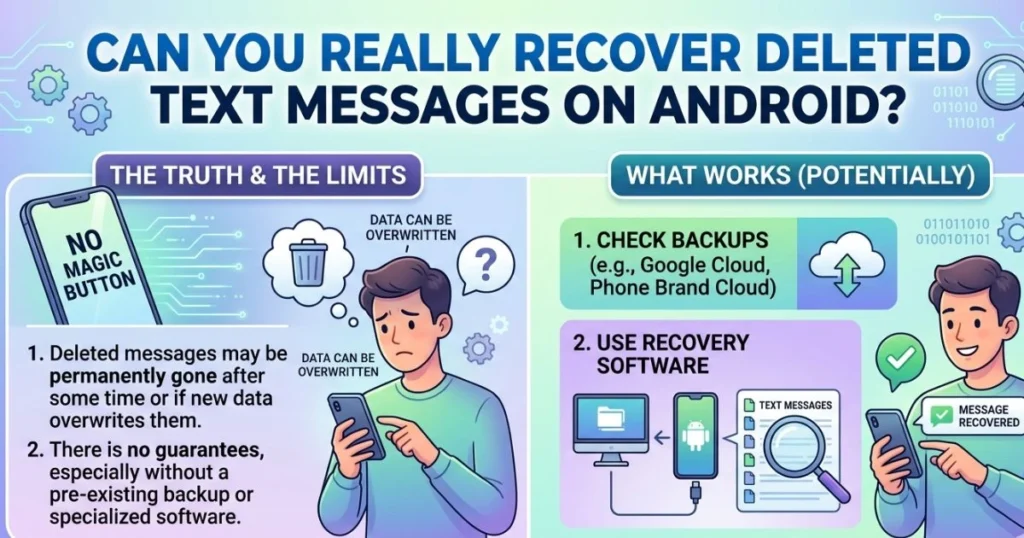
Before jumping into methods, you need to understand one critical thing: how your phone handles deletion.
How Android Stores Text Messages
Your Android device stores all SMS and MMS messages inside a SQLite database file buried deep in the phone’s internal storage. When you delete a message, your phone doesn’t scrub that file clean. Instead, it flags the space as “free” — ready to be overwritten when new data needs room.
This is your window of opportunity.
Until new data physically overwrites that space, your deleted messages are still technically sitting there, invisible to your messaging app but accessible through the right tools.
What Affects Your Chances of Recovery
Not every situation is the same. Several factors determine whether your deleted messages can still be rescued:
- Time since deletion — the sooner you act, the better your odds
- Phone activity after deletion — every app you open, every photo you take, every download you run risks overwriting that data
- Whether a backup exists — if you have one, recovery becomes straightforward
- Your Android version and phone model — some manufacturers add extra encryption layers that complicate direct recovery
- Whether the phone has been factory reset — this makes recovery significantly harder, though not always impossible
Your single most important move right now: put your phone down. Stop using it. Every second it runs, data gets written, and your chances shrink.
Method 1 – Recover Deleted Texts from Your Google Account Backup
This is the cleanest, most reliable path — if you’ve had it enabled.
How Google Backup Works for SMS
Google offers automatic device backups through Google One, storing app data, call history, contacts, and yes — text messages — directly to your Google Drive account. If you set up your Android device and left backup toggled on, there’s a good chance a recent copy of your messages exists in the cloud right now.
Step-by-Step: Restore via Google Backup
- Open Settings on your Android device
- Tap Google → then Backup
- Check if “Back up to Google Drive” is switched on and look at the last backup date
- If a recent backup exists, you’ll need to perform a factory reset and restore from that backup during the setup process
- After resetting, when your phone reaches the “Copy apps & data” screen, select “A backup from Google Drive“
- Sign in with your Google account and choose the backup you want to restore from
- Follow the on-screen steps — your messages will return along with the rest of your backed-up data
Important Warning Before You Restore
This method replaces your current phone data with the backup version. Any messages, photos, or files created after the backup date will be lost in the process. Write down or screenshot anything you can’t afford to lose before you begin.
Method 2 – Contact Your Carrier or Network Provider
Your phone carrier might hold more information than you’d expect — though there are real limitations here worth knowing upfront.
Can Your Carrier Retrieve Deleted Messages?
Most major carriers store SMS metadata rather than actual message content. What this means in practice is they can usually confirm that a message was sent or received, but they can’t hand you back the text itself. That said, in certain legal situations or formal requests, some carriers do retain message logs for a short window — typically between 3 and 7 days.
If you need proof of communication rather than the exact content, your carrier can be a useful resource.
| Information Type | Availability from Carrier |
|---|---|
| Full message content | Rarely available |
| Sender and receiver numbers | Usually yes |
| Date and time of message | Usually yes |
| Message length | Sometimes |
| Attachments (MMS) | Almost never |
How to Make the Request
Call your carrier’s customer support line, explain the situation clearly, and ask specifically what SMS records they can provide. For legal matters, they may require a formal written request or court order. Act quickly — these logs don’t stay on their servers indefinitely.
Method 3 – Use an SMS Backup and Restore App
If you’d previously installed a backup app on your Android phone — even once, even months ago — you may already have a saved copy of your messages waiting for you.
Top Apps That Handle SMS Recovery
SMS Backup & Restore by SyncTech is arguably the most trusted name in this space. It saves your messages as XML files to your phone’s local storage or Google Drive, and restoring from one is genuinely simple.
SMS Organizer by Microsoft is another solid option that quietly backs up messages in the background and syncs with OneDrive.
Super Backup & Restore handles multiple data types and offers both local and cloud backup options.
How to Recover Using SMS Backup & Restore
- Install SMS Backup & Restore from Google Play if it isn’t already on your device
- Open the app and tap Restore
- The app will automatically scan for any existing backup files stored locally or on Google Drive
- Select the backup file you want to restore from — check the date to make sure it includes the messages you need
- Choose whether to restore all messages or selected conversations
- Tap Restore and wait for the process to complete
Comparison of Top SMS Backup Apps
| App Name | Free to Use | Cloud Sync | Ease of Use | Recovery Speed |
|---|---|---|---|---|
| SMS Backup & Restore | Yes | Google Drive | Very Easy | Fast |
| SMS Organizer | Yes | OneDrive | Very Easy | Fast |
| Super Backup & Restore | Yes | Multiple options | Moderate | Moderate |
Method 4 – Recover Deleted Text Messages Without Any Backup
This is where most people find themselves — no backup, no prior preparation, just a deleted thread and a feeling of dread. Don’t panic. Tools exist specifically for this situation.
How Data Recovery Software Works
These programs connect to your Android device via USB and directly scan the internal storage — specifically targeting the SQLite database file where messages are stored. They look for data that’s been flagged as deleted but not yet overwritten, then surface it for you to preview and recover.
Best Data Recovery Software for Android
Dr.Fone – Phone Recovery by Wondershare is widely regarded as the most effective tool in this category. It works on both Windows and Mac, supports thousands of Android models, and allows selective recovery — meaning you can choose exactly which messages to bring back.
EaseUS MobiSaver for Android offers a clean interface and solid recovery rates, with both free and paid tiers.
iMobie PhoneRescue is another reliable choice, with particular strength in recovering from damaged or corrupted devices.
Step-by-Step: Recovering Deleted SMS Using Dr.Fone
- Download and install Dr.Fone – Phone Recovery on your Windows PC or Mac
- Launch the program and select “Phone Recovery” from the main menu
- Connect your Android device using a USB cable
- On your Android phone, enable USB Debugging — go to Settings → About Phone → tap Build Number 7 times → go back to Settings → Developer Options → enable USB Debugging
- Allow the connection when prompted on your phone
- Select “Messages” from the list of recoverable file types
- Click “Start Scan” and let the software analyze your device storage
- Once the scan completes, preview all recovered messages — deleted ones are typically highlighted or marked separately
- Select the conversations you want to recover and click “Recover to Computer” or directly back to your phone
Data Recovery Software Comparison
| Software | Root Required | Free Version | Supported Platforms | Recovery Success Rate |
|---|---|---|---|---|
| Dr.Fone | Optional | Limited preview | Windows & Mac | High |
| EaseUS MobiSaver | Optional | Limited | Windows & Mac | Moderate |
| iMobie PhoneRescue | No | Limited | Windows & Mac | Moderate to High |
Method 5 – Check Manufacturer-Specific Backup Tools
Beyond Google, many Android manufacturers build their own backup ecosystems — and these often include SMS data.
Samsung: Smart Switch and Samsung Cloud
If you own a Samsung Galaxy device, Samsung Smart Switch is your best friend. This desktop application backs up your entire device, including text messages, and restoring from it is straightforward.
To restore via Smart Switch:
- Install Smart Switch on your PC or Mac
- Connect your Samsung device via USB
- Click Restore and select your most recent backup
- Choose to include messages in the restore and proceed
Samsung Cloud works similarly — navigate to Settings → Accounts and Backup → Samsung Cloud → Restore Data and select Messages from the list.
Xiaomi, Huawei, and OPPO Backup Tools
- Xiaomi (Mi Cloud): Go to Settings → Mi Account → Mi Cloud → Back up and Restore → check if Messages was included in your last backup
- Huawei (HiSuite): Connect to PC via HiSuite desktop app, navigate to Backup, and restore your most recent SMS backup
- OPPO: Go to Settings → Additional Settings → Back up and Reset → Local Backup — check for stored SMS backups and restore from there
Each of these manufacturer tools operates slightly differently, but they all follow the same general logic: find your most recent backup, verify it includes messages, and restore.
Method 6 – Check Your SIM Card for Saved Messages
This method is less relevant on modern smartphones but still worth a quick check in certain situations.
Do SIM Cards Still Store Text Messages?
Older Android phones — particularly lower-end models running earlier versions of Android — sometimes defaulted to saving messages on the SIM card rather than internal storage. Modern devices almost universally save SMS to internal storage, making SIM card recovery unlikely but not impossible.
To check if your SIM card holds any messages:
- Open your default Messages app
- Go to Settings (usually the three-dot menu)
- Look for “Manage SIM Card Messages” or “SIM Messages”
- If messages appear here, you can copy them to your phone’s storage
If you want to go deeper, a SIM card reader connected to your PC along with software like Oxygen Forensic Detective or SIM Card Data Recovery can extract raw data from the card — though this is more of an advanced technique.
Method 7 – Rooted Android Recovery (For Advanced Users)
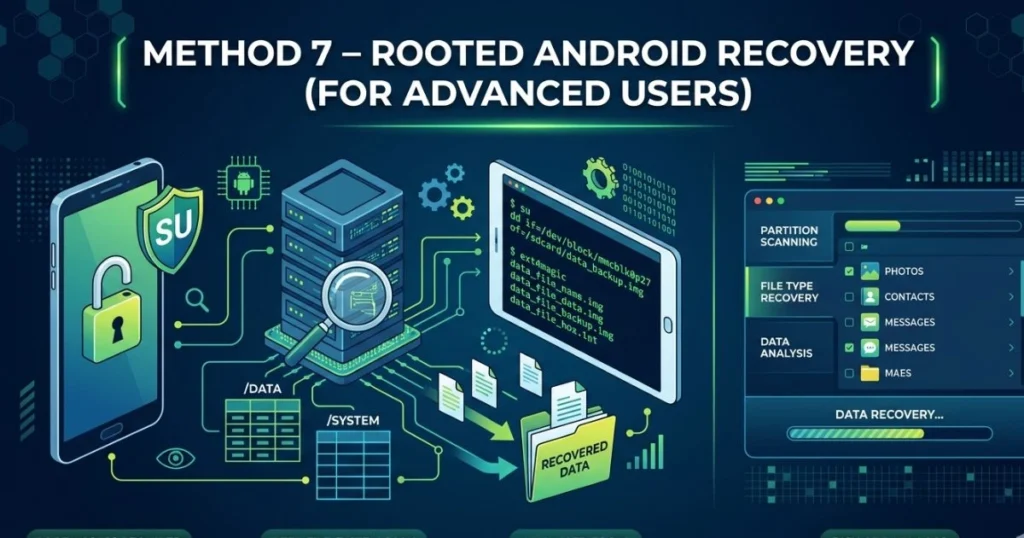
If your Android device is already rooted, your recovery options expand considerably.
What Rooting Unlocks for SMS Recovery
Rooting gives you administrative access to areas of your phone normally off-limits — including the exact SQLite database file where your messages live at the path: /data/data/com.android.providers.telephony/databases/mmssms.db
With direct access to this file, you can open it using any SQLite viewer and potentially see deleted message records that haven’t been overwritten yet.
Best Tools for Rooted Android Recovery
- DiskDigger (Pro version): Scans internal storage at a deep level and recovers deleted files including database entries
- Undeleter Recover Files & Data: User-friendly interface for rooted devices, supports message recovery
- SQLite database editors (like DB Browser for SQLite on PC): Allows direct inspection of the mmssms.db file after copying it to your computer
Important Cautions About Rooting
If your phone isn’t already rooted, rooting it specifically to recover messages is generally not recommended — the process of rooting itself writes data to your device and could overwrite exactly what you’re trying to recover. Beyond that, rooting voids most manufacturer warranties and carries a risk of permanently damaging your device if done incorrectly.
Use this method only if your device is already rooted and you’re comfortable working with system files.
How to Avoid Losing Text Messages in the Future
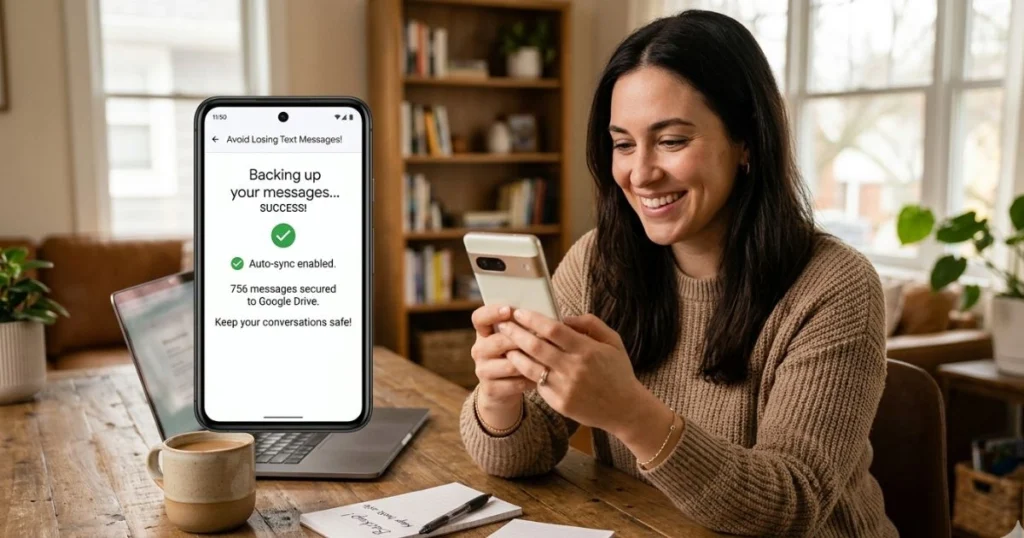
You’ve been through the stress. Here’s how you make sure it never happens again.
Enable Google Backup Right Now
Go to Settings → Google → Backup and toggle it on. Make sure “SMS messages” is included in what gets backed up. Set it to back up over Wi-Fi daily — it costs you nothing and could save you everything.
Install a Dedicated SMS Backup App
Don’t rely solely on Google. Install SMS Backup & Restore and configure it to automatically back up your messages every week to both your local storage and Google Drive. Two copies in two places is a habit worth building.
Protect Important Conversations Actively
Some messages are irreplaceable. For those, don’t just rely on backups:
- Screenshot the conversation and save it to a cloud album
- Forward key messages to your email for a permanent record
- Use messaging apps with built-in cloud sync — WhatsApp, Telegram, and Signal all offer varying levels of message backup
Your Quick Prevention Checklist
- ✅ Google Backup enabled with SMS included
- ✅ SMS Backup & Restore app installed and configured
- ✅ Automatic backup schedule set (weekly minimum)
- ✅ Critical conversations screenshotted or exported
- ✅ Cloud storage account has sufficient free space
- ✅ Manufacturer backup tool set up (Samsung Cloud, Mi Cloud, etc.)
FAQ – How to Retrieve Deleted Text Messages on Android
Q1: Can I retrieve deleted text messages on Android without a backup? Yes. Third-party recovery tools like Dr.Fone and EaseUS MobiSaver scan your phone’s internal SQLite database for deleted data that hasn’t been overwritten yet. Your success rate depends largely on how quickly you act and how little you’ve used the phone since deletion.
Q2: How long do deleted text messages remain recoverable? There’s no fixed answer — it depends entirely on how much new data your phone writes after deletion. On a heavily used phone, the window could be hours. On a phone you’ve barely touched since the deletion, it could be days or even weeks.
Q3: Does Google automatically back up text messages? It does, provided you’ve enabled Google Backup under your account settings. If it was switched on, your messages may already be safely sitting in Google Drive waiting to be restored.
Q4: Can I recover texts from a broken or water-damaged Android phone? Sometimes. If the internal storage chip is intact, data recovery software may still be able to extract data via USB. For severe physical damage, professional data recovery services with specialized equipment represent your best remaining option — though this comes at a cost.
Q5: Do I need to root my Android phone to recover deleted messages? No. Most recovery tools like Dr.Fone and PhoneRescue work effectively on unrooted devices. Rooting provides deeper access and can improve recovery rates, but it introduces its own risks and isn’t necessary for most situations.
Q6: How can I recover deleted text messages on Android for free? If you have a prior backup through Google or SMS Backup & Restore, recovery is completely free. Without a backup, most recovery tools offer free scanning and previewing, but charge a fee to actually restore the recovered messages.
Q7: Will factory resetting my phone make recovery impossible? It makes it significantly harder, but not always impossible. Some recovery software can still scan storage after a reset. The sooner you attempt recovery after a reset, the better your chances.
Conclusion
Losing text messages stings — especially when they carry memories, legal importance, or conversations you can never recreate. But as you’ve seen throughout this guide, “deleted” on Android rarely means “gone forever.” Your messages leave traces, and with the right tools and the right timing, those traces can be followed back to full recovery.
Your immediate priority is simple: stop using your phone and start the recovery process now. Every extra minute of normal phone use chips away at your chances.
Whether you go the Google backup route, reach out to your carrier, use a dedicated recovery app, or run professional software, there’s a path forward for your specific situation. Take it seriously, move quickly, and follow the steps outlined here carefully.
And once you’ve recovered what you need — or even if you haven’t — put a backup system in place today. It takes five minutes to set up and could save you from ever going through this again.
Your messages matter. Protect them like it.
Found this guide helpful? Share it with someone who’s currently in a panic over lost texts — you might just save their day.