
How to Select Multiple Things on Draw.io – Smart Time-Saving Tips
Table of Contents
You know that feeling when you’ve spent the better part of an hour carefully placing shapes, aligning connectors, and building out a diagram that finally looks exactly the way you imagined it — and then your manager says, “Can you move the whole left section two inches to the right?”
Your stomach drops.
You click one shape. Then another. Then another. You accidentally drag something out of place. You undo. You try again. Twenty minutes later, you’ve either fixed it or given up and started over.
If that story sounds painfully familiar, you’re not alone. Thousands of people use Draw.io every single day without ever discovering the selection techniques that could cut that frustration in half — or eliminate it entirely.
This guide is here to change that. Whether you’re a developer sketching system architecture, a business analyst building process flows, or a student mapping out ideas, mastering how to select multiple things on Draw.io is one of the highest-return skills you can develop. It’s not glamorous. But it will save you real time, real effort, and more than a little aggravation.
Let’s get into it.
Why Knowing How to Select Multiple Things on Draw.io Matters

The Real Cost of Inefficiency in Diagramming
Most people don’t think about how much time they lose to small, repetitive actions. Clicking one element at a time. Realizing you missed one. Going back. Accidentally deselecting everything. Starting the process over.
Research on knowledge worker productivity consistently shows that interruptions and micro-inefficiencies — even ones lasting only a few seconds — compound into significant time losses across a workday. Diagramming is no different. If you’re clicking through ten shapes individually every time you want to reformat or reposition a section, you’re losing minutes every session and hours every month.
More than that, it disrupts your thinking. When the tool fights you, your focus shifts from what you’re designing to how you’re operating the software. That’s cognitive energy you could be spending on the actual problem you’re trying to solve.
Who This Matters To
The people who benefit most from these techniques include:
- UX and UI designers who build wireframes and user flow diagrams regularly
- Software engineers and architects working with system and sequence diagrams
- Project managers building timelines, org charts, and workflow maps
- Business analysts documenting processes and data flows
- Educators and students creating visual study aids and presentations
No matter which category you fall into, the selection skills below will make your work faster and cleaner.
Understanding the Draw.io Interface Before You Select
A Quick Overview of the Draw.io Canvas
Before diving into selection methods, it helps to understand the landscape you’re working in. When you open Draw.io, you’re greeted with a canvas in the center, a shape panel on the left, a formatting panel on the right, and a toolbar along the top.
Everything you interact with — shapes, connectors, labels, images — lives on the canvas. The canvas is infinite in theory, but your practical working area is defined by what you can see at your current zoom level. This matters for selection, as you’ll see shortly.
Draw.io also supports layers (accessible via View > Layers) and multi-page diagrams (tabs at the bottom of the screen). Both of these features affect how selection behaves, and understanding them will save you confusion later.
Types of Elements You Can Select in Draw.io
| Element Type | Description | Selectable? |
|---|---|---|
| Shapes | Rectangles, circles, flowchart symbols, containers | ✅ Yes |
| Connectors / Arrows | Lines and arrows linking shapes | ✅ Yes |
| Text Labels | Standalone text boxes on the canvas | ✅ Yes |
| Groups | Multiple elements bundled together | ✅ Yes |
| Images | Embedded or imported image files | ✅ Yes |
| Locked Elements | Any element on a locked layer | ❌ No |
Understanding this table will help you troubleshoot when something doesn’t get selected the way you expect.
How to Select Multiple Things on Draw.io – All Methods Explained
Method 1 — Click and Drag (Rubber Band Selection)
This is the most instinctive method, and also one of the most powerful when used correctly.
How it works: You click on an empty area of the canvas, hold the mouse button down, and drag to create a selection rectangle — sometimes called a “rubber band.” When you release, every element that falls within that rectangle gets selected.
Step by step:
- Make sure your cursor is on an empty part of the canvas (not on a shape)
- Click and hold the left mouse button
- Drag in any direction to create a selection box
- Release the mouse — all elements inside the box are now selected
Best for: Selecting large clusters of shapes in open diagram areas, reorganizing entire sections of a flowchart, or grabbing everything in a defined zone.
Watch out for: This method selects everything inside the box — shapes, connectors, labels, and all. If you have elements in the selection area that you don’t want to include, you’ll need to Shift+Click to deselect them afterward.
Method 2 — Hold Shift + Click (Manual Multi-Selection)
This one gives you surgical precision. Instead of grabbing everything in a region, you handpick exactly which elements get selected.
How it works: Click your first element normally. Then hold Shift and click each additional element you want to add to the selection. Each click adds to the growing selection without deselecting what you’ve already chosen.
Step by step:
- Click the first element you want to select
- Hold Shift on your keyboard
- While holding Shift, click each additional element
- Release Shift when you’re done — your full selection is active
Best for: Selecting non-adjacent elements scattered across the canvas, choosing a specific combination of shapes and connectors, or fine-tuning a selection after a rubber band drag.
Bonus: If you accidentally include an element, Shift+Click it again to remove it from the selection without deselecting everything else.
Method 3 — Select All with Ctrl+A (or Cmd+A on Mac)
Sometimes you simply need everything. That’s when this shortcut earns its place.
How it works: Pressing Ctrl+A on Windows/Linux or Cmd+A on Mac instantly selects every element on the current page of your diagram.
Step by step:
- Click anywhere on the canvas to make sure it’s in focus
- Press Ctrl+A (Windows/Linux) or Cmd+A (Mac)
- Everything on the page is now selected
Best for: Moving your entire diagram to a new position, applying a global formatting change, copying the whole page to duplicate it, or deleting everything to start fresh.
Important note: If you’re using Draw.io in a browser tab, make sure your cursor focus is on the canvas and not in a text field or the browser address bar, otherwise the shortcut will trigger a browser function instead.
Method 4 — Select by Connection (Right-Click Context Menu)
This method is particularly valuable in flowcharts, network diagrams, and any diagram where relationships between elements matter.
How it works: When you right-click on a shape, Draw.io gives you a context menu with selection options like Select Edges, Select Vertices, Select Connected, and Select Descendants. These let you expand your selection intelligently based on how elements relate to each other.
Step by step:
- Right-click on any shape or connector
- Look for the Select submenu in the context menu
- Choose the relevant option:
- Select Edges — selects all connectors attached to this shape
- Select Vertices — selects all shapes connected to this one
- Select Descendants — selects all child elements in a hierarchy
Best for: Network diagrams where you want to select a node and all its connections, org charts where you want to grab a branch and everything below it, or any diagram where relationships define logical groupings.
Method 5 — Using the Edit Menu to Select Special Elements
If you prefer menu navigation over shortcuts, Draw.io’s Edit menu has you covered with powerful selection filters.
How it works: Navigate to Edit in the top menu bar. You’ll find options including Select All, Select Edges, and Select Vertices. These work on the entire canvas, not just a specific shape.
What each option does:
- Select All — same as Ctrl+A, grabs everything
- Select Edges — selects every connector and arrow on the page
- Select Vertices — selects every shape (non-connector element) on the page
Best for: Quickly selecting all connectors to reformat them uniformly, selecting all shapes to apply a consistent style, or cleaning up a diagram by deleting all edges at once.
Method 6 — Selecting Elements Within a Group
Groups in Draw.io behave like containers. When you click a group, you select the whole thing. But sometimes you need to get inside and select individual members.
How it works:
- Single click on a group selects the entire group as one unit
- Double-click enters the group and lets you select individual elements inside it
- Once inside, you can use Shift+Click or rubber band selection within the group
Step by step:
- Single-click the group to select it as a whole
- Double-click to enter the group
- Use any selection method to pick individual elements
- Click outside the group to exit it
Best for: Complex diagrams with nested structures, swimlane diagrams, or any situation where you’ve grouped elements for organization but need to edit one piece without ungrouping everything.
Method 7 — Selecting Elements Across Pages (What You Need to Know)
Draw.io supports multi-page diagrams through the tab system at the bottom of the screen. One important limitation to understand: selection is always page-specific. You cannot select elements from two different pages simultaneously.
If you need to perform the same action on multiple pages, your best approach is to:
- Select and copy from page one
- Navigate to the target page
- Paste and adjust
For global formatting changes across pages, consider using styles — set your preferred style on one element, right-click and choose Edit Style, copy the style string, and apply it manually on each page.
Keyboard Shortcuts Cheat Sheet for Selecting in Draw.io
| Action | Windows / Linux | Mac |
|---|---|---|
| Select All Elements | Ctrl + A | Cmd + A |
| Add Element to Selection | Shift + Click | Shift + Click |
| Remove Element from Selection | Shift + Click (on selected item) | Shift + Click (on selected item) |
| Deselect Everything | Escape | Escape |
| Select All Edges | Edit > Select Edges | Edit > Select Edges |
| Select All Vertices | Edit > Select Vertices | Edit > Select Vertices |
| Group Selected Elements | Ctrl + G | Cmd + G |
| Ungroup | Ctrl + Shift + G | Cmd + Shift + G |
| Move Selected Items (nudge) | Arrow Keys | Arrow Keys |
| Delete Selected | Delete / Backspace | Delete / Backspace |
| Duplicate Selected | Ctrl + D | Cmd + D |
| Copy Selected | Ctrl + C | Cmd + C |
Print this table out or bookmark this page. You’ll reach for it more than you expect.
Smart Time-Saving Tips When Selecting Multiple Elements

Tip 1 — Use Groups to Manage Recurring Element Sets
If you find yourself repeatedly selecting the same combination of elements, that’s your signal to group them. Select everything you want, press Ctrl+G, and from that point forward, one click selects the whole bundle.
You can name your groups for easy identification. Right-click the group and choose Edit Tooltip or add a label to help you remember what the group contains. This is especially useful in large diagrams with many moving parts.
Tip 2 — Use Layers to Control What Gets Selected
Draw.io’s Layers panel (View > Layers) lets you lock layers you’re not currently working on. When a layer is locked, its elements cannot be selected — which means your rubber band selections and Ctrl+A commands won’t accidentally grab them.
Workflow example: Put your background graphics and decorative elements on a separate locked layer. Now you can freely select and move your actual diagram content without ever accidentally dragging a background element out of position.
Tip 3 — Zoom Out Before Making Large Selections
Your zoom level directly affects how easy rubber band selection is. When you’re zoomed in close, your selection box covers only a small area of the actual diagram. Zooming out to around 50–75% gives you a much wider view and lets you make large, accurate selections with a single drag.
After completing the selection, you can zoom back in to work on the details — your selection will remain active.
Tip 4 — Use “Select Descendants” for Hierarchical Diagrams
If you work with org charts, mind maps, or tree structures, the “Select Descendants” right-click option is a genuine game changer. Click a parent node, right-click, choose Select > Select Descendants, and every child, grandchild, and deeper element in that branch gets selected instantly.
This is especially powerful when you want to move an entire branch of a hierarchy or apply consistent formatting to a subtree.
Tip 5 — Combine Rubber Band with Shift+Click
These two methods work beautifully together. Use the rubber band drag to grab most of what you need in one sweep, then use Shift+Click to add the few elements that were outside the selection box, or Shift+Click on unwanted elements to remove them. This combination gives you both speed and precision — the best of both approaches.
Common Mistakes to Avoid When Selecting in Draw.io
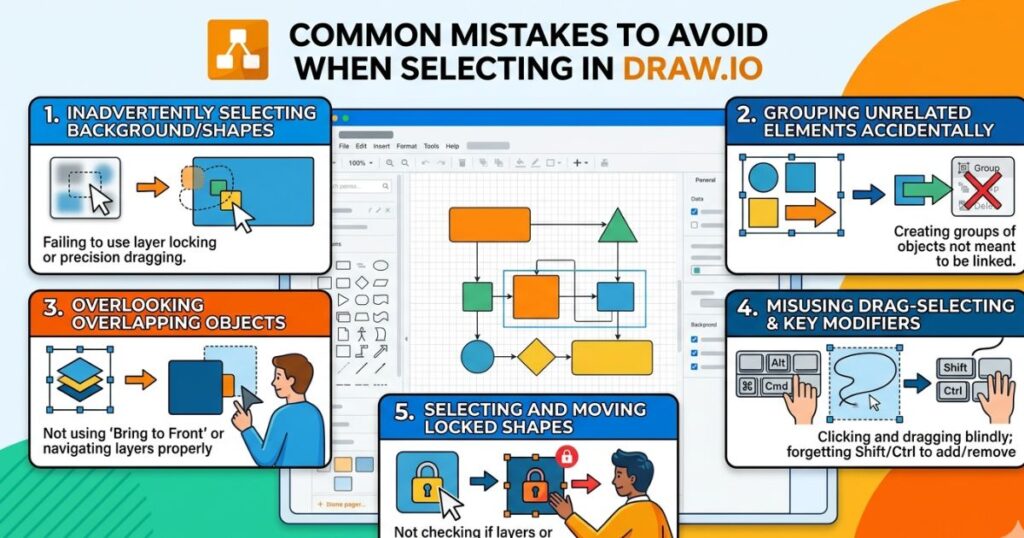
Mistake 1 — Accidentally Moving Elements While Trying to Select
This happens when you click directly on a shape instead of on empty canvas space when trying to start a rubber band drag. The shape moves instead of a selection box appearing.
Fix: Always begin your rubber band drag from a clearly empty area of the canvas. If you’re in a crowded diagram, zoom in to find a gap.
Mistake 2 — Not Realizing Connectors Are Also Selected
When you rubber band select a group of shapes, all connectors between them are included in the selection. This is usually what you want, but when you only need the shapes themselves, use Edit > Select Vertices instead.
Mistake 3 — Forgetting About Locked Layers
If you’re trying to select something and it simply won’t respond to clicks, check your Layers panel. The element might be on a locked layer. Unlock the layer, make your changes, then lock it again.
Mistake 4 — Confusing Grouped and Ungrouped Elements
A grouped element shows a single selection highlight around the whole group. An ungrouped cluster of elements shows individual handles on each piece. If your selection behaves unexpectedly, check whether you’re dealing with a group by looking at the right-click menu — grouped elements will show an Ungroup option.
How to Select Multiple Things on Draw.io on Different Platforms
Draw.io on Desktop Web Browser
The web version works consistently across Chrome, Firefox, and Edge. The main thing to watch for is browser shortcut conflicts — for example, Ctrl+A in a browser sometimes triggers a “select all” in the browser UI instead of the canvas. Click directly on the canvas first to ensure Draw.io has keyboard focus.
Draw.io Desktop App
The offline desktop application eliminates most browser shortcut conflicts and tends to feel more responsive. If you use Draw.io regularly, the desktop app is worth installing for a smoother experience.
Draw.io Embedded in Confluence or Jira
Embedded Draw.io editors within Atlassian products have some limitations. The selection tools still work, but certain keyboard shortcuts may be intercepted by the host application. Stick to mouse-based selection methods if shortcuts behave unexpectedly in this environment.
Draw.io on Tablet or Mobile
Touch-based selection works differently. Tap one element to select it, then tap additional elements with a second finger to add them to the selection. The rubber band drag is less reliable on touch screens, so Shift+Tap is your primary multi-selection tool. The mobile experience is functional for reviewing diagrams, but for serious editing work, a desktop environment is strongly recommended.
Practical Use Cases — Putting It All Together
Use Case 1 — Reorganizing a Flowchart Section
Scenario: You need to move the decision branch on the right side of a large flowchart to the left side.
Approach: Zoom out to 60%, rubber band drag across the entire right section, verify the selection looks correct, then use arrow keys or drag to reposition. Use Shift+Click to remove any elements that shouldn’t move.
Use Case 2 — Applying Uniform Formatting to Multiple Shapes
Scenario: Your diagram has 15 process boxes that need the same fill color, font, and border style.
Approach: Use Edit > Select Vertices to grab all shapes at once (or rubber band select the relevant area), then adjust fill, font, and border in the Format panel on the right. Every selected shape updates simultaneously.
Use Case 3 — Duplicating a Diagram Section
Scenario: You’re building a multi-step process and one section repeats with slight variations.
Approach: Select the section using rubber band drag, press Ctrl+C to copy, then Ctrl+V to paste. Reposition the duplicate and edit the few elements that differ.
Use Case 4 — Cleaning Up Connector Clutter
Scenario: Your diagram has dozens of connectors that need to be reformatted to a consistent style.
Approach: Go to Edit > Select Edges — all connectors are now selected. Apply your preferred line style, color, and thickness in one action from the Format panel.
FAQ — How to Select Multiple Things on Draw.io
Can I select multiple items in Draw.io without a mouse?
Yes. Use Tab to cycle through elements on the canvas, and Shift+Tab to cycle in reverse. Once you’ve selected one element, hold Shift and press Tab to add the next element to your selection. It’s slower than mouse selection but fully functional for keyboard-first workflows.
How do I select all shapes but not the connectors in Draw.io?
Go to Edit > Select Vertices. This selects every non-connector element on the page — shapes, text boxes, images — while leaving connectors unselected.
Why is my rubber band selection not working in Draw.io?
The most common cause is starting your drag on top of an existing element rather than on empty canvas. The second common cause is that your browser has keyboard or pointer focus on something other than the Draw.io canvas. Click on an empty canvas area first, then try your drag again.
How do I deselect one item from a multi-selection in Draw.io?
Hold Shift and click the element you want to remove from the selection. It deselects that element while keeping everything else selected.
Can I select elements on multiple pages at once in Draw.io?
No — selection is limited to the active page. To work across pages, copy from one page and paste to another, or use consistent styles applied manually.
How do I select all connectors/arrows in Draw.io?
Go to Edit > Select Edges from the top menu. This instantly selects every connector and arrow on the current page.
Is there a way to select items by color or type in Draw.io?
Draw.io doesn’t currently offer a native “select by color” feature. The closest option is to use Select Edges vs. Select Vertices to filter by element type. For color-based workflows, organizing elements into named layers is the most reliable workaround.
Conclusion — Work Smarter, Not Harder in Draw.io
You now have seven distinct methods for selecting multiple elements in Draw.io, a full keyboard shortcut reference, five time-saving tips, and real-world use cases to apply them in. That’s a significant toolkit — and you didn’t have to learn any of it the hard way.
Here’s what to take away from everything covered here:
- Rubber band drag is your fastest tool for bulk selection
- Shift+Click gives you precision when you need to handpick elements
- Ctrl+A handles everything-at-once scenarios
- Edit > Select Edges / Vertices lets you filter by element type
- Groups and Layers are your structural allies for managing complexity
Every second you save by selecting efficiently is a second you redirect toward the actual thinking, designing, and problem-solving that your diagrams are meant to support. The tool should work for you — not the other way around.
Your next step: Pick one method from this guide that you’ve never tried before and use it in your next Draw.io session. Just one. Get comfortable with it before adding another. Within a week, these techniques will feel natural — and you’ll wonder how you ever worked without them.
If this guide helped you, share it with a colleague who still clicks shapes one by one. They’ll thank you for it.
Ready to go deeper? Explore Draw.io’s official documentation at diagrams.net for advanced features including custom libraries, XML editing, and integration with Google Drive and Confluence.