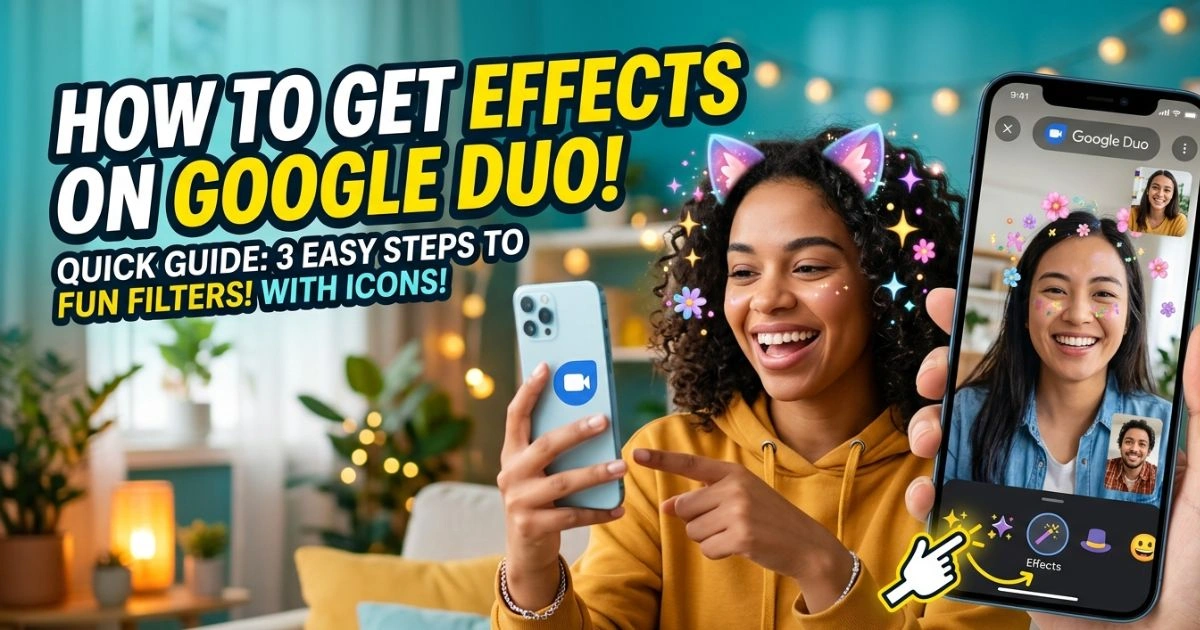
How to Get Effects on Google Duo (Easy Methods)
Table of Contents
Have you ever jumped on a video call and felt like something was just… missing? Maybe the lighting made you look washed out, the background behind you was an embarrassing pile of laundry, or you simply wanted to make your friend laugh with a funny face filter. You’re not alone. Millions of people use Google Duo every single day, and most of them have no idea they’re sitting on a goldmine of fun, creative, and even professional effects that can completely change how their calls look and feel.
Whether you’re calling your grandmother on her birthday, catching up with a college friend three time zones away, or jumping into a quick work check-in, the right effect can turn an ordinary call into something truly memorable. The good news? Getting effects on Google Duo is simpler than you’d expect — and this guide will walk you through every method, step by step, so you never have to sit through a dull video call again.
Let’s get into it.
What Are Effects on Google Duo?
Understanding the Effects Feature
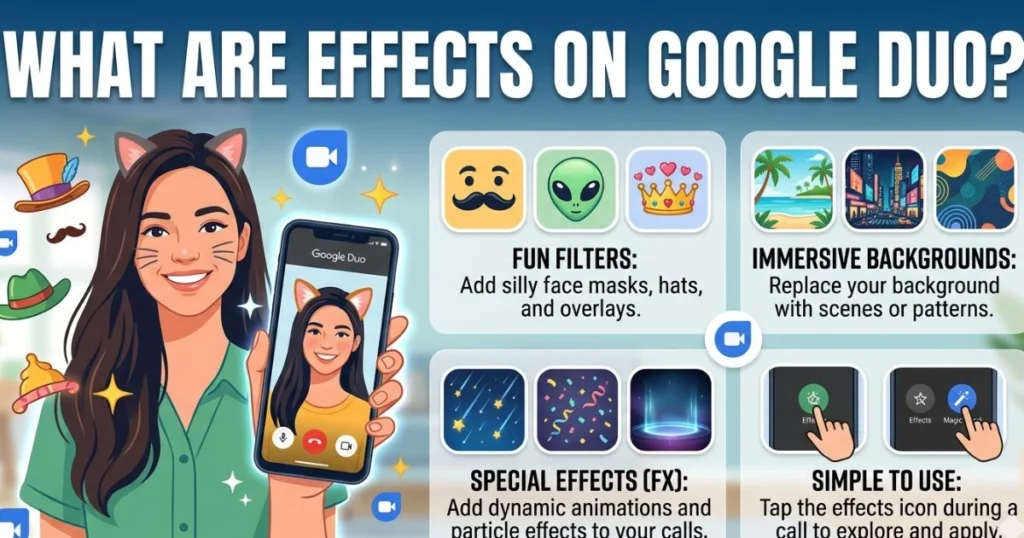
Before getting into the steps, it’s useful to first understand exactly what you’re dealing with. Effects on Google Duo are real-time visual enhancements you can apply to your video feed during — or even before — a call. They range from playful animated masks and color filters to professional background blurs and virtual backgrounds.
Google introduced these effects to make video calling more personal, expressive, and fun. And when Google Duo officially merged with Google Meet in 2022, the effects library didn’t shrink — it actually grew. So whether you’re still using an older version of the app or you’ve already made the switch to Google Meet, your access to these features remains intact and, in many cases, has expanded.
Types of Effects Available
Here’s a quick breakdown of what you can expect to find:
| Effect Type | Description | Available On |
|---|---|---|
| Filters | Color overlays and lighting adjustments | Android & iOS |
| AR Masks | Animated face overlays (animals, costumes) | Android & iOS |
| Backgrounds | Virtual or blurred backgrounds | Android & iOS |
| Lighting Effects | Auto brightness correction | Android & iOS |
| Fun Reactions | Emoji bursts and animations | Android & iOS |
Each of these serves a different purpose. Filters are great when your lighting isn’t cooperating. AR masks are perfect for entertaining calls with kids or friends. Backgrounds keep your personal space private. And lighting effects — honestly, they’re a quiet game-changer for anyone who does frequent video calls from home.
How to Get Effects on Google Duo — Step-by-Step Methods
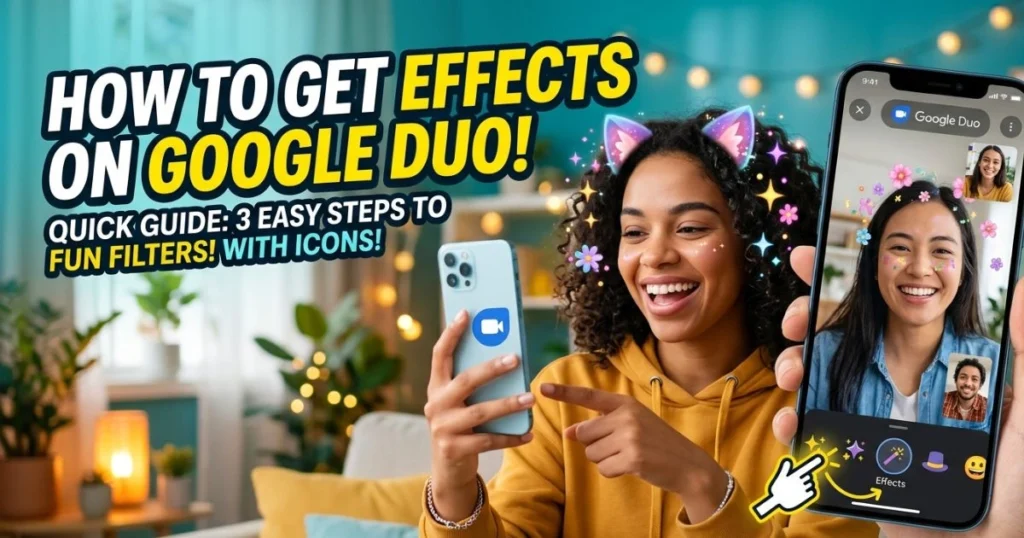
Method 1 — Enable Effects During a Live Call on Android
If you’re on Android, you’re in luck. The effects panel on Google Duo for Android is intuitive and easy to access mid-call without interrupting the flow of your conversation.
Here’s exactly what you do:
- Launch the Google Duo app on your Android device.
- Start a video call or join one already in progress
- While on the call, tap the three-dot menu icon (⋮) in the corner of your screen
- From the pop-up options, tap “Effects”
- A panel will slide up showing categories: Filters, Backgrounds, and Masks
- Tap any effect thumbnail to apply it instantly to your video feed
- To remove it, tap the same effect again or select “None” at the beginning of the list
A few things worth knowing before you dive in: your device should be running Android 8.0 or higher for the best experience. Some of the more advanced AR masks also require ARCore — Google’s augmented reality platform — which we’ll cover in a dedicated section below. Also, if your internet connection is slow, certain effects may stutter or lag, so switching to Wi-Fi before your call is always a smart move.
Method 2 — Enable Effects During a Live Call on iPhone (iOS)
Apple users, you haven’t been left out. Google Duo’s iOS version comes with its own clean, accessible effects panel that works beautifully with the iPhone’s front camera.
Follow these steps:
- Open Google Duo on your iPhone
- Start your video call
- Look for the sparkle icon ✨ or the Effects button near the bottom of your call screen
- Tap it — a horizontal panel will appear with different effect categories
- Swipe left or right to browse through Filters, Masks, and Backgrounds
- Tap the effect you want — it applies immediately to your live video
- To dismiss the panel, tap the X icon or swipe it down
For the smoothest experience, make sure you’re on iOS 13 or later. The front-facing TrueDepth camera on newer iPhones handles AR masks exceptionally well — faces are tracked accurately, and the animations feel natural rather than glitchy. If you’re on an older iPhone and some masks aren’t tracking properly, try improving your lighting, as the camera relies on clear facial recognition to place effects correctly.
Method 3 — Apply Background Effects Before a Call Starts
One of the most underused features in Google Duo is the ability to set your background effect before you even place a call. This is especially handy if you want to make sure everything looks right before the other person sees you.
Here’s how:
- Open the Google Duo app on your phone
- On the home screen, you’ll see a live camera preview of yourself
- Look for the background or effects icon at the bottom of that preview screen
- Tap it to open the effects panel
- Choose from: Background Blur, Custom Background, or Virtual Background
- For a custom background, tap the “+” icon to upload a photo from your gallery
- Once selected, start your call — the effect will already be active when the call connects
This method is ideal for professional settings. If you’re hopping into a job interview, a client call, or any situation where the space around you isn’t quite presentation-ready, a background blur or clean virtual background makes a world of difference. You look polished, prepared, and put-together — even if your desk says otherwise.
Method 4 — Using Effects on Google Duo via Desktop (Web)
Not everyone makes calls from their phone. If you prefer using Google Duo from your laptop or desktop computer, you can still access effects — though the selection is slightly more limited compared to mobile.
Steps to follow:
- Open your Chrome browser and go to duo.google.com or meet.google.com
- Sign in with your Google account
- Start or join a video call
- Once on the call, click the three-dot settings menu in the bottom toolbar
- Select “Visual Effects” from the options
- A side panel will open with options including Background Blur, Background Images, and Filters
- Click your preferred effect — it applies immediately to your video stream
Keep in mind that AR masks and some animated effects are currently not available on the desktop version. What you do get is reliable background blur, a selection of virtual background images, and basic filters. For most professional use cases, that’s more than enough. Chrome is the recommended browser for this — other browsers may not support all visual effect features properly.
Method 5 — Download New Effects by Updating the App
If your effects panel feels sparse or you’ve heard about new effects you can’t seem to find, the most common reason is simply that your app needs an update. Google regularly rolls out new effects — including seasonal ones tied to holidays and events — through app updates.
Here’s how to make sure you’re not missing out:
- Access the Google Play Store on Android or the Apple App Store on iOS.
- In the search bar, type “Google Duo” or “Google Meet“
- If an update button appears, tap Update
- Wait for the update to download and install
- Reopen the app and navigate to the Effects panel
- Scroll through the categories — new additions will appear here
To make sure you never miss a new effect, turn on automatic updates for Google Duo in your app store settings. This way, every time Google pushes a new batch of effects — whether it’s a Halloween mask collection or a New Year’s celebration filter — it lands on your phone automatically.
How to Get More Effects on Google Duo — Tips & Tricks
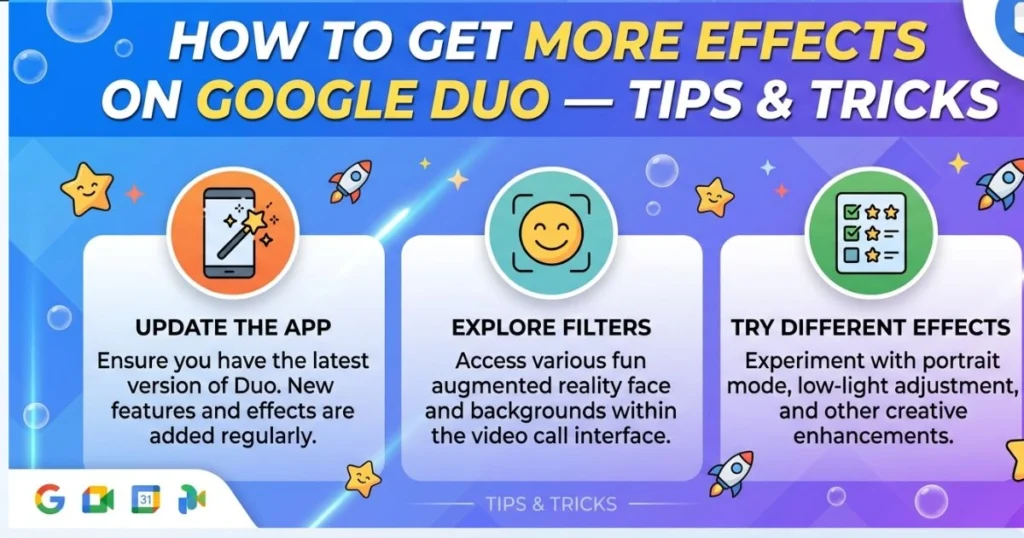
Enable ARCore for Advanced AR Effects
If you’re on Android and you feel like your effects library is missing some of the cooler AR masks you’ve seen others use, ARCore might be the missing piece.
ARCore is Google’s augmented reality platform that enables advanced 3D face tracking and environmental understanding. Many of the more detailed animated masks in Google Duo require it to function properly.
Here’s how to get it:
- Open the Google Play Store
- Search for “Google Play Services for AR”
- If it’s not installed, tap Install
- If it’s already there, tap Update if an update is available
- Restart Google Duo and check your effects panel
Not all Android devices support ARCore. To check compatibility, visit Google’s official ARCore supported devices page. Generally, most mid-range to flagship Android phones released after 2018 are compatible.
Troubleshooting — Effects Not Showing Up?
Running into issues? Here’s a quick reference table for the most common problems and how to fix them:
| Problem | Likely Cause | Fix |
|---|---|---|
| Effects button missing | Outdated app version | Update Google Duo or Google Meet |
| Effects panel is empty | ARCore not installed | Install ARCore from Play Store |
| Effects lag or freeze | Slow internet connection | Switch to Wi-Fi |
| Effects not applying to video | Camera permissions denied | Enable camera access in phone settings |
| No background options available | Older OS version | Update Android or iOS to latest version |
| AR masks not tracking face | Poor lighting conditions | Move to a well-lit area |
Most of these issues resolve quickly once you identify the root cause. If you’ve tried everything and effects still aren’t showing up, try uninstalling and reinstalling the app entirely — this clears any corrupted cache that might be blocking the feature
Best Effects to Try Right Now
Not sure where to start? Here are some crowd favorites across different use cases:
Top Fun AR Masks:
- Animal faces (dog, cat, bunny) — always a hit with kids
- Space helmet overlay — great for sci-fi fans
- Retro sunglasses with animated lenses
- Holiday-themed hats and accessories
- Cartoon character overlays
Best Professional Backgrounds:
- Soft office blur
- Minimal bookshelf background
- Clean gradient backgrounds (neutral colors)
Best Filters for Low Light:
- Warm glow filter — adds soft amber lighting
- Brightness boost filter — compensates for dark rooms
- Soft focus filter — smooths the overall image tone
Google Duo vs Google Meet — Effects Comparison
What Changed After the Merger?
In 2022, Google officially folded Google Duo into Google Meet, creating a single unified video calling platform. For users, this was mostly a seamless transition — your contacts, call history, and yes, your effects, all carried over.
But the merger also brought upgrades. Google Meet introduced several effects that were never available in the standalone Duo app, giving you access to a richer, more professional toolkit.
Effects Feature Comparison Table
| Feature | Google Duo (Old) | Google Meet (New) |
|---|---|---|
| AR Masks | ✅ Yes | ✅ Yes |
| Background Blur | ✅ Yes | ✅ Yes |
| Custom Backgrounds | Limited | ✅ Full Support |
| Filters | ✅ Yes | ✅ Yes |
| Studio Lighting | ❌ No | ✅ Yes |
| Animated Backgrounds | ❌ No | ✅ Yes |
| Portrait Touch-Up | ❌ No | ✅ Yes |
The Studio Lighting feature alone is worth the upgrade — it digitally repositions light sources to make your face look naturally well-lit, even in a dark room. And the Portrait Touch-Up option subtly softens skin tones for a cleaner, more polished appearance. These features were simply not part of the original Duo experience.
How to Use Effects for Special Occasions
Birthday & Celebration Calls
Birthdays hit different when there’s a confetti burst exploding across the screen the moment you say “Happy Birthday!” Google Duo’s celebration effects make it possible to do just that.
- Activate the confetti or balloon effect from the filters panel before your call
- Pair it with a festive virtual background (a party room, for example)
- Apply a birthday hat AR filter if it’s available in your current effects library.
- Combine a warm filter with celebration effects for a cozy, festive feel
The surprise factor alone makes the other person’s day. It takes five seconds to set up and creates a moment they’ll actually remember.
Holiday & Seasonal Effects
Google regularly drops limited-time effects tied to major holidays and global events. These include:
- Halloween: Spooky masks, haunted house backgrounds, ghost filters
- Christmas & New Year: Santa hats, snow overlays, fireworks reactions
- Valentine’s Day: Heart reactions, pink filters, rose backgrounds
The trick is to catch them before they disappear. Update your app right before a major holiday to make sure the seasonal effects have downloaded. They typically go live a few days before the event and disappear shortly after.
Professional & Work Settings
Not all effects are about fun. For work calls, interviews, or client meetings, effects can actually help you come across more professionally:
- Use background blur to eliminate visual distractions behind you
- Apply the Studio Lighting effect (in Google Meet) for consistent, flattering illumination
- Choose a neutral virtual background like a clean office or library if your actual background isn’t ideal
- The Portrait Touch-Up feature subtly polishes your appearance without looking overdone
These small adjustments signal that you take the call seriously — and they can make a genuine difference in how you’re perceived.
Privacy & Permissions — What You Need to Know
Camera & Microphone Permissions
For effects to work, Google Duo needs permission to access your camera. Without it, the effects panel either won’t open or won’t apply to your video.
On Android:
- Go to Settings → Apps → Google Duo (or Meet) → Permissions
- Make sure Camera is toggled on
- Also enable Microphone for full call functionality
On iPhone:
- Go to Settings → Google Duo → scroll to Permissions
- Toggle on Camera and Microphone
One thing people often wonder: does running effects drain your battery faster? The answer is yes, slightly. AR masks and animated effects use more processing power than a plain video feed. If you’re on a long call with low battery, sticking to simpler filters or turning effects off entirely is the practical move.
Does Google Collect Data from Effects?
This is a fair question. AR effects require analyzing your facial features in real time to apply masks and filters accurately. Google’s privacy policy states that this processing happens on your device — meaning your facial data is not stored or sent to Google’s servers as a result of using effects.
That said, it’s always worth reviewing your Google Account privacy settings and adjusting your data-sharing preferences to your comfort level. You can do this at myaccount.google.com under Data & Privacy.
Frequently Asked Questions (FAQ)
Q1: How to get effects on Google Duo on Android? Open the app, start a video call, tap the three-dot menu, and select Effects. From there, browse and tap any filter, mask, or background to apply it instantly.
Q2: How to get effects on Google Duo on iPhone? During a call, tap the sparkle ✨ icon at the bottom of the screen. Swipe through the effects panel and tap your desired effect to apply it.
Q3: Why can’t I see the effects option on Google Duo? Your app is likely outdated. Head to the Play Store or App Store, update the app, and the effects panel should reappear.
Q4: Are Google Duo effects completely free? Yes — every effect currently available in Google Duo and Google Meet is free to use. No subscription or in-app purchase is required.
Q5: Can I use Google Duo effects on my computer? Yes, through your Chrome browser at duo.google.com or meet.google.com. Background blur and virtual backgrounds are available, though AR masks are currently limited to mobile.
Q6: Did the effects disappear after Google Duo became Google Meet? No. All original Duo effects transferred to Google Meet, and additional effects — like Studio Lighting and animated backgrounds — were added on top.
Q7: How do I unlock more effects on Google Duo? Update your app regularly and install ARCore (Android) if you haven’t already. New effects are bundled into app updates, especially around major holidays.
Q8: Can I use my own photo as a background in Google Duo? Yes. When selecting a background effect, tap the “+” icon to upload a custom image from your phone’s gallery.
Conclusion — Make Every Call More Memorable
Video calls don’t have to feel like a chore or a formality. With the right Google Duo effects, every call turns into a chance to make someone laugh, look your best, celebrate a special moment, or simply be present. more fully for the people you care about.
Here’s what you’ve learned today:
- Effects are available across Android, iOS, and desktop
- There are five clear methods to access them, from mid-call activation to pre-call setup
- ARCore unlocks advanced AR masks on Android
- The Google Duo → Google Meet transition expanded the effects library rather than shrinking it
- Seasonal and holiday effects appear with app updates — so keep your app current
- Background blur and virtual backgrounds work on desktop via Chrome
- Effects are entirely free and easy to manage through your privacy settings
Now here’s your next step: open Google Duo right now, start a call with someone you care about, and tap that sparkle icon. Try one effect you’ve never used before. Send it to a friend. Make them smile. The technology is there — all you have to do is use it.
And if this guide helped you, share it with someone who’s still sitting through plain, effects-free video calls. They’ll thank you for it.