How to Clear App Cache on iPhone (Step-by-Step Guide to Free Storage)
Table of Contents
You’re in the middle of something important — maybe capturing a photo, sending a message, or pulling up directions — and your iPhone decides it’s the perfect moment to freeze, lag, or flash that dreaded “Storage Almost Full” warning. Sound familiar?
Here’s what most people don’t realize: the problem usually isn’t your iPhone getting old. It isn’t a sign you need to upgrade. Nine times out of ten, it comes down to something invisible, something quietly piling up in the background every single day — app cache.
The good news? Once you know how to clear app cache on iPhone, you take back control. Your phone runs smoother, your storage opens up, and that constant low-storage anxiety disappears. This guide walks you through everything — step by step, no tech background needed.
What Is App Cache and Why Does It Build Up?
Think of app cache as a “memory drawer” your iPhone apps use to work faster. When you open Instagram, it doesn’t reload every photo from scratch — it pulls from stored temporary files. When you revisit a website in Safari, it loads quickly because pieces of that page were saved locally. That’s cache doing its job.
The problem is that this drawer never cleans itself out. Every app you use — social media, streaming services, browsers, navigation tools — keeps stuffing more temporary files into that drawer. Over weeks and months, it quietly eats through your available storage without you noticing.
Here’s a rough idea of how much cache different app types can accumulate:
| App Type | Average Cache Size |
|---|---|
| Social Media Apps | 500 MB – 2 GB |
| Streaming Apps | 1 GB – 5 GB |
| Browsers (Safari/Chrome) | 200 MB – 1 GB |
| Navigation Apps | 500 MB – 3 GB |
| Messaging Apps | 300 MB – 1.5 GB |
Those numbers add up fast — especially if you use several of these apps daily.
Signs Your iPhone Is Overdue for a Cache Clear
Your iPhone usually gives you signals before things get critical. Watch out for these:
Performance red flags:
- Apps are sluggish to open or crash randomly
- Your iPhone feels generally slow during everyday tasks
- Apps freeze mid-use for no obvious reason
Storage red flags:
- The “iPhone Storage Almost Full” notification keeps appearing
- You can’t download new apps or install updates
- Photos fail to save or videos won’t record
Display and loading issues:
- Websites load incorrectly or show outdated versions
- App content looks glitched or won’t refresh
- Images and thumbnails appear broken or fail to load
If any of these sound familiar, clearing your cache should be your first move — before you start deleting photos or paying for more iCloud storage.
How to Check Your iPhone Storage First
Before diving in, take 60 seconds to see exactly where your storage stands.
- Open Settings
- Tap General
- Tap iPhone Storage
- Let the breakdown load fully
You’ll see a color-coded bar showing what’s eating your space — apps, media, photos, system data, and “Other.” That “Other” category is particularly sneaky. It’s largely made up of system cache, temporary files, and logs that iOS accumulates over time. If your “Other” slice looks suspiciously large, that’s your cue.
How to Clear App Cache on iPhone — Step by Step, By App
Different apps handle cache differently on iOS. Here’s exactly what to do for the most common ones.
Clear Safari Cache on iPhone
Safari is one of the biggest cache collectors on any iPhone.
- Go to Settings
- Scroll down and tap Safari
- Tap Clear History and Website Data
- Confirm by tapping Clear History and Data
✅ This removes browsing history, cookies, and all cached website data. ⚠️ You’ll be signed out of most websites after this — so have your passwords handy.
Clear Chrome Cache on iPhone
- Open the Chrome app
- Tap the three dots located in the bottom-right corner.
- Go to History → Clear Browsing Data
- Select Cached Images and Files
- Pick your preferred time range
- Tap Clear Browsing Data
Clear TikTok Cache on iPhone
TikTok makes this surprisingly easy:
- Open TikTok and go to your Profile
- Tap the three lines in the top right → Settings and Privacy
- Tap Free Up Space
- Tap Clear next to Cache
Clear Snapchat Cache on iPhone
- Open Snapchat
- Tap your Profile icon → Settings (gear icon)
- Scroll to Account Actions
- Tap Clear Cache → Clear All
Clear Spotify Cache on iPhone
- Open Spotify
- Tap Home → the gear icon (Settings)
- Tap Storage
- Tap Delete Cache
Clear Facebook Cache on iPhone
- Open Facebook
- Select the three-line menu at the lower right.
- Go to Settings & Privacy → Settings
- Scroll to Browser → Tap Clear
Clear Instagram Cache on iPhone
Instagram doesn’t offer a built-in cache button on iOS — so you’ll need to use the offload method covered in the next section.
The Universal Method: Works for Any iPhone App
When an app doesn’t offer a built-in cache option, or when you want the most thorough clean possible, these two methods work across the board.
Method 1 — Offload the App
Offloading removes the app and its cache while keeping all your personal data (logins, settings, saved content) intact.
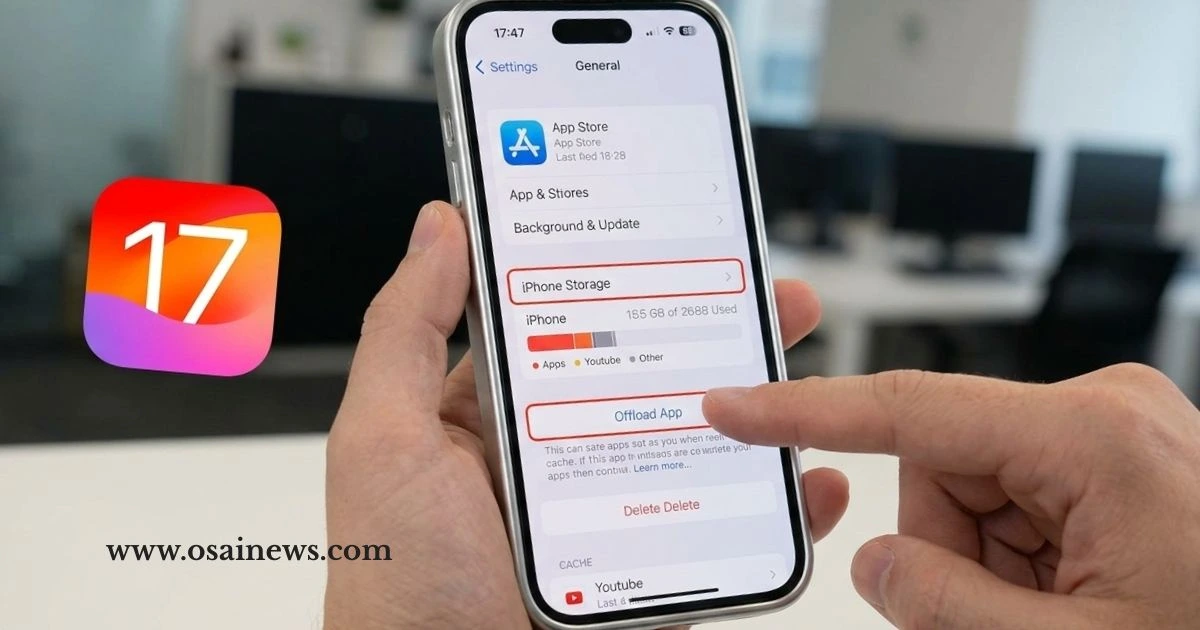
- Navigate to Settings → General → iPhone Storage.
- select the app you wish to offload.
- Tap Offload App
- Confirm
- Reinstall the app from the App Store when ready
This is the safest and most recommended universal method.
Method 2 — Delete and Reinstall
For a deeper clean:
- Long press the app icon on your home screen
- Tap Remove App → Delete App
- Reinstall from the App Store
⚠️ This erases all local data for that app — make sure you know your login credentials before doing this.
Method 3 — Enable Auto Offload
Let iOS handle it automatically:
- Go to Settings → App Store
- Toggle on Offload Unused Apps
Your iPhone will quietly offload apps you haven’t opened in a while, freeing up space without you lifting a finger.
Tackling the “Other” Storage Problem
If your storage bar shows a big chunk labeled “Other” or “System Data,” a simple restart can make a noticeable dent.
For Face ID iPhones:
- Hold Side button + Volume button until the slider appears
- Drag to power off
- Wait for 30 seconds, then power it on again.
For Home Button iPhones:
- Hold the Side or Top button
- Drag the power slider
- Wait 30 seconds, restart
Restarting clears RAM and flushes out temporary system files that pile up during normal use. It won’t solve everything, but it’s a solid first step for system-level cache.
How to Prevent Cache From Piling Up Again
Clearing cache once is a good start — keeping it under control is the real win. These habits take almost no effort but make a significant difference over time:
| Habit | Estimated Storage Saved | Effort Level |
|---|---|---|
| Clear Safari cache monthly | 200 MB – 1 GB | Easy |
| Offload unused apps regularly | 500 MB – 3 GB | Easy |
| Delete old message attachments | 1 GB – 5 GB | Easy |
| Reduce streaming app downloads | 1 GB – 10 GB | Medium |
| Optimize photos with iCloud | 2 GB – 20 GB | Medium |
Set a monthly reminder on your phone. Call it “iPhone Health Check.” Spend five minutes going through your storage, clearing browsers, and offloading anything you haven’t touched. Your future self will thank you.
Common Mistakes to Avoid
A few things that catch people off guard:
- ❌ Deleting apps without noting your login info — you’ll be locked out after reinstalling
- ❌ Clearing cache while the app is open — always close the app first
- ❌ Confusing iCloud storage with iPhone storage — they’re completely separate
- ❌ Downloading third-party “cleaner” apps — most are ineffective, and some are outright harmful
- ❌ Thinking one clear fixes it permanently — cache builds back up; regular maintenance matters
Frequently Asked Questions About How to Clear App Cache on iPhone
Does clearing app cache on iPhone delete my personal data? No. Cache is temporary data only. Your photos, messages, contacts, and app logins stay completely safe.
How often should I clear cache on my iPhone? Once a month works for most people. If you’re a heavy social media or streaming user, every two weeks is better.
Will clearing cache make my iPhone faster? Often, yes — particularly if your storage was close to full. Apps perform better when they have room to breathe.
Why doesn’t iPhone have a single “Clear All Cache” button? Apple‘s iOS is built to manage cache automatically. It works most of the time, but isn’t perfect — which is why knowing how to do it manually is valuable.
Is it safe to clear cache on iPhone frequently? Completely safe. It’s one of the most harmless maintenance tasks you can do on your device.
How do I clear app cache on iPhone without deleting the app? Use the in-app cache settings (available in TikTok, Snapchat, Spotify, Facebook) or use the Offload App method in iPhone Storage settings.
Final Thoughts
Knowing how to clear app cache on iPhone is one of those small skills that quietly makes your daily life smoother. Your phone feels more responsive, your storage opens up, and you stop white-knuckling it every time a notification tells you space is running low.
You don’t need a tech degree. You don’t need expensive software. Just a few intentional taps — done consistently — and your iPhone stays in the kind of shape it was meant to be in.
Start right now: Go to Settings → General → iPhone Storage and spend five minutes seeing what’s eating your space. Then work through the steps above, one app at a time.
Your iPhone has been waiting for this. Give it the reset it deserves.