How to Change Your Microsoft Account Password site Microsoft.com
Table of Contents
Have you ever woken up to an email saying someone signed into your Microsoft account from a location you’ve never been to? That cold rush of anxiety — the feeling that your private emails, your OneDrive files, your Microsoft 365 documents might be in a stranger’s hands — is something no one should have to experience. Yet it happens to millions of users every single year.
The truth is, your Microsoft account is the master key to your entire digital life within the Microsoft ecosystem. It connects your Outlook inbox, your Xbox profile, your Office subscriptions, your cloud storage, and even your payment details. Protecting it isn’t just a good idea — it’s a necessity. And one of the simplest, most powerful things you can do right now is change your Microsoft account password.
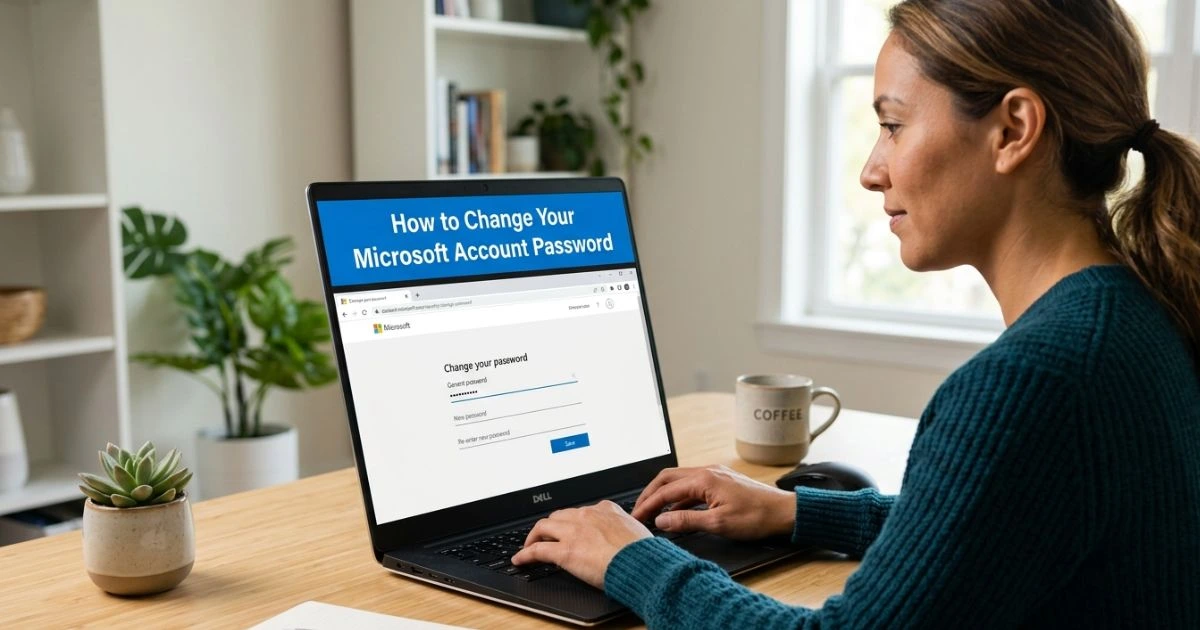
Whether you’re doing routine security maintenance, responding to suspicious activity, or simply trying to replace a weak password with a stronger one, this guide will walk you through exactly how to change your Microsoft account password on Microsoft.com — clearly, safely, and step by step.
How to Change Your Microsoft Account Password site Microsoft.com
Why You Should Change Your Microsoft Account Password Regularly
Most people only think about changing their password after something goes wrong. But proactive password management is one of the best digital habits you can build — and here’s why.
Signs Your Account May Be Compromised
You don’t always get an obvious warning when someone gains unauthorized access to your account. However, there are telltale signs you should watch for:
- Unusual sign-in activity alerts from Microsoft — emails or notifications about logins from unfamiliar devices or locations
- Emails you never sent appearing in your Sent folder
- Contacts receiving strange messages from your address
- Unexpected charges on your Microsoft 365 subscription or Xbox purchases
- Settings or profile details changed without your knowledge
If any of these sound familiar, changing your password immediately should be your very first step.
Benefits of Updating Your Password Frequently
Even if you haven’t noticed anything suspicious, regularly updating your password provides significant protection. According to Microsoft’s own security research, a large percentage of account compromises involve reused or leaked passwords from third-party data breaches. When one service gets hacked, attackers often try those same credentials on Microsoft, Google, and banking sites — a technique called credential stuffing.
By changing your password every three to six months, you:
- Reduce the window of exposure if your credentials were silently stolen
- Protect your OneDrive files and personal documents from unauthorized access
- Keep your Microsoft 365 subscription and linked payment methods secure
- Prevent unauthorized Xbox or Microsoft Store purchases
The few minutes it takes to update your password can save you days — or even weeks — of dealing with account recovery and damage control.
What You Need Before Changing Your Password on Microsoft.com
Before you dive in, make sure you have everything in place to complete the process smoothly:
- Your current password (or access to your recovery email/phone number if you’ve forgotten it)
- A stable internet connection
- Access to your two-factor authentication method — this could be the Microsoft Authenticator app, a backup phone number, or a recovery email
- A supported browser — Microsoft Edge, Google Chrome, Mozilla Firefox, and Safari all work well
Having these ready will make the process seamless, whether you’re doing a routine update or an emergency reset.
How to Change Your Microsoft Account Password on Microsoft.com (Step-by-Step)
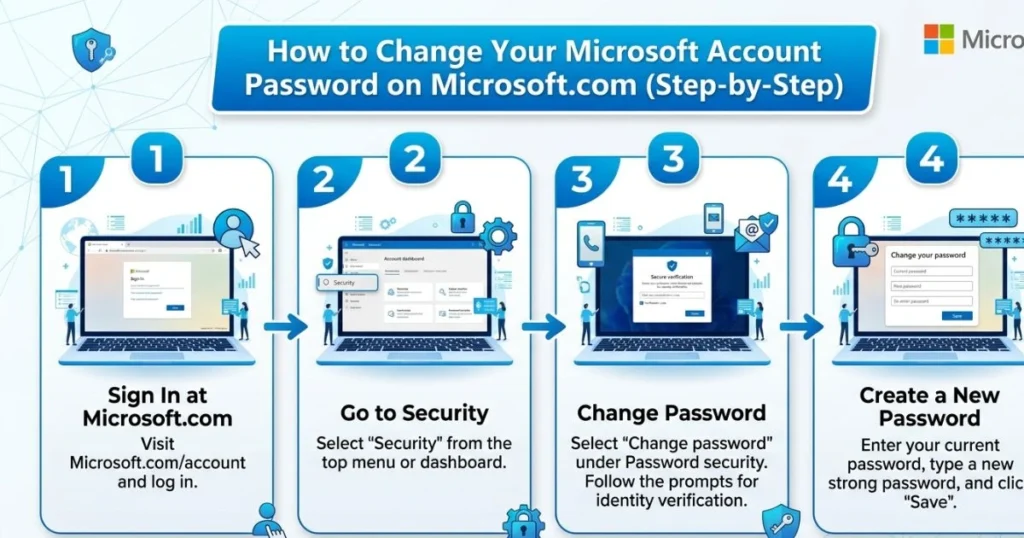
There are three main ways to change your Microsoft account password, depending on your situation. Follow the method that applies to you.
Method 1 — Change Your Password While Logged In
This is the most straightforward method and the one you should use if you know your current password and simply want to update it.
- Open your preferred browser and go to account.microsoft.com
- Sign in with your Microsoft account email and current password
- Once on your account dashboard, click on “Security” in the top navigation menu
- Select “Password security” from the options presented
- You’ll be prompted to verify your identity — enter your current password or approve the request via the Microsoft Authenticator app
- Enter your new password in the first field
- Re-enter your new password in the confirmation field
- Click “Save” to confirm the change
Your password is now updated. Microsoft will send you a confirmation email to notify you of the change. If you didn’t request this change, that email will include a link to secure your account immediately.
Method 2 — Reset Your Password If You’re Locked Out
If you’ve forgotten your current password or can no longer access your account, Microsoft’s self-service recovery system makes it possible to regain access without calling support.
- Go to account.live.com/password/reset (Microsoft’s official password reset page)
- Type the email, phone number, or Skype ID linked to your account.
- Select your preferred method to receive your verification code:
- A code sent to your recovery email address
- A text message to your linked phone number
- Approval via the Microsoft Authenticator app
- Enter the verification code you receive
- Set up a new password — ensure it is strong and one of a kind.
- Confirm the new password and click “Next” to save it
You’ll then be signed in automatically and can access all your Microsoft services as normal.
Method 3 — Change Your Password via Windows Settings
If you’re on a Windows 10 or Windows 11 PC signed in with your Microsoft account, you can also change your password directly from the Settings app without opening a browser.
- Click the Start Menu and open Settings (the gear icon)
- Navigate to Accounts
- Click on Sign-in options in the left sidebar
- Under the Password section, click “Change”
- You may be asked to verify your identity using Windows Hello (fingerprint, face, or PIN)
- Follow the on-screen prompts to enter your current password and set a new one
- Click “Next” and then “Finish”
This method updates your Microsoft account password across all connected Microsoft services, just as the web method does.
Tips for Creating a Strong Microsoft Account Password
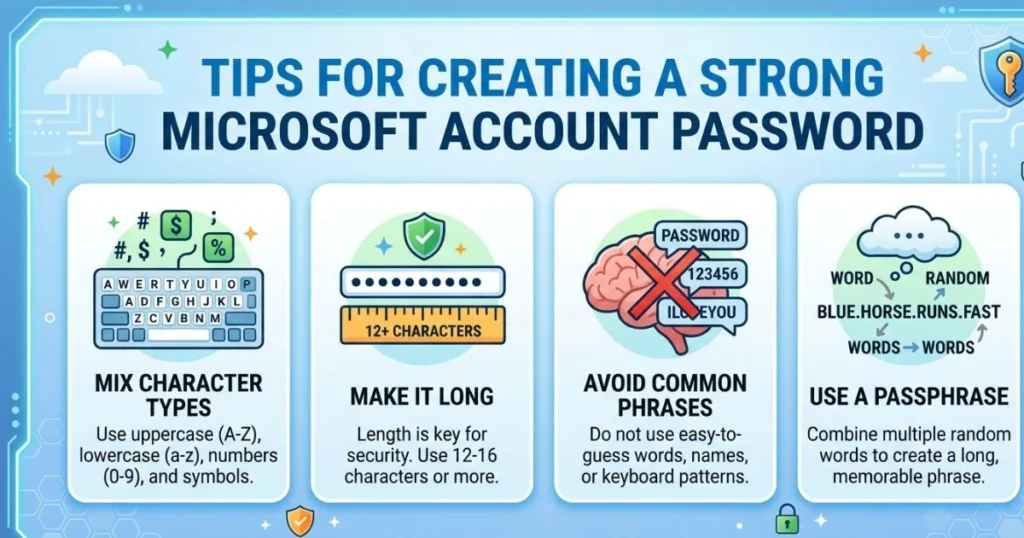
Changing your password only protects you if your new password is actually strong. Here’s what separates a genuinely secure password from one that’s easy to crack:
| Feature | Weak Password | Strong Password |
|---|---|---|
| Length | Less than 8 characters | 12+ characters |
| Character variety | Letters only | Uppercase + lowercase + numbers + symbols |
| Uniqueness | Reused across sites | Unique to this account only |
| Personal info | Contains your name or birthday | No personal identifiers |
| Example | john1990 | J@hn#90!Secure2X |
Beyond these basics, here are a few extra recommendations:
- Use a password manager like Bitwarden, LastPass, or Microsoft’s own built-in password manager in Edge. These tools generate and store complex passwords so you don’t have to remember them.
- Never reuse passwords across different services — if one site gets breached, attackers will try your credentials everywhere else.
- Enable two-factor authentication (2FA) immediately after updating your password. This means even if someone gets your password, they still can’t access your account without a second verification step.
- Avoid common patterns like “Password123! Avoid using common passwords or predictable keyboard patterns such as “qwerty,” as these are some of the first combinations targeted by automated attacks.
Troubleshooting Common Issues When Changing Your Password
Even with the best instructions, things don’t always go perfectly. Here are the most common problems users encounter and how to solve them.
“We Couldn’t Verify Your Identity” Error
This error usually appears when Microsoft can’t confirm your identity through the standard methods. Make sure your recovery email is accessible and your phone number is still active. If neither works, Microsoft offers an account recovery form at account.live.com/acsr where you can provide additional information to verify ownership.
Not Receiving the Verification Code
If the code isn’t arriving in your inbox or via SMS, try these steps:
- Check your spam or junk mail folder
- Make sure the phone number or email address shown is still one you have access to
- Wait a few minutes and request a new code
- Try a different verification method if available
Password Change Not Taking Effect on Linked Devices
After changing your password, you may need to manually sign in again on your phone, tablet, or other PCs. Simply open the Microsoft app or account settings on each device and sign in with your new credentials. This is normal behavior and a good security feature.
Account Temporarily Locked After Multiple Failed Attempts
If you’ve entered the wrong password too many times, Microsoft temporarily locks the account as a security measure. Wait 30 minutes before trying again, or use the password reset link to regain access immediately.
Conclusion
Your Microsoft account is one of the most important digital assets you own. Taking the time to change your Microsoft account password on Microsoft.com — whether through the account dashboard, the reset page, or Windows Settings — is a simple act with powerful consequences for your security.
Don’t treat your password as a set-and-forget detail. Make it a habit to update it every few months, pair it with two-factor authentication, and use a password manager to keep everything organized. A few minutes of proactive maintenance today can prevent hours of stressful account recovery tomorrow.
Your digital security starts with you — and it starts now.
FAQ — How to Change Your Microsoft Account Password on Microsoft.com
1. How often should I change my Microsoft account password? Security experts generally recommend changing your Microsoft account password every three to six months, or immediately if you suspect any unauthorized access. Even if nothing seems wrong, regular updates reduce the risk of your credentials being used from an old data breach.
2. Can I change my Microsoft account password without knowing the old one? Yes. If you’ve forgotten your current password, go to account.live.com/password/reset and follow the identity verification steps using your recovery email or phone number. Microsoft will guide you through creating a new password without needing the old one.
3. Will changing my Microsoft account password sign me out of all devices? Yes, in most cases changing your password will sign you out of other devices and apps connected to your Microsoft account. This is actually a useful security feature — it terminates any unauthorized active sessions. You’ll simply need to sign back in on your devices using your new password.
4. How do I change my Microsoft account password on a mobile device via Microsoft.com? Open a mobile browser, go to account.microsoft.com, and sign in. Navigate to Security → Password Security and follow the same steps as on a desktop. The process is identical, though the layout may appear slightly differently on a smaller screen.
5. What should I do if I don’t receive the password reset email from Microsoft.com? First, check your spam or junk folder. If it’s not there, make sure you’re entering the correct email address linked to your Microsoft account. You can also choose to receive the verification code by SMS instead. If the problem persists, use Microsoft’s account recovery form at account.live.com/acsr.
💬 Did this guide help you secure your account? Share it with a friend who might need it, or drop a comment below with your experience. If you found a step confusing or want more Windows security tips, let us know — we’d love to help!