How to Factory Reset MacBook Air Without Password (Step Guide)
Table of Contents
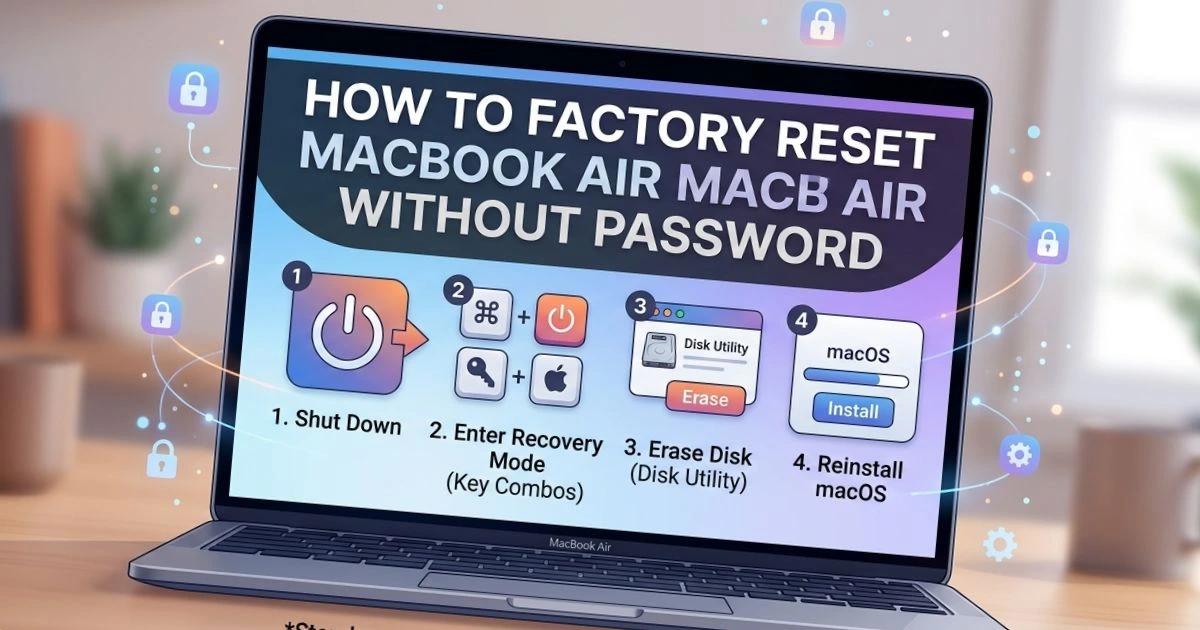
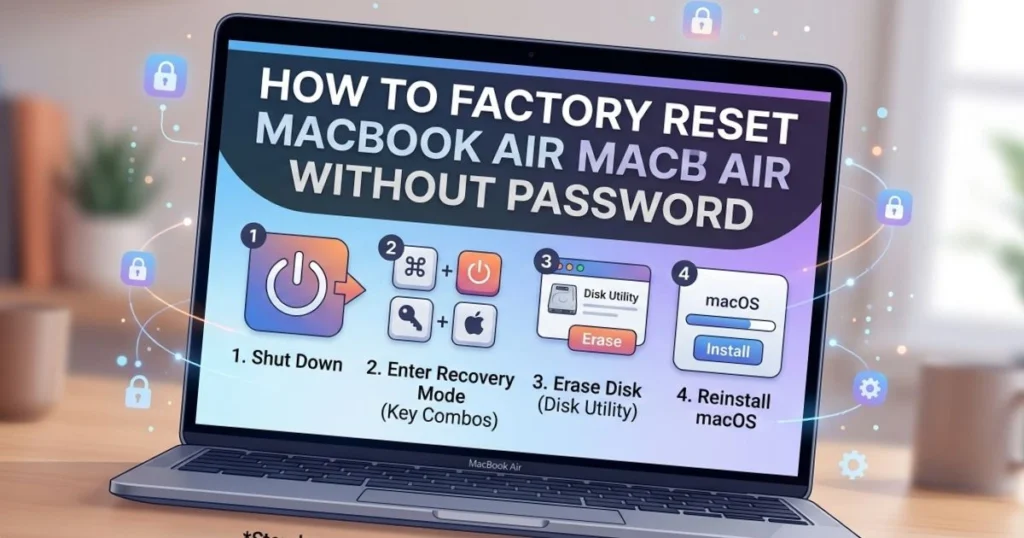
There’s a particular kind of frustration that hits when you’re staring at your MacBook Air login screen with zero idea what the password is. Maybe you haven’t used the laptop in months, maybe you bought it second-hand, or maybe you simply need to wipe it clean and start fresh. Whatever brought you here, the good news is this: you absolutely can factory reset MacBook Air without password, and it’s more straightforward than you might think. This guide walks you through every method — for both Apple Silicon and Intel models — so you can get that Mac wiped and ready without the stress.
Without Password
Before diving into the steps, it helps to understand the common situations where this becomes necessary:
- Forgotten login password — happens more often than anyone admits, especially after a long break from using the Mac
- Inherited or gifted MacBook Air — the previous owner may not have wiped it properly
- Purchased a second-hand MacBook Air — you need a clean slate that’s genuinely yours
- Persistent software issues — some deep system problems only respond to a full factory reset
- Preparing the Mac for sale — you want to erase all personal data before handing it off
One important note: only perform a factory reset on a device you legally own. This guide is intended for legitimate use cases. Attempting to reset a Mac you don’t own may violate laws in your jurisdiction.
What to Know Before You Factory Reset MacBook Air Without Password
Understanding a few key concepts will save you time and prevent unpleasant surprises.
Factory reset vs. Reinstalling macOS: A factory reset erases all data and reinstalls a fresh copy of macOS. Reinstalling macOS alone keeps your files intact. This guide focuses on the full erase-and-reinstall process.
Activation Lock — the most important thing to know: If the previous owner’s Apple ID is still linked to the device via iCloud, Activation Lock will remain even after a full erase. The Mac will ask for that Apple ID during setup. If you can’t provide it, the device is essentially locked to that account.
| Scenario | Can You Reset? | Notes |
|---|---|---|
| Forgot your own login password | ✅ Yes | Use Recovery Mode |
| Forgot your own Apple ID | ⚠️ Partial | Contact Apple Support with proof of purchase |
| Second-hand Mac, previous owner’s Apple ID active | ❌ Limited | Previous owner must remove from iCloud.com |
| Your device, you know your Apple ID | ✅ Full reset | Smooth process |
How to Factory Reset MacBook Air Without Password — Apple Silicon (M1, M2, M3)
Apple Silicon Macs use a completely redesigned startup process that makes entering Recovery Mode simpler than ever.
Step 1 — Enter Recovery Mode on Apple Silicon
- Shut down your MacBook Air completely (hold the Power button if needed)
- Press and hold the Power button — don’t tap it, hold it
- Keep holding until you see the message “Loading startup options”
- Click Options, then click Continue
- You’re now in macOS Recovery
Step 2 — Erase the Drive Using Disk Utility
- From the Recovery menu, select Disk Utility and click Continue
- In the Disk Utility sidebar, select Macintosh HD (the main drive)
- Select the Erase button at the top of the window.
- Set the Format to APFS
- Click Erase Volume Group to confirm
- Wait for the process to complete, then close Disk Utility
Step 3 — Reinstall macOS
- Back in the Recovery menu, select Reinstall macOS
- Click Continue and follow the on-screen prompts
- Connect to Wi-Fi when prompted — the installer downloads macOS from Apple’s servers
- Wait for the installation to complete (typically 20–45 minutes depending on your internet speed)
- Your Mac will restart and present the macOS setup assistant as if it’s brand new
How to Factory Reset MacBook Air Without Password — Intel Mac
For Intel-based MacBook Airs (models from 2017 and earlier with macOS), the process differs slightly at the startup stage.
Enter Recovery Mode on Intel MacBook Air
- Restart your MacBook Air (or power it on from off)
- Immediately hold Command + R as soon as the screen goes black
- Let go of the keys once the Apple logo or a spinning globe appears on the screen.
- Select your language when prompted
Erase and Reinstall macOS on Intel Mac
- Choose Disk Utility from the macOS Utilities menu.
- Choose Macintosh HD from the sidebar
- Select Mac OS Extended (Journaled) as the format, then click Erase.
- Click Erase to confirm and wait for completion
- Close Disk Utility, return to the Utilities menu
- Select Reinstall macOS and follow the prompts
- Connect to Wi-Fi to download the macOS installer
How to Remove Activation Lock After Factory Reset
If you’ve completed the factory reset but the Mac asks for an Apple ID you don’t know, Activation Lock is the culprit. Here’s how to address it:
- If you’re the original owner: Go to icloud.com on another device, sign in, navigate to Find My > All Devices, select the Mac, and click “Remove from Account”
- If you bought it second-hand: Contact the seller and ask them to remove the device from their iCloud account remotely at icloud.com
- If the seller is unreachable: Contact Apple Support directly and provide proof of purchase. Apple can verify ownership and assist with Activation Lock removal in legitimate cases
- What won’t work: No software tool, third-party service, or hack reliably removes Activation Lock. Avoid any website claiming to do this for a fee — they are scams.
Factory Reset MacBook Air Without Password Using Terminal
For advanced users in Recovery Mode, Terminal offers a direct erase command:
- In Recovery Mode, open Utilities > Terminal
- Type:
diskutil eraseDisk APFS "Macintosh HD" /dev/disk0 - Press Enter and wait until the process finishes.
Caution: The disk identifier (/dev/disk0) may differ on your system. First run diskutil list to identify the correct disk before erasing. This method is powerful — there’s no undo button.
After the Factory Reset — First Steps
Once macOS is freshly installed, here’s what to do immediately:
- Create your Apple ID or sign into your existing one
- Run Software Update — go to System Settings > General > Software Update and install all available updates
- Restore from Time Machine if you have a backup — the setup assistant offers this option during initial configuration
- Reinstall your essential apps from the Mac App Store or official websites
- Enable FileVault (System Settings > Privacy & Security > FileVault) to encrypt your data going forward
Conclusion
Factory resetting your MacBook Air without a password is entirely possible, whether you’re on an Apple Silicon M-series chip or an older Intel model. The key is entering Recovery Mode correctly for your specific Mac, erasing the drive through Disk Utility, and reinstalling macOS cleanly. Just remember that Activation Lock is a separate layer — handle it before or after the reset with legitimate channels. You now have everything you need to reclaim, refresh, or responsibly pass on your MacBook Air.
FAQ: How to Factory Reset MacBook Air Without Password
1. Can I factory reset MacBook Air without knowing the Apple ID? You can erase and reinstall macOS without the login password, but if Activation Lock is enabled with a linked Apple ID, the Mac will require that Apple ID during setup. You’ll need the original owner to remove it from iCloud, or contact Apple Support with proof of purchase.
2. Will factory resetting MacBook Air without a password delete everything? Yes. The process erases all files, apps, accounts, and settings on the drive. The Mac will be exactly as it was when it left the factory, with a fresh macOS installation.
3. How to factory reset MacBook Air without password if it’s locked? Enter Recovery Mode — hold the Power button (Apple Silicon) or Command + R at startup (Intel). From there, use Disk Utility to erase the drive and reinstall macOS without needing the login password.
4. Does a factory reset remove Activation Lock on MacBook Air? No. Activation Lock is tied to the Apple ID account, not the data on the device. Erasing the Mac does not remove Activation Lock. It must be removed through iCloud by the account holder or via Apple Support.
5. How long does it take to factory reset a MacBook Air without a password? The Disk Utility erase takes just a few minutes. Reinstalling macOS typically takes 20–45 minutes depending on your internet connection speed, since macOS is downloaded fresh from Apple’s servers.
💬 Was this guide helpful? If you successfully reset your MacBook Air using these steps, share this article with someone who might be in the same situation. Have a question about your specific model? Drop it in the comments — we’re happy to help!