How to Play Clash Royale on PC (Step-by-Step Guide)
Table of Contents
You’re mid-battle. Elixir is maxed out. Your opponent just dropped a Golem at the back and you have the perfect counter ready — then your phone screen freezes. Or worse, your battery hits 2% and the screen goes dark.
If that scenario sounds painfully familiar, you’re not alone. Millions of Clash Royale players hit the same wall every single day. Mobile gaming is convenient, sure — but it comes with real limits: small screens, overheating devices, interrupted sessions, and the constant anxiety of battery life.
Here’s the good news: you don’t have to put up with any of that anymore.
Playing Clash Royale on PC changes the game — literally. Bigger screen, precise mouse control, no battery worries, and a level of comfort that your phone simply cannot match. Whether you’re a casual player who just wants a smoother experience, or a competitive grinder pushing for a top ladder finish, the PC setup gives you a genuine edge.
This guide walks you through everything — from choosing the right emulator to syncing your account and dominating battles with PC-level precision. Let’s get into it.
Why Play Clash Royale on PC?
Before jumping into the technical steps, it’s worth understanding why so many players are making this switch — and why you should seriously consider it too.
A bigger screen changes your awareness. On a phone, the arena feels cramped. On a PC monitor, you see everything clearly — troop movements, elixir counts, tower health — all without squinting or accidentally tapping the wrong card.
Mouse precision is a genuine competitive advantage. Touchscreens are great for casual play, but when it comes to precise card placement — dropping a Fireball exactly on a cluster of Minions, or placing a building just inside tower range — a mouse gives you accuracy that fingers simply can’t match.
No more battery anxiety. Your PC is plugged in. Your session runs as long as you want. No overheating, no 10% battery warnings, no interrupted ranked battles because your phone needed charging.
Multitasking becomes effortless. You can have Discord open on the side, watch a pro player stream, browse deck-building guides, and play — all on the same screen.
It’s completely free. The software you need costs nothing. Your existing Clash Royale account transfers over perfectly. You’re not paying for anything extra.
For streamers and content creators, the PC setup is practically essential — screen recording, commentary, and live streaming are all dramatically easier when you’re already on a computer.
What You Need Before You Start
Getting set up doesn’t require anything fancy. Here’s what you need to have ready before installing anything:
- A Windows PC (Windows 7 or higher) or a Mac (macOS 10.12 or higher)
- A reliable internet connection — at least 5 Mbps for smooth gameplay
- A Google account to access the Play Store inside your emulator
- Your Supercell ID login details to restore your existing progress
- About 15–20 minutes of free time for the initial setup
That’s genuinely it. No special hardware, no paid subscriptions, no technical background required.
Here’s a quick breakdown of what your PC should ideally have:
| Requirement | Minimum Spec | Recommended Spec |
|---|---|---|
| Operating System | Windows 7 / macOS 10.12 | Windows 10/11 / macOS 12+ |
| RAM | 4 GB | 8 GB or more |
| Storage Space | 10 GB free | 20 GB free |
| Processor | Dual-core 2.0 GHz | Quad-core 2.5 GHz+ |
| Graphics | DirectX 11 compatible | Dedicated GPU recommended |
| Internet Speed | 3 Mbps | 10 Mbps or faster |
If your machine meets the minimum specs, you’ll be fine for Clash Royale. The game itself isn’t graphically demanding — it was designed for mobile hardware, after all.
Best Android Emulators to Play Clash Royale on PC
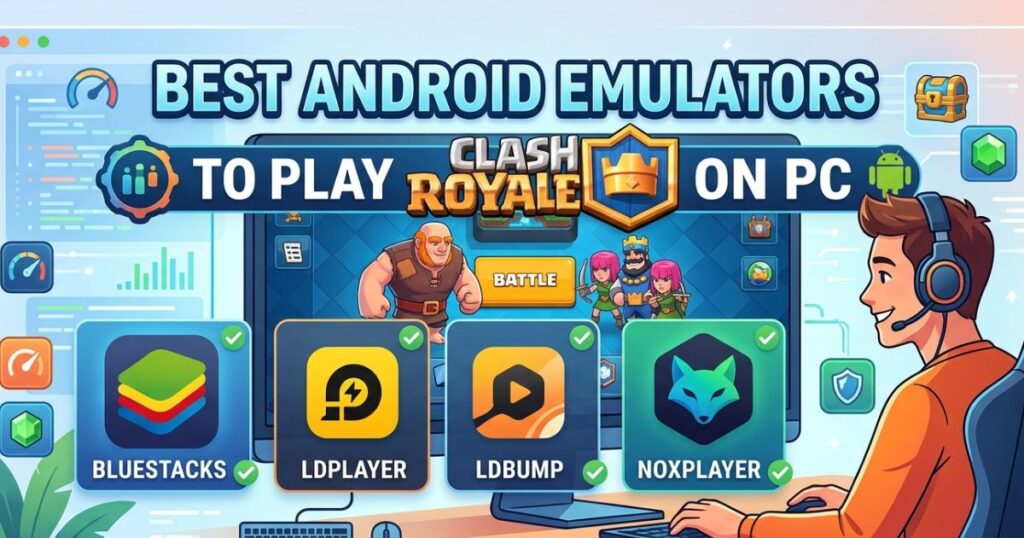
An Android emulator is software that mimics an Android device on your computer. It lets you run mobile apps — including Clash Royale — directly on your PC, just as if you were holding a phone in your hands.
There are several solid options available in 2026. Here’s what each one brings to the table:
BlueStacks — The Top Choice for Most Players
BlueStacks is the most widely used Android emulator in the world, and for good reason. It’s consistently updated, highly stable, and offers a dedicated keymapping tool that makes playing Clash Royale feel natural with a mouse and keyboard.
For beginners, BlueStacks is the obvious starting point. The interface is clean, the installation is straightforward, and the performance on mid-range PCs is genuinely impressive. It also has a built-in “Eco Mode” that reduces CPU usage when you’re not actively playing — a thoughtful touch if you like to keep sessions running in the background.
LDPlayer — Best for Lower-End PCs
If your machine is on the older side, LDPlayer is worth your attention. It runs lighter than BlueStacks while still delivering reliable performance. Updates come regularly, and the interface is simple enough that you won’t spend time figuring out where things are.
LDPlayer also supports multiple instances, meaning you could technically run two Clash Royale accounts simultaneously — useful if you manage clan accounts or want to test different decks side by side.
NoxPlayer — Good Customization, Slightly Dated Feel
NoxPlayer has been around for years and has a loyal following. Its customization options are broader than most competitors, and it handles emulation solidly. The interface feels a bit older compared to BlueStacks, but functionality-wise it holds up well for Clash Royale.
GameLoop — Tencent’s Official Gaming Emulator
GameLoop was built specifically for mobile gaming, and while it’s more commonly associated with titles like PUBG Mobile, it handles Clash Royale without issues. The UI is clean and gaming-focused, making it a reasonable alternative if BlueStacks doesn’t suit your setup.
Bottom line: Start with BlueStacks. It’s the most tested, most supported, and most optimized option for Clash Royale in 2026. If you run into performance issues, switch to LDPlayer.
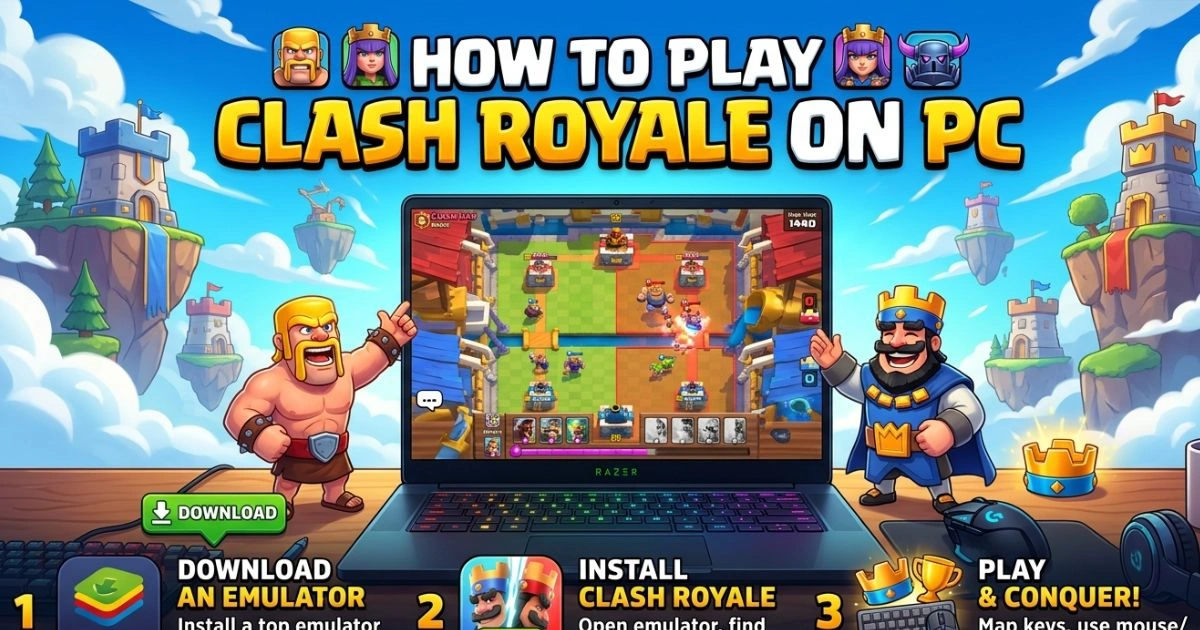
Step-by-Step Guide: How to Install and Play Clash Royale on PC
Here’s exactly how to go from zero to playing your first battle on PC — no steps skipped.
Step 1 — Download and Install BlueStacks
Head to the official BlueStacks website at bluestacks.com. Always download from the official source to avoid modified or bundled versions from third-party sites.
Click the “Download BlueStacks” button. The installer file will be around 500 MB to 1 GB depending on the version. Once downloaded:
- Open the installer file (.exe on Windows, .dmg on Mac)
- Click through the installation prompts
- Allow any permissions the installer requests
- Wait for the installation to complete — this usually takes between 5 and 10 minutes
- Launch BlueStacks once installation finishes
Step 2 — Sign In with Your Google Account
When BlueStacks opens for the first time, it will guide you through an initial setup process. The key step here is signing into the Google Play Store.
- Click on the Play Store icon within BlueStacks
- Sign in with your existing Google account
- If you don’t have one, create a free Google account at accounts.google.com first
Important: If you already play Clash Royale on Android, use the same Google account that’s linked to your game data. This will help during the account recovery process.
Step 3 — Download Clash Royale from the Play Store
Once you’re signed into Google Play:
- Open the Play Store inside BlueStacks
- Type “Clash Royale” into the search bar
- Select the official game by Supercell
- Click “Install”
- Wait for the download and installation to complete
- Open the game from BlueStacks’ home screen or app drawer
The game files are roughly 150–300 MB. Download time will depend on your internet speed.
Step 4 — Log In and Restore Your Account
When Clash Royale launches for the first time on your PC, you’ll see the standard intro screen. Here’s where your Supercell ID becomes essential.
- Tap the settings icon (gear symbol) in the top right corner
- Select “Supercell ID”
- Log in using your email and password
- Your account — including all cards, trophies, chests, and clan membership — will load automatically
If you’ve never used a Supercell ID before, this is the moment to create one. Go to Settings inside Clash Royale on your phone, tap Supercell ID, and register with your email. Once that’s done, you can log in anywhere.
Step 5 — Set Up Your Controls
This is where the PC experience starts to feel truly different. BlueStacks includes a Keymapping Tool that lets you assign keyboard keys and mouse actions to in-game functions.
To access it:
- Click the keyboard icon on the right-side toolbar in BlueStacks
- Drag and assign controls onto the game screen
- Assign your most-used cards to number keys (1, 2, 3, 4)
- Set mouse click as the primary card placement action
Additionally, go into BlueStacks settings and:
- Set the performance mode to “High Performance”
- Allocate at least 4 GB of RAM to BlueStacks
- Set the display resolution to 1920×1080 for full HD gameplay
Inside Clash Royale’s own settings, set graphics to High and frame rate to 60 FPS — your PC can handle it easily.
Step 6 — Jump Into Battle
You’re ready. Open Clash Royale, select your deck, and hit “Battle.”
You’ll immediately notice the difference. Cards snap precisely where your cursor points. Spells land exactly where you intend them. The arena fills your screen. Your elixir counter is clearly visible. And there’s no smudged fingerprint blocking your view of an incoming Hog Rider.
Welcome to Clash Royale on PC.
Tips and Tricks for Playing Clash Royale on PC Like a Pro
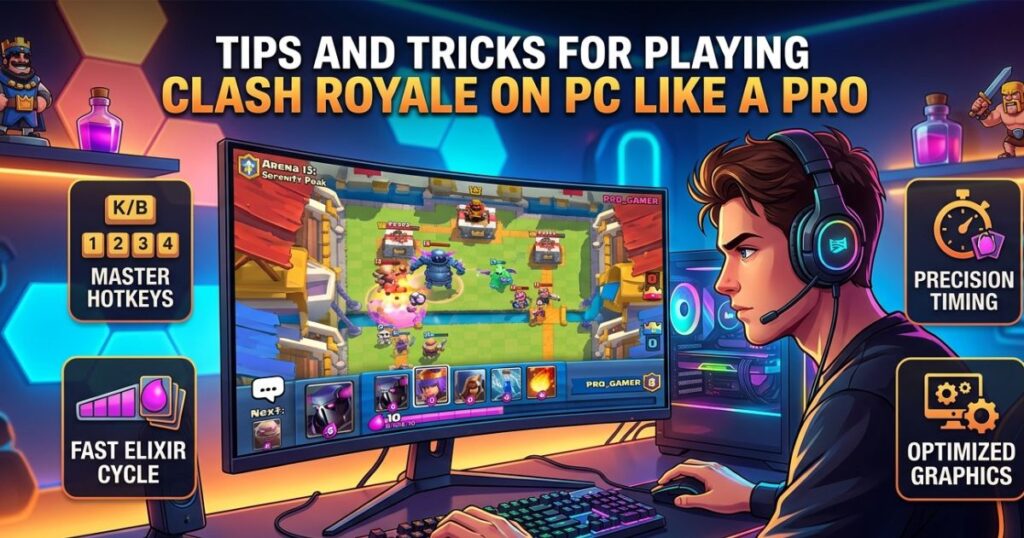
Getting the setup right is only half the story. Here’s how to actually use the PC advantage to improve your gameplay.
Use Mouse Precision to Win Spell Battles
One of the biggest skill gaps in Clash Royale is spell accuracy. Dropping a Fireball or Poison a fraction too far left means you miss key troops. With a mouse, your targeting becomes almost surgical. Practice hovering your cursor before committing to a spell — you’ll land hits that mobile players simply cannot replicate consistently.
Build a Hotkey Habit
Map your four cards to keys 1 through 4. In the early stages it feels unnatural, but within a few sessions it becomes second nature. The speed advantage is real — keyboard input is faster than clicking cards individually at the bottom of the screen.
Optimize BlueStacks for Zero Lag
If you notice any stuttering:
- Open Task Manager and close unnecessary background programs
- In BlueStacks settings, increase the CPU allocation to 4 cores if your processor supports it
- Make sure virtualization is enabled in your PC’s BIOS — this single setting makes the biggest difference in emulator performance
- Keep your graphics drivers updated
Choose Decks That Benefit from PC Controls
Not every deck gets the same boost from PC play, but these archetypes gain the most:
- Cycle decks — fast card rotation is even faster with keyboard shortcuts
- Spell-heavy decks — Goblin Barrel, Rocket, Poison, and Fireball all benefit from precise mouse targeting
- Bridge spam — quick multi-lane pressure is easier to manage on a big screen where you can see both lanes clearly at once
How to Sync Your Mobile and PC Progress
One concern many players have is losing their account progress when switching platforms. Here’s the reassurance you need: Supercell ID makes cross-platform play seamless.
Everything tied to your Supercell ID — your cards, gold, gems, trophies, clan, chest slots, and purchase history — syncs automatically across every device you log into.
Here’s how the sync works across different platforms:
| Platform | Supercell ID Sync | Google Play Sync | Apple Game Center |
|---|---|---|---|
| Android Mobile | ✅ Full Sync | ✅ Yes | ❌ No |
| iOS Mobile | ✅ Full Sync | ❌ No | ✅ Yes |
| PC via BlueStacks | ✅ Full Sync | ✅ Yes | ❌ No |
| PC via LDPlayer | ✅ Full Sync | ✅ Yes | ❌ No |
| PC via NoxPlayer | ✅ Full Sync | ✅ Yes | ❌ No |
One important note: you cannot be actively playing on two devices at the same time. If you log in on PC while a session is open on your phone, the phone session will be closed. This is expected behavior and not a bug.
Common Problems and How to Fix Them
Even with a smooth setup, you might run into occasional hiccups. Here are the most common issues Clash Royale PC players face — and exactly how to fix them.
Clash Royale Won’t Open or Crashes on Launch
- Make sure BlueStacks is updated to the latest version
- Uninstall and reinstall Clash Royale inside BlueStacks
- Check that virtualization is enabled in your BIOS settings (this is the most common cause of crashes)
- Temporarily disable your antivirus — some programs flag emulators incorrectly
Game is Lagging or Running Slowly
- Reduce BlueStacks’ display resolution temporarily
- Lower in-game graphics settings to Medium
- Check your internet connection — run a speed test at fast.com
- Close all browser tabs, streaming apps, and heavy background processes
- Restart BlueStacks and relaunch the game
Account Progress Not Appearing
- Double-check that you’re using the correct Supercell ID email
- Log out of Supercell ID inside the game and log back in
- Make sure the Google account in BlueStacks matches the one linked to your game
BlueStacks Running Slow on First Launch
The first launch is always the heaviest. BlueStacks downloads Android system files and configures your virtual device. Give it 10–15 minutes to complete the initial setup before judging performance. Subsequent launches are significantly faster.
Is Playing Clash Royale on PC Allowed?
That’s a reasonable question, and you deserve a clear answer.
Supercell does not provide an official PC client for Clash Royale. However, as of 2026, using an Android emulator to play Clash Royale is not explicitly banned in Supercell’s Terms of Service.
There have been no widespread reports of players being banned purely for using emulators. The risk comes not from the emulator itself, but from how you use it. Specifically:
- Using bots or automation macros to play for you — this is a bannable offense
- Exploiting bugs discovered through emulator-specific behavior
- Running multiple accounts for competitive manipulation
As long as you’re simply playing the game yourself — just on a bigger screen with a mouse — you’re operating within the spirit of fair play. Use the emulator as a convenience tool, not a cheating tool, and you have nothing to worry about.
Conclusion
Playing Clash Royale on PC isn’t complicated, and it doesn’t cost anything extra. With the right emulator, a Google account, and your Supercell ID, you can have a full HD Clash Royale session running on your computer in under 20 minutes.
Let’s recap the path you’ve just walked through:
- Choose your emulator — BlueStacks is the strongest all-around choice
- Install it from the official website and complete the setup
- Log into the emulator using your Google account
- Download Clash Royale from the Play Store
- Log in with your Supercell ID to restore all your progress
- Configure your controls — keyboard shortcuts and mouse mapping
- Play — and feel the immediate difference
The bigger screen shows you more. The mouse gives you precision your thumbs never could. The stable connection keeps you in battles without interruption. And the freedom from battery anxiety alone makes the whole setup worthwhile.
You’ve already put time and effort into building your deck, climbing the trophy ladder, and mastering your playstyle. Your PC setup simply gives all of that hard work the platform it deserves.
Now go drop that Fireball exactly where you intended — and watch it land perfectly.
Found this guide useful? Share it with your clanmates who are still squinting at a 6-inch screen. Got a question about your specific setup or running into an issue not covered here? Drop it in the comments — every question gets answered.
FAQ — How to Play Clash Royale on PC
Can I play Clash Royale on PC for free?
Absolutely. The emulators used to play Clash Royale on PC — including BlueStacks, LDPlayer, and NoxPlayer — are all free to download and use. Clash Royale itself is free-to-play, just as it is on mobile. You won’t pay a single cent extra to move your gameplay to PC.
How can you play Clash Royale on a PC without using an emulator?
There is currently no official desktop version of Clash Royale. Your best emulator-free option is Now.gg, a cloud gaming platform that lets you play Clash Royale directly in your browser without downloading anything. Performance depends on your internet speed, but it works surprisingly well for casual sessions.
How to play Clash Royale on PC with BlueStacks?
Download BlueStacks from bluestacks.com, install it, sign in with your Google account, search for Clash Royale in the Play Store, install the game, then log in with your Supercell ID. The full step-by-step process is covered in detail in the guide above.
Will I lose my progress when I switch from mobile to PC?
No — not if you use Supercell ID. Your entire account, including cards, trophies, gold, gems, clan membership, and purchase history, is stored on Supercell’s servers and tied to your Supercell ID. Log in on any device with that same ID and your progress will be there waiting for you.
Is playing Clash Royale on a PC against the rules?
Using an emulator to play Clash Royale on PC is not explicitly prohibited by Supercell’s Terms of Service. No ban waves have targeted emulator users. What is against the rules — and can lead to a permanent ban — is using automation software, bots, or macros to play on your behalf.
What is the best emulator for Clash Royale on PC in 2026?
BlueStacks remains the top recommendation in 2026 for its performance consistency, regular updates, and user-friendly keymapping tools. For older or lower-spec PCs, LDPlayer is a strong alternative that runs lighter without sacrificing core functionality.
Can PC players match against mobile players in Clash Royale?
Yes. Clash Royale’s matchmaking system does not differentiate between PC and mobile players. When you queue for a battle on PC, you’re entering the same global player pool. This means you’ll face — and beat — mobile players while enjoying the precision advantage that your PC setup provides.