
How to Delete a Directory in Linux – Safe and Quick Methods
Table of Contents
You’re staring at your terminal. There’s a directory sitting there — bloated, outdated, completely useless — and all you want is for it to disappear. Simple enough, right? Except Linux doesn’t hold your hand. It doesn’t ask “are you sure?” by default. It just… does what you tell it to. And that’s exactly what makes it powerful — and exactly what makes a wrong command so costly.
Maybe you’re new to Linux and the terminal still feels like a foreign language. Maybe you’ve been using it for years but always second-guess yourself before hitting Enter on a deletion command. Either way, you’ve landed in the right place. By the time you finish reading this, you’ll know every reliable method to delete a directory in Linux — safely, quickly, and with the kind of confidence that only comes from truly understanding what you’re doing.
Let’s get into it.
Why Deleting Directories in Linux Requires Care
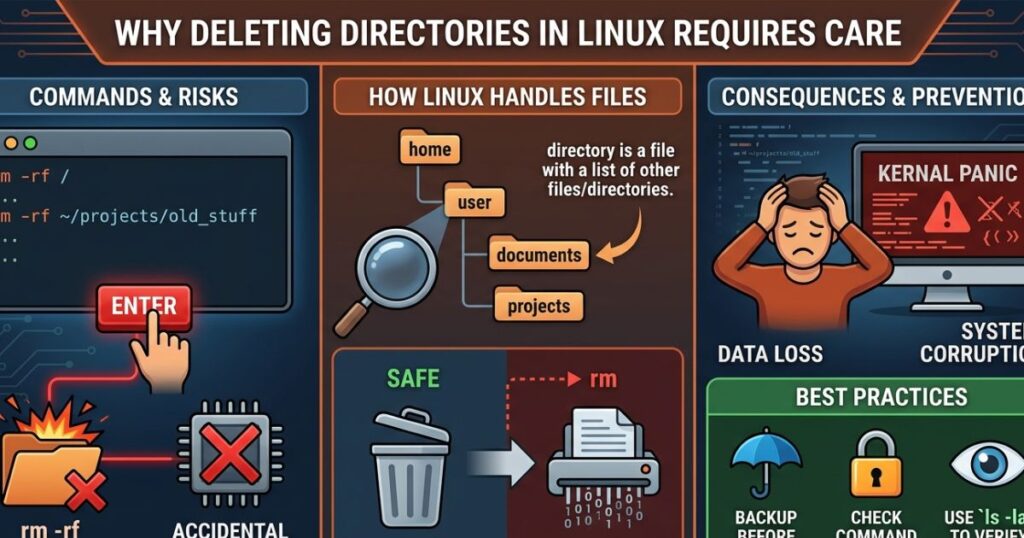
Linux is not Windows. There’s no Recycle Bin waiting to catch your mistakes. When you delete something in the terminal, it’s gone — not tucked away somewhere recoverable with a right-click. That’s the trade-off you accept when you work in an environment built for power and precision.
The stakes get even higher when you consider that Linux gives every user — especially the root user — near-total authority over the file system. One misplaced / in a command path, one accidental space, and you could be targeting an entirely different directory than the one you intended.
This isn’t meant to scare you. It’s meant to sharpen you. Because once you understand the mechanics behind directory deletion, you’ll work faster and cleaner than most people who’ve been using Linux for years.
Understanding Linux Directory Structure Before You Delete
What Is a Directory in Linux?
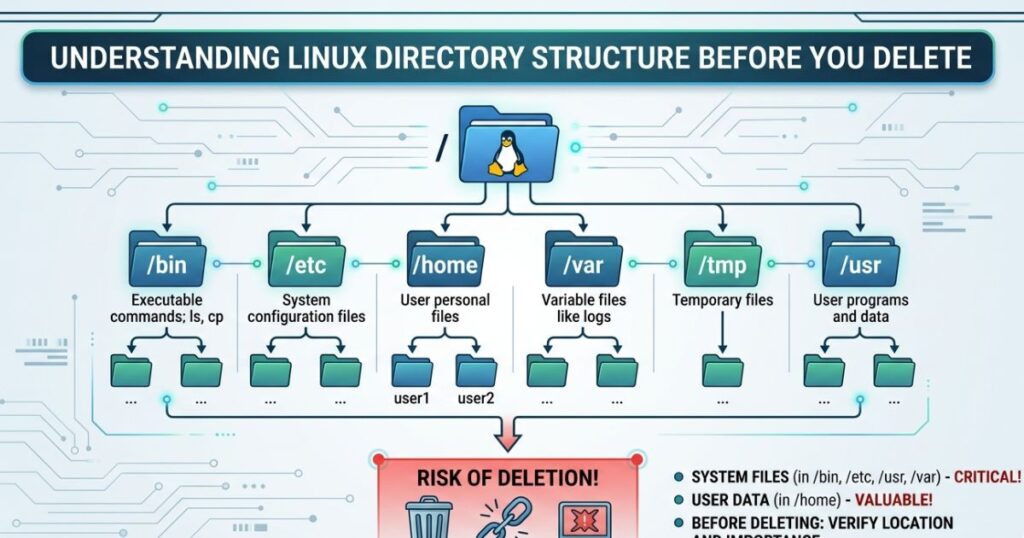
In Linux, a directory is essentially a container — it holds files, other directories, or both. Unlike Windows, Linux treats nearly everything as a file, including directories themselves. This unified structure is elegant, but it also means you need to be precise about what you’re targeting before you run any deletion command.
Every directory has a path. That path can be absolute (starting from the root /, like /home/username/projects) or relative (based on where you currently are in the file system, like ./projects). Knowing the difference — and always confirming which one you’re using — is your first line of defense against accidents.
Types of Directories You May Want to Delete
Before you run any command, it helps to know what kind of directory you’re dealing with:
- Empty directories — contain no files or subdirectories
- Non-empty directories — contain files, folders, or both
- Hidden directories — their names start with a dot (
.cache,.config) and don’t appear in a standardlslisting - User directories — created by you, safe to remove
- System directories — created by Linux itself, never delete these
Directories You Should NEVER Delete
This one deserves its own table. Memorize it, bookmark it, tattoo it on your forearm if needed:
| Directory | Purpose | What Happens If Deleted |
|---|---|---|
/etc | System configuration files | System fails to boot or configure |
/bin | Core binary executables | Basic commands stop working |
/home | All user personal data | Every user loses their files |
/var | Logs, mail, and runtime data | Services and apps crash |
/usr | Installed programs and libraries | Software becomes unusable |
/root | Root user’s home directory | Administrative access breaks |
If a directory isn’t yours — if you didn’t create it and it sits outside your home folder — leave it alone unless you know with absolute certainty what it does.
Prerequisites Before You Delete a Directory in Linux
A few quick checks before you touch anything:
1. Confirm your current location
pwdThis prints your working directory. Know where you are before you delete anything near you.
2. List directory contents
ls -laThe -la flags show all files (including hidden ones) with detailed permissions. See what’s inside before you wipe it out.
3. Verify who you are
whoamiIf the output says root, be extra careful. Root can delete anything — including things that will break your system.
4. Check permissions
ls -ld /path/to/directoryThis tells you whether you actually have write access to the directory you want to remove.
5. Back up anything important
cp -r /path/to/directory /path/to/backup/locationIf there’s even a 1% chance something in that directory matters, copy it somewhere safe first.
How to Delete a Directory in Linux – All Methods Explained
Here’s where you get the full toolkit. Every method below has its place — your job is to pick the right one for the right situation.
Method 1 – Using rmdir (For Empty Directories Only)
If you’re dealing with an empty directory and you want the safest possible command, rmdir is your go-to. It will only delete a directory if it contains absolutely nothing. If there’s even one file inside, it refuses and throws an error. That’s not a flaw — that’s a feature.
Basic syntax:
rmdir directory_nameExample:
rmdir /home/user/oldfolderRemove nested empty parent directories at once:
rmdir -p /home/user/projects/oldproject/emptyfolderThe -p flag removes the specified directory and any empty parent directories along the path. Think of it as cleaning up a chain of empty containers.
When to use it: You just created a directory by mistake, or you’ve already cleared out the contents manually and want a clean, safe removal.
Method 2 – Using rm -r (For Non-Empty Directories)
This is the workhorse of directory deletion. The -r flag stands for recursive, meaning the command dives into the directory, removes everything inside it — files, subdirectories, nested subdirectories — and then removes the directory itself.
Basic syntax:
rm -r directory_nameExample:
rm -r /home/user/projectfolderAdd interactive confirmation with -i:
rm -ri /home/user/projectfolderThe -i flag makes Linux ask you to confirm each deletion. It’s slower, but if you’re not 100% certain about the contents, this gives you a chance to review before committing.
When to use it: You have a directory with files inside and you’ve confirmed it’s safe to remove. This is your everyday, general-purpose deletion command.
Method 3 – Using rm -rf (Force Delete, No Confirmation)
This is the most powerful deletion command in Linux. It combines recursive removal (-r) with forced execution (-f), which means it skips every warning, every prompt, and every error message — and it deletes everything in its path without hesitation.
Basic syntax:
rm -rf directory_nameExample:
rm -rf /home/user/oldprojectUsed correctly, it’s incredibly efficient. Used carelessly, it’s the stuff of sysadmin nightmares.
Safety Tips When Using rm -rf
This command deserves its own set of rules:
- Always verify your path first. Run
ls /path/to/parentto confirm the directory exists exactly where you think it does. - Use echo to preview. Before executing, run
echo rm -rf foldername— it prints the command without running it. - Never add a trailing space before
/. The difference betweenrm -rf myfolder /andrm -rf myfolder/is the difference between deleting one folder and attempting to wipe your entire system. - Use
--preserve-root. This flag prevents the command from ever targeting the root directory:
rm -rf --preserve-root /home/user/junkfolder- Avoid running as root unless necessary. If your regular user account owns the directory, you don’t need
sudo. The moment you addsudo rm -rf, you’ve elevated the risk significantly.
When to use it: Clearing out large project directories, removing cached data, wiping test environments, or any situation where you’ve triple-checked the path and need speed.
Method 4 – Using find + rm (Targeted Deletion)
Sometimes you don’t want to delete just one directory — you want to remove all directories matching a specific name or pattern across your file system. That’s where combining find with rm becomes genuinely powerful.
Basic syntax:
find /path -type d -name "foldername" -exec rm -rf {} +Example — delete all directories named “cache” inside your home folder:
find /home/user -type d -name "cache" -exec rm -rf {} +Limit search depth to avoid going too deep:
find /home/user -maxdepth 2 -type d -name "tmp" -exec rm -rf {} +When to use it: Cleanup scripts, removing build artifacts across multiple project directories, or any situation where you need pattern-based deletion at scale.
Method 5 – Using a File Manager GUI (For Desktop Linux Users)
Not everyone lives in the terminal, and there’s no shame in that. If you’re running a desktop environment, your file manager handles directory deletion with a familiar point-and-click interface.
- GNOME: Nautilus file manager → right-click → Move to Trash or Delete Permanently
- KDE: Dolphin → right-click → Move to Trash or Delete
- XFCE: Thunar → right-click → Move to Trash
Most GUI managers send deleted items to a Trash folder first, giving you a recovery window — something the terminal never offers by default.
Limitation: GUI managers don’t handle bulk or pattern-based deletion well, and they can’t run inside headless server environments. For anything beyond basic desktop file management, the terminal methods are faster and more flexible.
Method 6 – Deleting Hidden Directories
Hidden directories — the ones whose names begin with a dot — won’t show up when you run a plain ls. You need ls -la to see them. Once you can see them, deleting them works exactly the same way as any other directory.
View hidden directories:
ls -la /home/userDelete a hidden directory:
rm -r /home/user/.oldconfigForce delete a hidden directory:
rm -rf /home/user/.cacheWhen to use it: Clearing old application config folders, removing leftover dotfiles from uninstalled software, or cleaning up your home directory. Just be careful — many hidden directories store active configuration data for apps you’re still using.
Quick Comparison Table – Linux Directory Deletion Methods
| Method | Command | Empty Dir | Non-Empty Dir | Safety Level |
|---|---|---|---|---|
| rmdir | rmdir | ✅ | ❌ | ⭐⭐⭐⭐⭐ Very Safe |
| Recursive rm | rm -r | ✅ | ✅ | ⭐⭐⭐ Moderate |
| Force Delete | rm -rf | ✅ | ✅ | ⭐ Use with Caution |
| find + rm | find + rm -rf | ✅ | ✅ | ⭐⭐ Advanced |
| GUI Manager | Point & Click | ✅ | ✅ | ⭐⭐⭐⭐⭐ Very Safe |
| Hidden Dirs | rm -r .folder | ✅ | ✅ | ⭐⭐ Be Careful |
How to Recover a Deleted Directory in Linux (Just in Case)
Can You Undo a Directory Deletion in Linux?
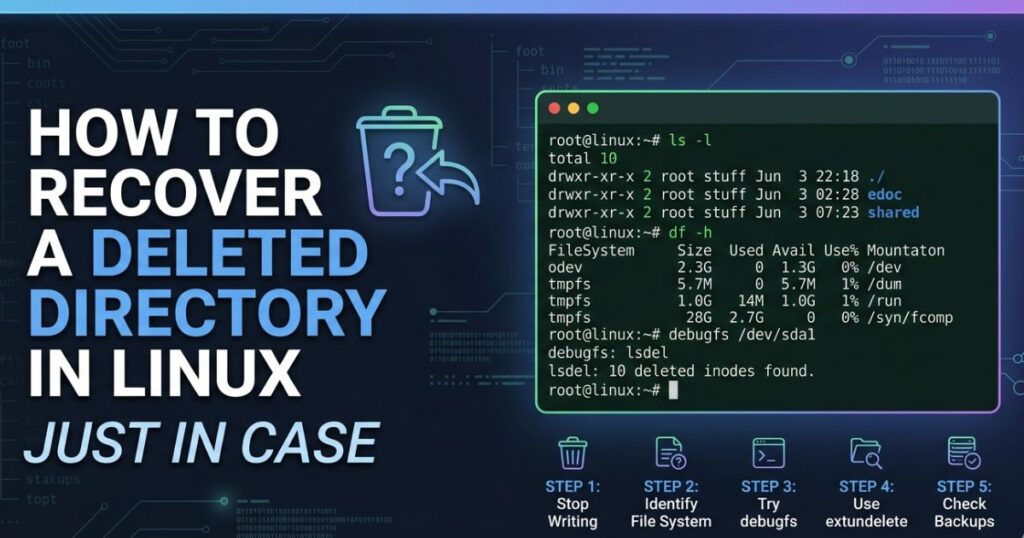
The short, uncomfortable answer: usually not easily. The terminal doesn’t offer an undo button. When you run rm, the file system unlinks the data — and unless you’re lucky, fast, and have the right tools, it’s gone.
That said, recovery is sometimes possible with:
extundelete— works on ext3/ext4 file systems, can recover recently deleted filestestdisk— a powerful partition and file recovery toolphotorec— despite the name, it recovers many file types beyond photos
The key word is sometimes. These tools work best when you act immediately after deletion and haven’t written new data to the disk since.
Best Backup Practices Before Deleting
Your real insurance policy is a backup taken before you delete anything:
- Quick copy:
cp -r /path/to/folder /path/to/backup - Archive it:
tar -czvf backup.tar.gz /path/to/folder - System snapshots: Tools like Timeshift let you restore your entire system to a previous state
- Automated backups: Set up
rsyncwith acronjob to back up directories on a schedule
Best Practices and Safety Tips for Deleting Directories in Linux
Make these habits non-negotiable:
- Always run
pwdbefore deleting — confirm you’re in the right location - Use
ls -lato inspect contents — know exactly what you’re about to remove - Prefer
rmdirfor empty directories — it physically cannot delete something with contents - Add
-ifor peace of mind —rm -riasks for confirmation on each item - Never delete as root unless required — regular user permissions are your safety net
- Test in a sandbox first — create a dummy directory tree and practice your commands
- Use version control for projects — Git means you can always go back, even after deletion
- Schedule backups with
rsync+cron— automate your safety net so you never skip it
Common Errors When Deleting Directories in Linux (and How to Fix Them)
| Error Message | Cause | Solution |
|---|---|---|
Directory not empty | Used rmdir on a non-empty directory | Switch to rm -r |
Permission denied | You don’t have write access | Use sudo or fix permissions with chmod |
No such file or directory | Path is wrong or misspelled | Verify with ls and pwd |
Operation not permitted | File has immutable flag set | Run chattr -i filename to remove it |
Device or resource busy | Directory is currently mounted or in use | Unmount with umount or close the process using it |
FAQ – How to Delete a Directory in Linux
Q1: What is the command to delete a directory in Linux? Use rmdir for empty directories. For directories that still have content inside, use rm -r directory_name or rm -rf directory_name for a forced, no-prompt deletion.
Q2: How do I delete a non-empty directory in Linux? Run rm -r directory_name. This recursively removes everything inside the directory before removing the directory itself. If you want to skip confirmation prompts entirely, use rm -rf directory_name.
Q3: Is rm -rf safe to use in Linux? It’s safe when used on the correct, verified path. The danger isn’t the command itself — it’s using it without confirming exactly where you’re pointing it. Always double-check your path, and never run it against system directories.
Q4: How do I delete a directory in Linux without sudo? If you own the directory (it was created under your user account), you don’t need sudo. Simply run rm -r directory_name from your regular account. Sudo is only required for directories owned by root or other users.
Q5: Can I recover a deleted directory in Linux? Sometimes. Tools like extundelete and testdisk can recover recently deleted directories on ext-based file systems, but recovery is not guaranteed. The best protection is a backup taken before deletion.
Q6: How do I delete a hidden directory in Linux? Hidden directories start with a dot and require ls -la to see. Delete them the same way as regular ones: rm -r .hidden_folder_name or rm -rf .hidden_folder_name for force deletion.
Q7: What is the difference between rm -r and rm -rf? Both are recursive. The difference is the -f flag: it forces deletion without prompting, even if files are write-protected. Use rm -r when you want some level of caution; use rm -rf when you’re certain and need speed.
Q8: How do I delete multiple directories at once in Linux? List them all in one command: rm -r folder1 folder2 folder3. For pattern-based bulk deletion, use find /path -type d -name "pattern" -exec rm -rf {} +.
Conclusion
Deleting a directory in Linux isn’t complicated — but it is consequential. The terminal trusts you completely, which means you have to trust yourself: to check your paths, to understand your commands, and to back up anything that matters before you remove it.
You’ve now got the full picture. From the beginner-safe rmdir to the surgical power of find + rm, from GUI options to hidden directory cleanup — every method has a purpose, and now you know when to use each one. The table, the error guide, the safety habits — all of it is yours to apply the next time you’re staring down a directory that needs to go.
Start with the safest method that fits your situation. Build your confidence. Practice in a test environment if you’re still finding your footing. And remember — the goal isn’t just to delete a directory. The goal is to delete the right directory, at the right time, in the right way.
Now go clean up that file system. You’ve got everything you need.
Found this guide useful? Share it with someone still learning Linux. And if you want to go deeper — explore our guides on Linux file permissions, terminal shortcuts, and setting up automated backups with rsync. The more you understand the system, the more confidently you can command it.