YouTube to MP3 Converter: Fast & Free Download Guide
Table of Contents
You’re sitting on a bus, headphones in, ready to replay that incredible guitar solo you found last night on YouTube — and then it hits you. No Wi-Fi. No data. Nothing. Just silence.
That moment of frustration is exactly why millions of people search every single day for a reliable YouTube to MP3 solution. Whether it’s a motivational speech that fired you up, a foreign-language lesson you want to study on the go, or simply a song you can’t get out of your head — you deserve access to your audio, on your terms, wherever you are.
This guide walks you through everything you need to know: what converters actually are, which ones work best, how to use them step by step, and how to stay safe while doing it. No fluff. No wasted time. Just answers.
What Is a YouTube to MP3 Converter and How Does It Work?
A YouTube to MP3 converter is a tool — either a website or a desktop application — that pulls the audio track from any YouTube video and saves it to your device as an MP3 file.
The process behind it is simpler than you might think. When you paste a YouTube link into a converter, the tool accesses the video’s audio stream, strips it from the visual component, and encodes it into the MP3 format. The whole thing usually takes between 10 and 30 seconds for a standard-length video.
What makes these tools so widely used comes down to a few real-life needs:
- You want to listen offline without burning through mobile data
- You’re building a personal playlist of motivational or educational content
- You’re a language learner who needs audio files to practice on repeat
- You found a podcast-style video that isn’t available on any audio platform
- You simply want your favorite music accessible without a streaming subscription
These are common, real-life needs — and the tools designed to address them have become incredibly simple to use.
Is It Legal to Convert YouTube Videos to MP3?
This is the question most people quietly wonder but rarely ask out loud. The honest answer is: it depends on the content.
YouTube’s Terms of Service technically prohibit downloading videos without explicit permission. However, the legal reality varies based on what you’re downloading and what you plan to do with it.
Here’s where you’re generally on solid ground:
- Videos labeled under Creative Commons licenses
- Content you created and uploaded yourself
- Royalty-free music or audio explicitly marked for free use
- Educational or public domain material
Where it gets murky is with copyrighted music from major labels or artists. Downloading those tracks without a license — even for personal use — sits in a legal grey zone in most countries.
The safest approach? Use converters for non-commercial, personal purposes only, and when in doubt, support artists through official streaming platforms.
Best YouTube to MP3 Converters in 2026
Not all converters are built the same. Some are fast and clean. Others are riddled with pop-ups and fake download buttons designed to trick you. Here’s a clear breakdown of the most reliable options available right now:
| Tool | Speed | Max Quality | No Install | Best For |
|---|---|---|---|---|
| Y2Mate | Fast | 320 kbps | ✅ Yes | General everyday use |
| YTMP3.cc | Very Fast | 128 kbps | ✅ Yes | Quick single downloads |
| 4K Video Downloader | Very Fast | 320 kbps | ❌ No | Power users, bulk downloads |
| ClipConverter | Fast | 320 kbps | ✅ Yes | Long videos, format variety |
| SnapDownloader | Very Fast | 320 kbps | ❌ No | Batch downloading |
If you want zero installation and a no-fuss experience, Y2Mate and ClipConverter are your best online bets. If you download audio regularly and care about the highest quality, 4K Video Downloader is worth the one-time install.
Step-by-Step: How to Convert YouTube to MP3
Using an Online Converter (Fastest Method)
This is the method most people start with — and for good reason. It requires nothing but a browser and takes under a minute.
- Open YouTube and find the video you want
- Copy the full URL from your browser’s address bar
- Open your converter of choice (Y2Mate, YTMP3.cc, or ClipConverter)
- Paste the URL into the input field on the converter’s homepage
- Select MP3 as your output format
- Choose your preferred audio quality — 320 kbps gives you the best result
- Click Convert and wait for the tool to process
- Hit Download and the file saves directly to your device
That’s genuinely it. No account creation. No payment. No waiting in a queue.
Using a Desktop App (Best Quality Method)
If you convert audio regularly or need batch downloads, a desktop app like 4K Video Downloader gives you more control and better consistency.
- Download and install the app from the official 4K Download website
- Open YouTube, find your video, and copy its URL
- Launch the app and click Paste Link — it auto-detects the video
- Select Extract Audio and choose MP3 as the format
- Set the bitrate to 320 kbps
- Click Download and find your file in the output folder you selected
The desktop route is especially useful when you’re downloading an entire playlist or album’s worth of content at once.
On Mobile — Android and iPhone
Android users have it fairly straightforward. Apps like TubeMate (downloaded directly via APK, not the Play Store) let you paste a YouTube URL and download it as MP3 in a few taps. The file lands in your Music folder and plays on any standard audio app.
iPhone users face a slightly different path because of Apple’s tighter ecosystem. Your most practical option is to use an online converter through Safari, then save the file using the Documents by Readdle app, which acts as a file manager and lets you play downloaded audio files. It takes an extra step or two but works reliably.
Getting the Best Audio Quality From Your Download
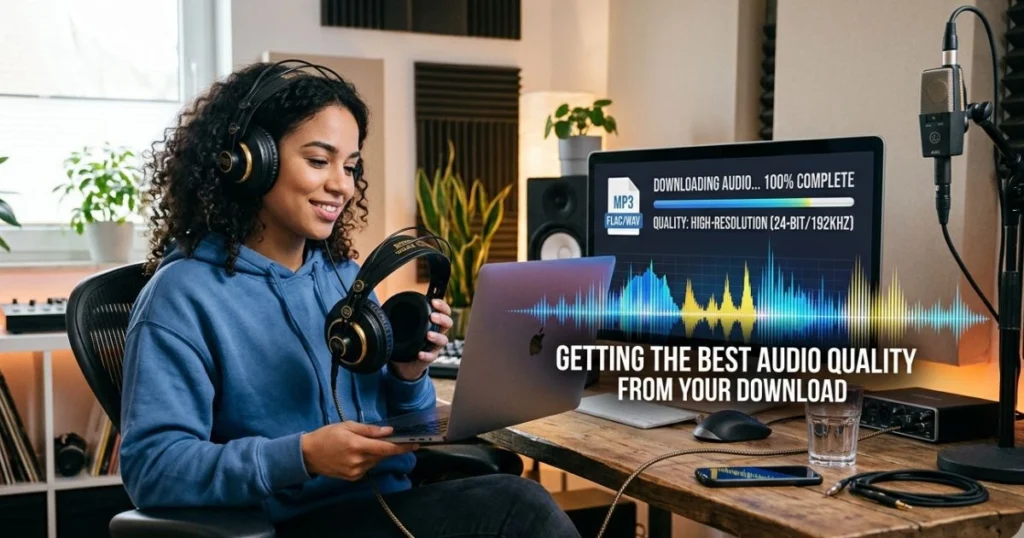
Here’s something most guides skip over: the quality of your MP3 is only as good as the source video’s audio stream. If the original YouTube video was uploaded in low resolution with a compressed audio track, no converter in the world will make it sound like a studio recording.
To consistently get clean, clear audio:
- Always choose HD videos (720p or above) as your source — they carry better audio streams
- Select 320 kbps output wherever the option exists
- Avoid converting live streams — the audio on these is compressed and inconsistent
- Stick to official artist channels for music — they upload the highest quality versions
- Use a desktop app rather than a browser tool when audio fidelity really matters to you
A quick comparison of what different bitrates actually sound like in real-world listening:
| Bitrate | Sound Quality | Best For |
|---|---|---|
| 128 kbps | Acceptable | Casual background listening |
| 192 kbps | Good | Earphones, Bluetooth speakers |
| 320 kbps | Excellent | Headphones, hi-fi systems |
Staying Safe When Using YouTube to MP3 Converters
The converter space has its share of unreliable websites that use deceptive design to get you to click the wrong button. Knowing what to watch for keeps you protected.
Green flags — signs a converter is trustworthy:
- URL starts with https://
- Clean interface with a clearly labeled download button
- No forced software installation
- No aggressive redirects or pop-up storms
Red flags — walk away if you see these:
- Multiple download buttons with no clear indication of which is real
- Prompts to install browser extensions or “download managers”
- Redirects to unrelated pages mid-download
- Requests for your email address or personal details
A good rule of thumb: if the site feels like it’s trying to confuse you, it probably is. Stick to well-reviewed tools and you’ll rarely run into trouble.
When a Converter Isn’t the Right Answer
Sometimes the smarter move is to step back from converters altogether. If you’re downloading music several times a week, a streaming subscription will save you both time and the mental overhead of managing audio files manually.
- YouTube Premium (~$13.99/month) gives you official offline downloads, background play, and no ads — all within the YouTube app itself
- Spotify Premium offers 320 kbps streaming and offline downloads across a library of over 100 million tracks
- Apple Music provides lossless audio quality that surpasses anything a converter can extract from a YouTube stream
These options cost money, yes — but they also deliver consistency, legality, and convenience that free tools can’t always match.
Frequently Asked Questions About YouTube to MP3
Is a YouTube to MP3 converter completely free to use? Yes. The majority of online YouTube to MP3 converters are entirely free — no subscriptions, no hidden fees. You paste the link, convert, and download at no cost.
Which YouTube to MP3 converter is the best available right now? For browser-based use, Y2Mate and ClipConverter consistently deliver. For desktop power users who download frequently, 4K Video Downloader is the top pick in 2026.
Can you convert YouTube to MP3 directly on your phone? Absolutely. Android users can use TubeMate via APK. iPhone users can combine an online converter with the Documents by Readdle app to save and access their files.
Why does my downloaded MP3 sound muffled or low quality? The source video’s audio stream determines the ceiling of your output quality. Choose HD videos from official channels and select the highest available bitrate to minimize this issue.
Do you need to create an account to use these tools? No. Every reputable online converter works without registration. If a site asks you to sign up before downloading, look for a different tool.
Take Your Audio With You — Starting Now
You’ve now got everything you need to start converting YouTube videos to MP3 the right way — fast, safely, and with the best possible audio quality. Whether you’re grabbing a podcast episode for your commute, saving a workout playlist for the gym, or archiving a tutorial series to study offline, the tools and the knowledge are right here in this guide.
Your next step is simple: pick one method from this guide, try it on a video you’ve been meaning to save, and hear the difference a clean 320 kbps MP3 makes through your headphones.
If this guide helped you, share it with someone who’s still struggling with buffering on their morning run. And if you have questions about a specific converter or a situation not covered here — drop it in the comments. You’ll get a straight answer.