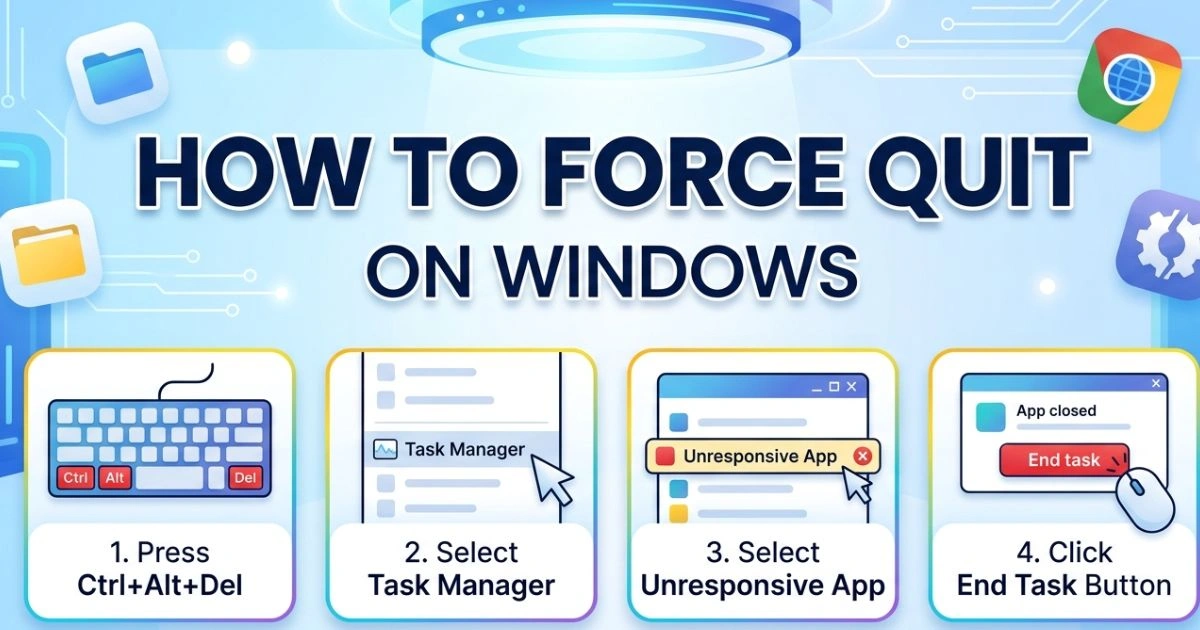
How to Force Quit on Windows (Fast & Easy Methods)
Table of Contents
We’ve all been there.
You’re racing against a deadline, your fingers flying across the keyboard, and then — nothing. The screen locks up. Your mouse cursor turns into that maddening spinning circle. You click frantically, but the app just sits there, mocking you with the words “Not Responding” stamped across the title bar.
That hollow, sinking feeling? Completely valid. Because in that moment, you don’t just have a frozen app — you have a potential loss of work, a spike in stress, and zero idea what to do next.
Here’s the truth nobody tells you: Windows gives you powerful tools to deal with this exact situation. You don’t have to wait it out, restart your whole computer, or lose your unsaved work every single time. Once you know the right moves, you can shut down a frozen app in under ten seconds — and get back to what matters.
This guide covers every method to force quit on Windows, from the simplest keyboard shortcut to command-line techniques used by IT professionals. Whether you’re a casual user or a power user, there’s a method here that fits your situation perfectly.
What Does “Force Quit” Mean on Windows?
Before diving into the methods, it helps to understand what you’re actually doing when you force quit an application.
When you close a program normally — by clicking the X button — Windows sends a polite signal to the app asking it to wrap up its operations and shut down gracefully. The app saves its state, releases memory, and exits cleanly.
Force quitting is different. It’s the equivalent of pulling the plug. Windows bypasses the app’s normal shutdown process and terminates it immediately at the system level. No waiting, no asking nicely.
The trade-off is simple: you get your computer back instantly, but anything unsaved inside that app is gone. On Windows, the equivalent of Mac’s “Force Quit” is called End Task, and you’ll see that term throughout Task Manager and the Windows interface.
Knowing when to use it is just as important as knowing how. If an app has been unresponsive for more than 30–60 seconds with no sign of recovery, force quitting is almost always the right call.
Why Do Apps Freeze or Stop Responding on Windows?
Frozen apps aren’t random — they almost always have a cause. Understanding why it happens helps you prevent it from becoming a recurring problem.
The most common culprits include:
- RAM overload — when your system runs out of available memory, apps start competing for resources and some lose
- Software bugs — a poorly coded app or a recent update can introduce instability
- Background conflicts — two programs trying to access the same file or resource simultaneously
- Driver issues — outdated or corrupted drivers, especially GPU or audio drivers, can cause entire apps to lock up
- Overheating — when your CPU gets too hot, it throttles performance dramatically, causing apps to stall
- Windows Update running silently — background update processes can temporarily monopolize disk and CPU resources
- Corrupted files — if an app’s installation files are damaged, it may freeze when trying to access them
One important distinction: not every slow app is truly frozen. Sometimes a program is simply processing a heavy task — like rendering video or loading a large file — and just needs more time. Give it 30–60 seconds before force quitting. If the title bar shows “Not Responding” and nothing changes, that’s your green light to step in.
Method 1 — How to Force Quit on Windows Using a Keyboard Shortcut
Best for: Quick, single-step termination of a visible frozen app
This is the first thing you should try whenever an app stops responding. It’s fast, it requires no extra windows or menus, and it works on every version of Windows.
Here’s what you do:
- Click on the frozen application’s window to make sure it’s in focus
- Press Alt + F4 at the same time
- Wait 2–3 seconds
- If a confirmation dialog appears, click OK or press Enter
That’s it. In many cases, this is all you’ll ever need.
One important warning: if you press Alt + F4 while your desktop is in focus (no app window selected), Windows will open the Shut Down dialog instead. It won’t shut your computer down automatically — you’d still have to confirm — but it’s worth knowing so you don’t accidentally trigger it.
The limitation of this method is that it only works when the frozen app’s window is still somewhat accessible. If the app has completely locked your screen or gone full-screen, you’ll need one of the methods below.
Method 2 — Force Quit Using Task Manager (The Most Reliable Method)
Best for: Any frozen app, especially when Alt + F4 doesn’t respond
Task Manager is Windows’ built-in system monitor and your most powerful tool for dealing with unresponsive programs. Think of it as mission control for everything running on your computer.
How to Open Task Manager — 4 Ways
You have options depending on what’s still working on your system:
- Press Ctrl + Shift + Esc — opens Task Manager directly, fastest method
- Press Ctrl + Alt + Delete → select Task Manager from the menu
- Right-click the Taskbar at the bottom of your screen → click Task Manager
- Open the Start Menu, search for Task Manager, then hit Enter.
Step-by-Step: Force Quit a Frozen App in Task Manager
- Open Task Manager using any method above
- Make sure you’re on the Processes tab (it opens here by default)
- Scroll through the list to find your frozen application
- Look for the Status column — a frozen app will show “Not Responding” in red or orange text
- Click on the app to select it
- Click the End Task button in the bottom-right corner (or right-click → End Task)
- Confirm if prompted
The app will close within a few seconds.
Task Manager Tabs — Quick Reference
| Tab | What It Shows | Most Useful For |
|---|---|---|
| Processes | All running apps and background tasks | Force quitting frozen apps |
| Performance | CPU, RAM, Disk, Network live stats | Diagnosing slowdowns |
| App History | Cumulative resource usage | Identifying resource hogs |
| Startup | Programs that launch at boot | Speeding up startup time |
| Details | Advanced process data with PIDs | Power users and troubleshooting |
| Services | Windows background services | Advanced system management |
One critical caution: avoid ending processes you don’t recognize, especially system-level ones. Terminating something like svchost.exe or dwm.exe can cause your system to become unstable or force a restart. Stick to ending the specific app you know is frozen.
Method 3 — Force Quit via the Run Dialog Box
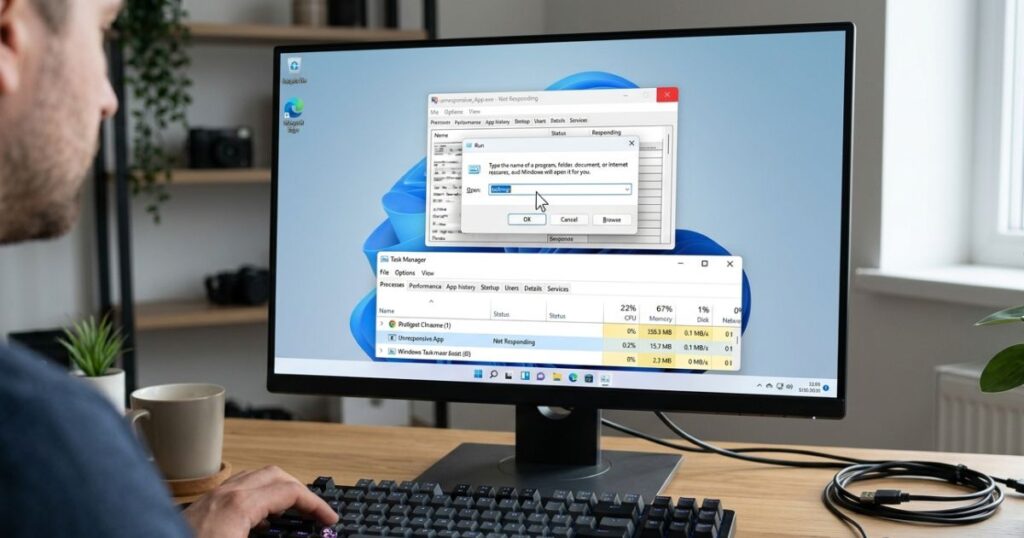
Best for: When Task Manager is slow to open or you prefer a keyboard-only approach
This method is underused and underappreciated. It lets you kill a specific process using a single command — no mouse required.
Steps:
- Press Windows Key + R to open the Run dialog
- Type the following command:
taskkill /f /im chrome.exe(Replace “chrome.exe” with the name of your frozen app) - Press Enter
The /f flag stands for “force” — it ensures the process is terminated even if it’s not responding. The /im flag means “image name,” which is just the executable file name of the app.
How to find the correct .exe name: If you’re not sure what your app’s executable is called, open Task Manager, right-click the frozen app, and select Go to Details. The filename shown there is exactly what you’d type into the taskkill command.
This method is especially handy when Task Manager itself is being slow or when you’re already comfortable with keyboard shortcuts.
Method 4 — Force Quit Using Command Prompt or PowerShell
Best for: Power users, repeated freezing issues, or when dealing with multiple processes
If you want the most precise and flexible control over terminating processes, the command line is where that power lives. Both Command Prompt and PowerShell support the taskkill command, and PowerShell adds its own syntax on top.
How to Open Command Prompt or PowerShell
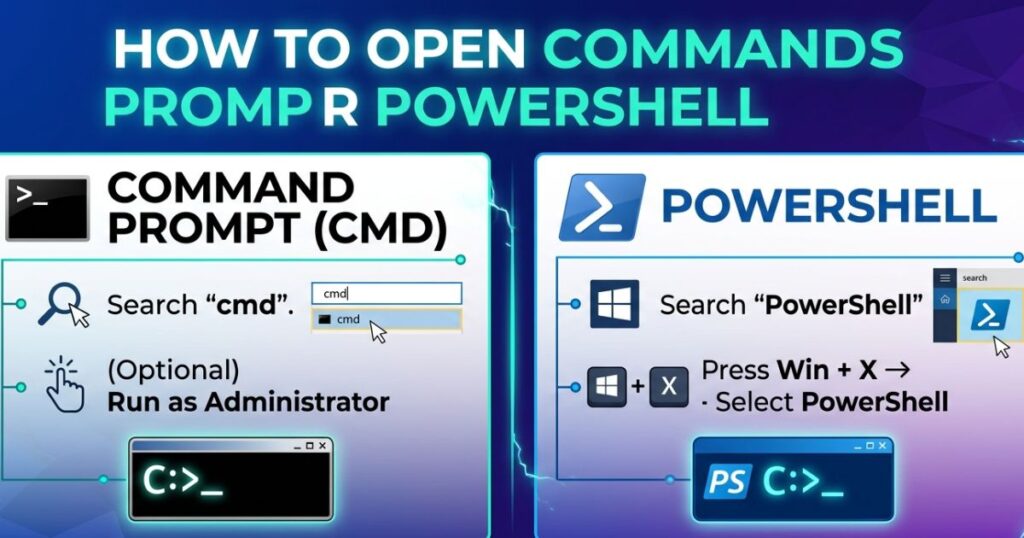
- Press Windows Key, type cmd or PowerShell, and press Enter
- Or right-click the Start button → select Windows Terminal or PowerShell
Essential Commands
See all running processes: tasklist
This gives you a full list of every active process along with its PID (Process ID) — a unique number Windows assigns to each running program.
Kill a process by name: taskkill /f /im processname.exe
Kill a process by PID: taskkill /f /pid 4572 (Replace 4572 with the actual PID number from your tasklist)
PowerShell alternative: Stop-Process -Name "chrome" -Force
Using the PID method is the most precise approach — it guarantees you’re terminating the exact process you intend to, especially useful if multiple instances of the same app are running.
Common App Executable Names
| Application | Executable Name |
|---|---|
| Google Chrome | chrome.exe |
| Microsoft Edge | msedge.exe |
| Mozilla Firefox | firefox.exe |
| Microsoft Word | winword.exe |
| Microsoft Excel | excel.exe |
| File Explorer | explorer.exe |
| Notepad | notepad.exe |
| Zoom | Zoom.exe |
| Spotify | Spotify.exe |
| Discord | Discord.exe |
Method 5 — Force Quit a Frozen Full-Screen App or Game
Best for: Games, video players, or any app running in true full-screen mode
Full-screen apps present a special challenge because they can completely obscure your desktop and taskbar, making it feel like there’s no escape. There always is — here’s how to get out.
Your options, in order:
- Alt + F4 — try this first, even in full screen
- Alt + Tab — attempts to switch away from the full-screen app to your desktop or another window
- Windows Key — on most systems, this will minimize the full-screen app and bring up the Start Menu
- Ctrl + Shift + Esc — opens Task Manager directly, overlaying even full-screen apps on most systems
- Ctrl + Alt + Delete — this is the nuclear option that always works; it takes you to the Windows security screen regardless of what’s running
Once you’ve escaped the full screen, proceed to Task Manager as described in Method 2 and end the process from there.
For gamers specifically: if you play on Steam, the Steam Overlay (Shift + Tab) can sometimes be accessed even when a game freezes. Similarly, NVIDIA GeForce Experience overlay can be triggered. These won’t always work with a full freeze, but they’re worth trying before escalating.
A practical tip for the future: whenever possible, play games in Borderless Windowed mode rather than true full screen. It gives you the same visual experience but makes Alt-Tabbing and emergency exits dramatically smoother.
Method 6 — Create a Force Quit Desktop Shortcut (The Smart Long-Term Fix)
Best for: Users who deal with frozen apps regularly and want a one-click solution
This is one of those power-user tricks that most people never discover — and once you set it up, you’ll wonder how you managed without it.
Windows lets you create a desktop shortcut that automatically detects and kills any “Not Responding” process with a single double-click.
Here’s how to set it up:
- Right-click on an empty area of your desktop
- Select New → Shortcut
- In the location field, type exactly:
taskkill /f /fi "status eq not responding" - Click Next
- Name the shortcut something like “Kill Frozen Apps”
- Click Finish
Now whenever an app freezes, just double-click that shortcut. Windows will scan all running processes, identify any marked as “Not Responding,” and terminate them automatically — no manual searching required.
To make it even faster: Right-click the shortcut → Properties → Shortcut tab → click in the Shortcut key field → press your preferred key combination (e.g., Ctrl + Alt + K). Now you have a custom hotkey that kills frozen apps from anywhere on your desktop.
You can also right-click the shortcut and pin it to your taskbar for one-click access at all times.
What to Do When Windows Itself Is Frozen
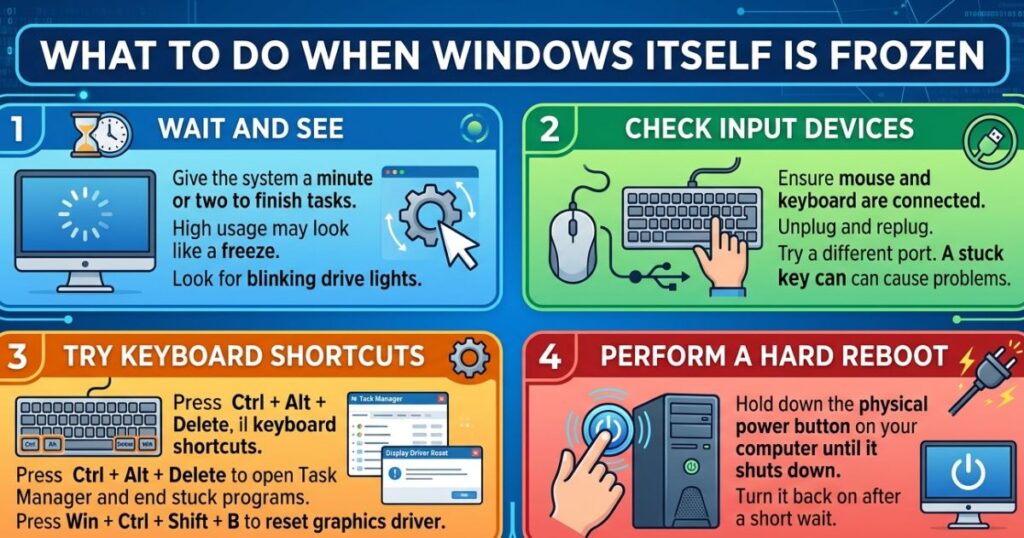
Sometimes the freeze goes deeper than a single app. If your entire system is locked up — cursor won’t move, keyboard does nothing, Task Manager won’t open — here’s your escalation path:
Step 1: Wait it out (60 seconds) Windows sometimes recovers from severe temporary slowdowns on its own. Before doing anything drastic, give it a full minute.
Step 2: Ctrl + Alt + Delete This key combination is processed at the hardware level, which means Windows handles it before any frozen app can interfere. It will take you to the security screen where you can access Task Manager, sign out, or restart.
Step 3: Sign Out or Switch User From the Ctrl + Alt + Delete screen, signing out will close all running apps and return you to the login screen — often faster and safer than a full restart.
Step 4: Hard Shutdown If absolutely nothing works, press and hold the power button for 5–10 seconds until the machine shuts off completely. This is always a last resort because it cuts power without any graceful shutdown sequence.
What happens to your unsaved work: It depends on the app. Microsoft Office products have AutoRecover, which may restore your file the next time you open them. Browsers like Chrome often offer to restore your previous session. But for most other apps, unsaved data is lost — which is why saving frequently is always a good habit.
How to Stop Apps From Freezing in the First Place
The best way to deal with frozen apps is to prevent them from happening. These practical steps can dramatically reduce how often you face this problem:
- Keep Windows updated — Microsoft regularly patches stability and performance issues through Windows Update
- Update your drivers — especially GPU, audio, and chipset drivers, which are common sources of app instability
- Manage your startup programs — open Task Manager → Startup tab → disable anything you don’t need running at boot. Fewer background processes means more resources for the apps you actually use
- Monitor your RAM usage — if you regularly hit 90%+ RAM usage, consider closing browser tabs, upgrading your RAM, or both
- Run Windows Defender scans regularly — malware can silently consume resources and cause erratic app behavior
- Check your CPU temperature — use a free tool like HWMonitor or Core Temp. If your CPU regularly exceeds 90°C, overheating is likely causing throttling and freezes
- Use Disk Cleanup periodically — a cluttered disk can slow down read/write operations that apps depend on
- Check the Windows Reliability Monitor — search for it in the Start Menu. It logs every crash and freeze with timestamps, helping you identify patterns and problem apps
Force Quit Across Different Windows Versions
| Feature | Windows 11 | Windows 10 | Windows 8 / 7 |
|---|---|---|---|
| Alt + F4 | ✅ Works | ✅ Works | ✅ Works |
| Ctrl + Shift + Esc | ✅ Works | ✅ Works | ✅ Works |
| Ctrl + Alt + Delete | ✅ Works | ✅ Works | ✅ Works |
| Taskkill via CMD | ✅ Works | ✅ Works | ✅ Works |
| End Task from Taskbar | ✅ New in Win 11 | ❌ Not available | ❌ Not available |
| PowerShell Stop-Process | ✅ Full support | ✅ Full support | ⚠️ Limited |
| Task Manager UI | Redesigned, cleaner | Classic | Classic |
Windows 11 users get an extra bonus: you can right-click any app on the Taskbar and select End Task directly — no need to open Task Manager at all. If you don’t see this option, go to Settings → System → For Developers and toggle on End Task.
FAQ — How to Force Quit on Windows
Q1: What is the fastest way to force quit on Windows? Pressing Alt + F4 while the frozen app window is selected is the single fastest method. If that doesn’t work within a few seconds, Ctrl + Shift + Esc opens Task Manager instantly for a reliable End Task.
Q2: How do I force quit on Windows without Task Manager? Use the Run dialog (Win + R) and type taskkill /f /im appname.exe, or use Command Prompt with the same command. Alt + F4 also works entirely without Task Manager.
Q3: Will force quitting on Windows delete my work? Any unsaved work in the frozen app will likely be lost. However, apps like Microsoft Word, Excel, and most browsers have auto-recovery features that may restore your progress the next time you open them.
Q4: Is it safe to force quit on Windows regularly? For standard user apps, yes. The risk comes from force-quitting critical system processes. Done occasionally on regular apps, it causes no lasting damage to your system.
Q5: What’s the difference between End Task and Force Quit? They’re the same concept. Windows uses the term End Task; macOS uses Force Quit. Both forcibly terminate an unresponsive program at the system level.
Q6: How do I force quit a full-screen game on Windows? Try Alt + F4 first, then Ctrl + Shift + Esc or Ctrl + Alt + Delete. Both of these work even from inside full-screen games on most systems.
Q7: What if Task Manager itself won’t open when I force quit on Windows? Use the Run dialog (Win + R) with the taskkill command, or hold the power button for a hard shutdown as a last resort.
Conclusion — You’re Now in Full Control
A frozen app is frustrating, but it no longer has to be a crisis. You now have six battle-tested methods to force quit on Windows, each suited to a different situation:
- Alt + F4 — your first move, every time
- Task Manager (Ctrl + Shift + Esc) — the most dependable everyday tool
- Run Dialog (Win + R + taskkill) — fast and keyboard-friendly
- Command Prompt / PowerShell — maximum precision for power users
- Ctrl + Alt + Delete — your escape hatch from full-screen freezes
- Desktop Shortcut — the smartest long-term setup for chronic freezers
The next time your screen locks up, you won’t panic. You’ll know exactly which tool to reach for, how to use it, and how to get back to work in seconds.
Go ahead and bookmark this page. Frozen apps have a habit of striking at the worst possible moments — and having this guide one click away means you’ll always be ready.
And if you found this helpful, share it with someone who’s still doing the “wait and hope” method every time their computer freezes. You might just save their afternoon.