How to Factory Reset MacBook – Step-by-Step Guide for Beginners
Table of Contents
Remember the day you first unboxed your MacBook? It felt fast, responsive, and almost effortless. Every click was smooth. Every app opened instantly. It genuinely felt like the best computer you had ever touched.
Then, slowly, things shifted.
Maybe it started with longer load times. Then a few random crashes. Or perhaps you’re getting ready to sell it, and you want to make sure your personal files don’t end up in the wrong hands. Whatever your reason, you’ve arrived at exactly the right place.
This guide walks you through how to factory reset your MacBook in plain, beginner-friendly language — no tech background required. By the time you finish reading, you’ll know exactly which method fits your situation and how to complete the entire process safely and confidently.
What Does It Mean to Factory Reset a MacBook?
A factory reset returns your MacBook to the state it was in when it left the manufacturer — a completely clean slate. Every personal file, downloaded app, saved password, and system preference gets wiped out. What remains is a fresh installation of macOS, ready to be set up from scratch.
It’s worth noting the difference between three terms beginners often mix up:
- Erase — removes your data from the drive
- Reinstall macOS — puts a clean copy of the operating system back onto your Mac
- Factory Reset — combines both actions into one complete process
Understanding this distinction helps you avoid accidentally doing only half the job.
When Should You Factory Reset Your MacBook?
Not every slow Mac needs a full reset. But there are specific situations where it becomes the smartest move you can make.
Common Reasons to Reset Your MacBook
- You’re selling or gifting your MacBook and need your data fully removed
- Your Mac has become noticeably slow despite storage cleanups
- You’re dealing with persistent software bugs that won’t go away
- Your Mac has been infected with malware
- You’re locked out and can’t remember your login password
- You want a completely fresh start after years of cluttered use
If any of those situations sound familiar, a factory reset is likely your best path forward.
Before You Reset – Steps You Cannot Skip
Jumping straight into a reset without preparation is one of the most common mistakes beginners make. Take 20 to 30 minutes to complete these steps first — you’ll thank yourself later.
Step 1 – Back Up Your Data
Your files won’t survive a factory reset unless you save them somewhere else first. Use one of these options:
| Backup Method | Best For | Cost |
|---|---|---|
| Time Machine | Full system backup | Free (needs external drive) |
| iCloud | Photos and documents | $0.99–$9.99/month |
| Manual Copy | Selected important files | Free |
| Carbon Copy Cloner | Bootable full backup | ~$35 one-time |
Time Machine is the most reliable choice for a complete backup. Connect an external drive, open System Settings, search for Time Machine, and let it run before you do anything else.
Step 2 – Log Out of Your Apple ID
This step protects you and any future owner of the device. Go to Apple Menu → System Settings → click your name → Sign Out. Make sure you also turn off Find My Mac during this process. Skipping this step can trigger Activation Lock, which essentially bricks the Mac for whoever uses it next.
Step 3 – Deauthorize iTunes or the Music App
If you’re on macOS Catalina or earlier, open iTunes, click Account → Authorizations → Deauthorize This Computer. On newer macOS versions, open the Music app and do the same under the Account menu. This frees up one of your five authorized device slots.
Step 4 – Sign Out of iMessage
Open the Messages app, go to Messages → Settings → iMessage, and click Sign Out. This prevents your texts from routing to a device you no longer own.
Step 5 – Save Your Software License Keys
Third-party apps like Adobe Creative Cloud or Microsoft Office require license keys to reactivate. Write them down or store them in a safe place — you won’t be able to retrieve them after the drive is erased.
How to Factory Reset MacBook – Step-by-Step Methods
There are several ways to do this, and the right one depends on your Mac model and macOS version. Here’s a breakdown of each.
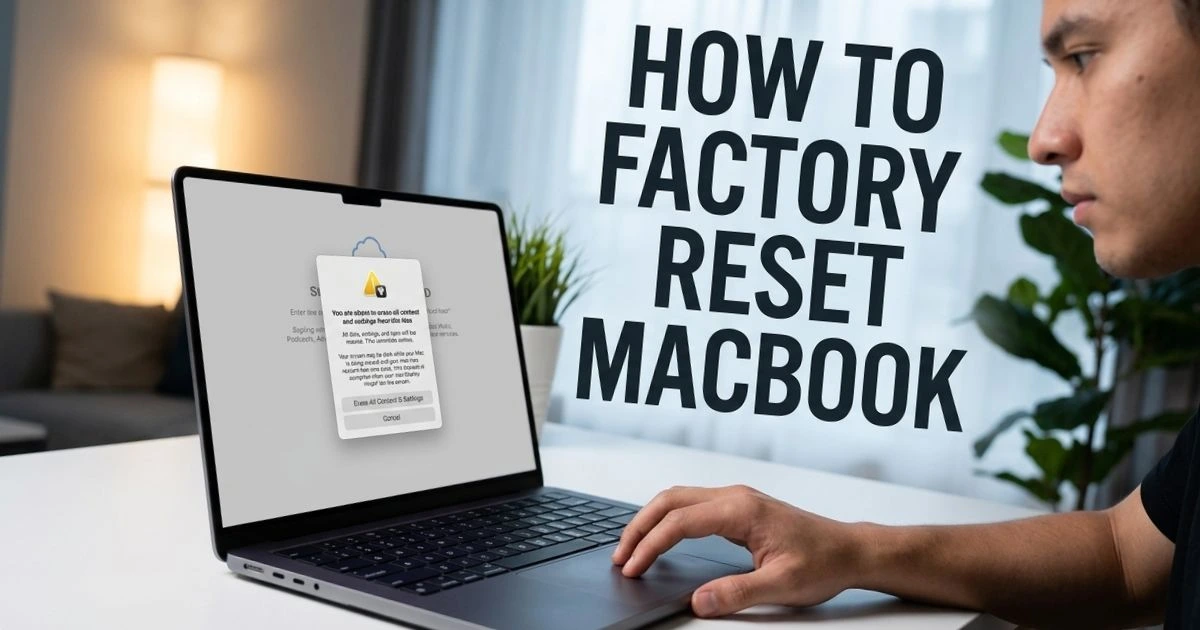
Method 1 – Erase All Content and Settings (macOS Ventura and Later)
This is the easiest method and the one most beginners should use. It’s available on MacBooks running macOS Ventura, Sonoma, or Sequoia.
- Tap the Apple menu in the upper-left corner.
- Select System Settings
- Go to General → Transfer or Reset
- Click Erase All Content and Settings
- Enter your Mac password when prompted
- Review what will be erased, then click Continue
- Sign out of Apple ID when asked
- Confirm the erase and wait for the process to finish
Your MacBook will restart and present a clean setup screen — just like the day it shipped.
Method 2 – Factory Reset via Recovery Mode (Apple Silicon – M1, M2, M3, M4)
Use this method if you have a newer Mac with an Apple chip and you’re running an older macOS version.
- Shut down your MacBook completely
- Press and hold the Power button until you see startup options on the screen
- Click Options, then Continue
- Select Disk Utility from the utilities menu
- Choose Macintosh HD from the left sidebar
- Click Erase at the top and confirm
- Quit Disk Utility once finished
- Choose ‘Reinstall macOS’ and follow the instructions displayed on the screen.
Method 3 – Factory Reset via Recovery Mode (Intel-Based Macs)
If your MacBook runs on an Intel processor (most models from 2015 to 2020), this is your method.
- Restart your Mac
- Press and hold Command (⌘) + R continuously until the Apple logo shows up.
- Release the keys and wait for macOS Recovery to load
- Select Disk Utility and click Continue
- Choose Macintosh HD, click Erase, and confirm
- Quit Disk Utility
- Select Reinstall macOS and proceed through the steps
Make sure your MacBook is connected to Wi-Fi before starting, since macOS needs to download during reinstallation.
How to Reinstall macOS After a Factory Reset
Once the drive is erased, your Mac needs an operating system. Here’s a quick reference for compatible macOS versions:
| macOS Version | Compatible MacBook Models | Released |
|---|---|---|
| macOS Sequoia | MacBook 2019 and later | 2024 |
| macOS Sonoma | MacBook 2017 and later | 2023 |
| macOS Ventura | MacBook 2017 and later | 2022 |
| macOS Monterey | MacBook 2016 and later | 2021 |
After erasing, simply select Reinstall macOS from the Recovery menu, connect to Wi-Fi, and follow the prompts. The installation typically takes 30 to 60 minutes depending on your internet speed.
What to Do After the Reset
Once your MacBook boots up fresh, you have two main choices:
Set it up as a new Mac — ideal if you’re keeping it and want a completely clean experience. Sign in with your Apple ID, adjust your settings, and reinstall only the apps you actually need.
Restore from a Time Machine backup — open Migration Assistant during setup and point it to your backup drive. You can choose to restore everything or only specific files and apps.
If you’re selling or donating your MacBook, don’t set it up at all. Leave it at the welcome screen so the new owner can go through setup themselves. Also double-check that Activation Lock is fully disabled before handing it over.
Common Mistakes to Avoid
- ❌ Starting the reset without backing up your data first
- ❌ Forgetting to sign out of your Apple ID — this triggers Activation Lock
- ❌ Using the wrong Recovery Mode method for your chip type
- ❌ Resetting with a low battery — always plug in your charger
- ❌ Skipping the iMessage sign-out and then missing texts on the old device
Conclusion
Giving your MacBook a fresh start is one of the most effective things you can do — whether you’re solving performance problems, protecting your privacy, or preparing it for a new owner. The process might sound technical at first, but as you’ve seen, it breaks down into straightforward steps that anyone can follow.
Back up your data. Sign out of your Apple ID. Choose the right method for your Mac. That’s really all it takes.
Ready to give your MacBook the fresh start it deserves? Go back to the method that matches your model, follow each step carefully, and you’ll have a clean, fast Mac running again in under an hour. And if you found this guide helpful, share it with someone who’s been putting off their own reset — you might just save them hours of frustration.
FAQ – How to Factory Reset MacBook
Q1: How do I factory reset my MacBook without losing everything? Back up your files using Time Machine or iCloud before starting. Once you have a backup, your data can be restored afterward through Migration Assistant.
Q2: How to factory reset MacBook if I forgot my password? Boot into Recovery Mode — on Apple Silicon hold the Power button; on Intel hold Command + R — then erase the drive and reinstall macOS. No password is required in Recovery Mode.
Q3: How long does it take to factory reset a MacBook? The erasure itself takes about 5 to 15 minutes. Reinstalling macOS adds another 30 to 60 minutes depending on your internet speed.
Q4: Will a factory reset remove malware from my MacBook? Yes. A complete erase followed by a fresh macOS installation removes virtually all malware and software-level threats.
Q5: How to factory reset MacBook Pro vs. MacBook Air — is the process different? No — the process is identical for both. What matters is your chip type (Apple Silicon or Intel) and your macOS version, not the specific MacBook model.
Q6: Can I factory reset my MacBook without an internet connection? You can erase the drive without Wi-Fi, but reinstalling macOS requires an internet connection unless you have a bootable USB installer prepared in advance.
Q7: Is it safe to factory reset a MacBook? Completely safe — as long as you back up your data and sign out of your Apple ID beforehand. The process itself carries no risk to the hardware.