How to Restart MacBook: Step-by-Step Guide for All Models
Table of Contents
Picture this: it’s 11 PM, your deadline is in an hour, and your MacBook just froze completely. The cursor won’t move, apps won’t respond, and that spinning rainbow wheel is mocking you. Sound familiar? Every Mac user has been there. Understanding how to restart a MacBook—and knowing which method works best in each situation—is one of the most useful skills you can have. Whether your Mac is running perfectly or completely unresponsive, this guide covers every restart method for every model, so you’re never caught off guard again.
Why Restarting Your MacBook Matters
A restart isn’t just an emergency fix — it’s regular maintenance. When you restart your MacBook, macOS clears the RAM, terminates background processes that have gone rogue, and applies pending system updates. According to Apple’s own support documentation, a simple restart resolves the majority of common software issues, from sluggish performance to unresponsive apps.
It’s important to understand the difference between restarting, shutting down, and putting your Mac to sleep. Sleep mode preserves your session but keeps background processes running. Shutting down powers everything off completely. A restart does a full shutdown followed by an immediate boot — giving your system that clean slate without the hassle of manually reopening everything.
How to Restart MacBook Using the Apple Menu
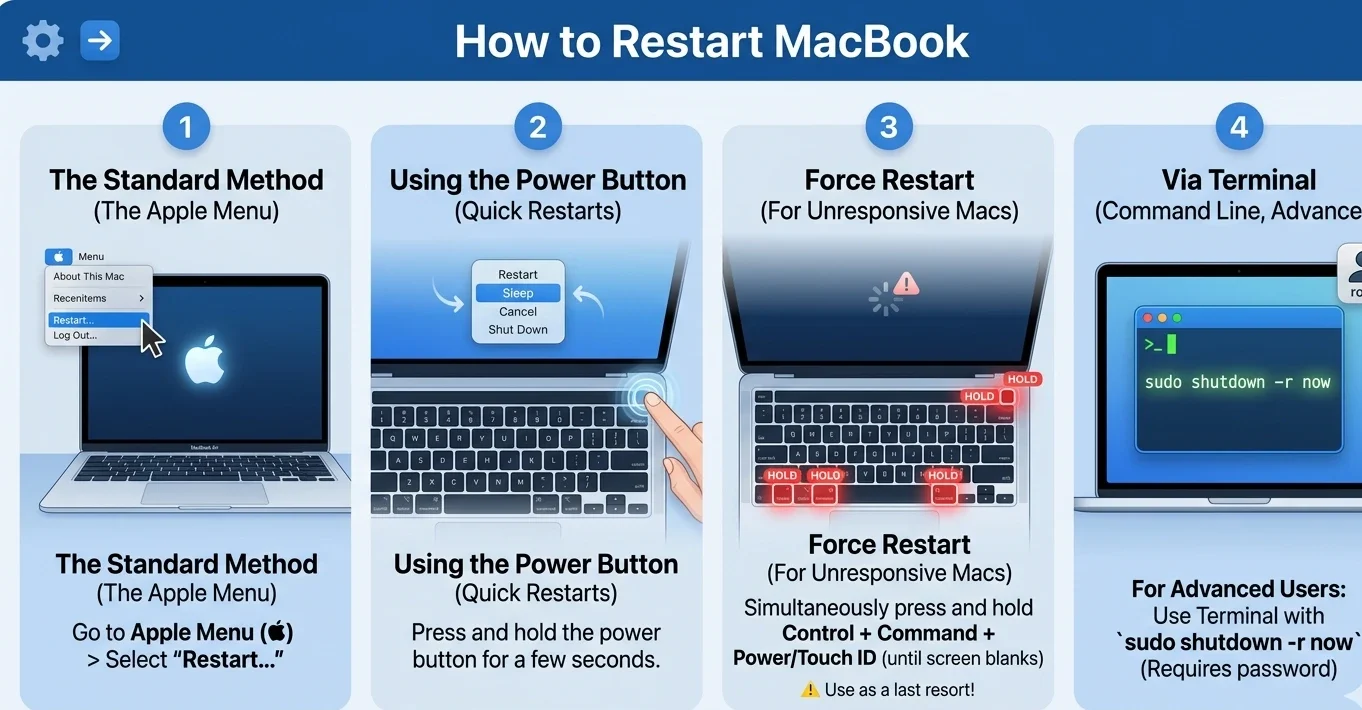
The easiest way to restart your MacBook is by using the Apple menu. This option works on all Mac models and across recent versions of macOS, including Monterey, Sonoma, and later releases.
Standard Restart via Apple Menu
Here’s how to do it:
- Select the Apple logo located in the upper-left corner of your screen.
- Select Restart… from the dropdown menu
- A dialog box will appear — choose whether you want to reopen your current windows after restart
- Click Restart to confirm
That’s it. Your Mac will shut down all open applications (asking you to save any unsaved work) and then restart smoothly. This is the recommended method whenever your Mac is functioning normally.
How to Restart MacBook Using Keyboard Shortcuts
If your hands are already on the keyboard, using these shortcuts will be quicker.
| Shortcut | Action | Compatible Models |
|---|---|---|
| Control + Command + Power Button | Force Restart immediately | All modern models |
| Control + Command + Media Eject | Restart with save dialog | Pre-2016 models with optical drive |
| Apple Menu > Restart | Normal restart with options | All models |
The Control + Command + Power shortcut triggers an immediate restart without saving prompts, so only use it when your Mac is frozen and you have no other choice.

How to Restart MacBook
How to Restart MacBook When It’s Frozen
At times, your Mac may not allow a normal restart through the menu. If the screen freezes and stops responding, a force restart becomes necessary.
Force Restart a Frozen MacBook
Press and hold the Power button for about 10 seconds until your Mac shuts off completely. Press the Power button again to switch it back on. You might lose any unsaved work, but when a Mac is fully frozen, this is the only solution.
How to Restart MacBook Air vs MacBook Pro
The Power button location differs slightly across models:
- MacBook Air (M1, M2, M3): The power button is located in the top-right corner of the keyboard and is built into the Touch ID sensor.
- MacBook Pro (M1/M2/M3 without Touch Bar): Same location — top-right, combined with Touch ID
- On Intel MacBook Pro models with a Touch Bar, the power button is located at the far right end of the Touch Bar.
- Older Intel MacBook Air/Pro (pre-2018): Standalone Power button above the keyboard on the right side
The force restart method is identical across all models: simply hold the Power button for 10 seconds.
How to Restart MacBook in Recovery Mode
Recovery Mode is a special environment built into every Mac that lets you troubleshoot, reinstall macOS, or restore from a backup. Knowing how to restart into Recovery Mode is essential when standard methods fail.
Intel Mac — Recovery Mode Restart
- Click Apple Menu > Restart, or press Power to turn the Mac on
- Immediately hold Command + R as soon as you hear the startup chime
- Lift your fingers from the keys when the Apple logo shows.
- Your Mac boots into macOS Recovery
Apple Silicon Mac (M1, M2, M3) — Recovery Mode Restart
- Shut down your Mac completely
- Hold down the Power button and keep it pressed — do not let go.
- Continue holding until ‘Loading startup options’ appears.
- Click Options, then Continue
- You’re now in Recovery Mode
From Recovery Mode, you can access Disk Utility, reinstall macOS, restore from Time Machine, or use Terminal for advanced troubleshooting.
How to Restart MacBook Remotely or via Terminal
Restart MacBook Using Terminal
If you’re comfortable with the command line, Terminal offers a precise restart method. Launch Terminal by going to Applications > Utilities, and then enter:
sudo reboot— restarts immediatelysudo shutdown -r now— same effect, slightly more explicitsudo shutdown -r +5— schedules a system restart to occur in 5 minutes.
These commands are particularly helpful for system administrators or developers who manage multiple Macs or need to run scripts that trigger a restart at a specific moment.
Restart via Remote Management
You can initiate a restart on a Mac remotely through Apple Remote Desktop or SSH without needing to be physically at the machine. Via SSH, simply connect to the Mac’s IP address and run sudo reboot. This is extremely valuable for IT professionals overseeing a fleet of MacBooks in a corporate setting.
Frequent Restart Issues and Their Solutions
Even the restart process itself can hit snags. Below are the most frequent problems and how to fix them:
- Mac stuck on the restart screen: Hold the Power button to force shut down, then restart. If it persists, boot into Recovery Mode and run First Aid in Disk Utility
- Mac restarting in a loop: This usually indicates a corrupted macOS update. Boot into Recovery Mode and reinstall macOS
- Mac won’t restart after a macOS update: Patience first — updates can take 30+ minutes. If it’s truly stuck after an hour, force restart and let macOS recover
- Apps preventing restart: Some apps block restart to protect unsaved data. Force-quit those apps via Command + Option + Escape, then restart normally
- Kernel Panic restarts: If your Mac restarts itself unexpectedly with a black screen, run Apple Diagnostics by holding D at startup
How to Restart MacBook Safely to Protect Your Data
Before you restart, develop the habit of saving your work. macOS’s auto-save feature handles most apps, but not all. Apps like Microsoft Word, Adobe Premiere, and certain third-party tools require manual saves.
When you restart via the Apple Menu, macOS gives you the option to “Reopen windows when logging back in.” Enable this to return to exactly where you left off. Additionally, apps like Safari, Notes, and Pages automatically preserve your session, so a restart feels seamless rather than disruptive.
Conclusion
Restarting your MacBook is more than hitting a button — it’s a skill that covers everything from a simple performance refresh to rescuing a completely frozen system. You now know how to restart MacBook through the Apple Menu, via keyboard shortcuts, by force restarting a frozen machine, and even through Recovery Mode and Terminal. Bookmark this guide, and the next time your Mac throws a tantrum, you’ll handle it like a pro.
FAQ: How to Restart MacBook
1. How to restart MacBook when the screen is black? If your MacBook screen is black and unresponsive, press and hold the Power button for 10 seconds to force shut it down. Tap the Power button once to restart. If the screen remains black after restart, connect it to a power source — a dead battery is often the culprit.
2. Does restarting a MacBook delete everything? No. A standard restart does not delete your files, apps, or settings. It only clears the RAM and closes running processes. Your documents, photos, and installed apps remain completely intact.
3. How to restart MacBook without the power button? Use the Apple Menu: click the Apple logo > Restart. Alternatively, use the keyboard shortcut Control + Command + Power. If neither works, you can run sudo reboot in Terminal.
4. How often should I restart my MacBook? Apple recommends restarting at least once a week under regular use. If you frequently run heavy applications or notice performance slowdowns, restarting every few days keeps your system running at its best.
5. How to restart MacBook after a macOS update gets stuck? Wait at least 30–45 minutes before intervening. If there’s genuinely no progress (no hard drive activity light or sound), hold the Power button for 10 seconds to force restart. macOS is designed to recover from interrupted updates safely.
💬 Did this guide help you? Drop a comment below with your MacBook model and the restart method that worked for you. Share this article with a fellow Mac user who might need it — you never know when a frozen MacBook strikes!