Windows 10 KB5063709 Update: Features, Fixes, and How to Install
Table of Contents
You know that feeling when you dismiss a Windows update notification for the third time this week, telling yourself you’ll deal with it later? Most people do. But when that update contains critical security patches — like the Windows 10 KB5063709 update — “later” can be a costly decision. Whether your PC has been running sluggishly, throwing odd error messages, or you simply want to stay ahead of security threats, this guide covers everything you need to know: what’s in this update, what it fixes, and exactly how to install it without breaking a sweat.
What Is the Windows 10 KB5063709 Update?
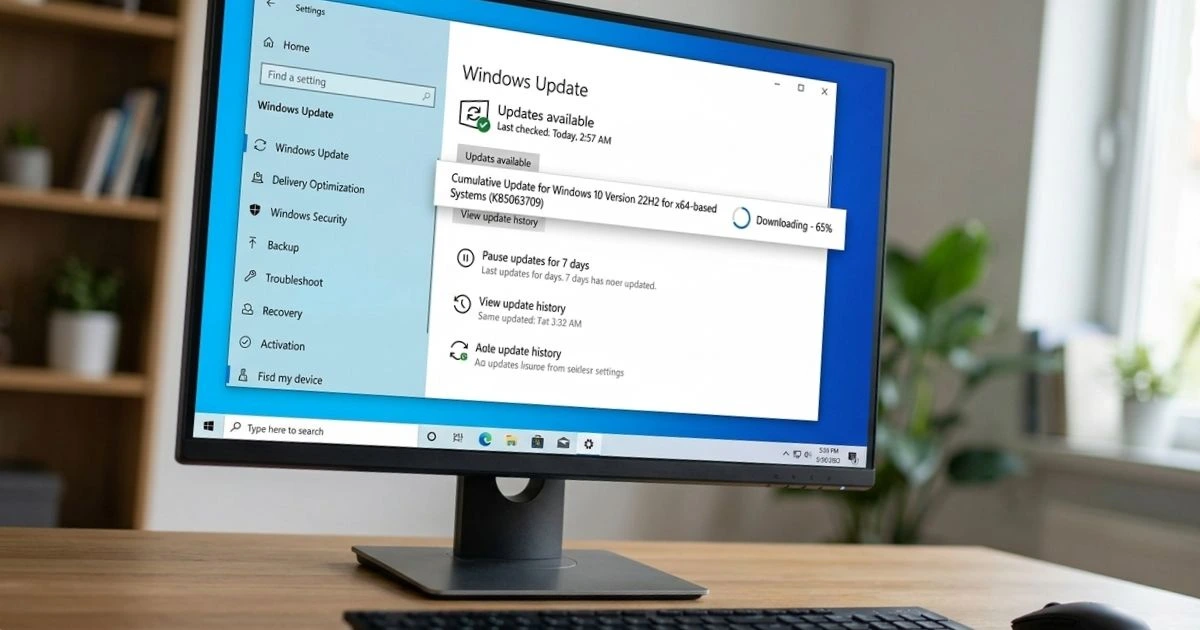
Before diving into installation steps, it helps to understand what you’re actually dealing with. The Windows 10 KB5063709 update is a cumulative update released by Microsoft as part of its regular Patch Tuesday update cycle. Cumulative updates bundle together all previously released patches plus new fixes, meaning you don’t need to install a chain of older updates first — this one covers it all.
This update applies primarily to Windows 10 versions 21H2 and 22H2, which remain the most widely used builds among home and enterprise users. You can find the official entry for this update on Microsoft’s Update Catalog at catalog.update.microsoft.com, where Microsoft documents every KB article with technical details and download links.
Think of it less as an upgrade and more as a health check for your operating system — one that patches holes you didn’t even know existed.
Key Features and Improvements in KB5063709
Security Patches and Vulnerability Fixes
This is where KB5063709 earns its importance. Microsoft uses these cumulative updates to address CVEs — Common Vulnerabilities and Exposures — which are publicly documented security flaws that hackers can exploit. This update targets several high-priority vulnerabilities, including privilege escalation flaws (where a low-level user gains administrator access) and remote code execution risks (where an attacker runs malicious code on your system from a distance).
If you work from home, handle sensitive client data, or simply use your PC for online banking, these aren’t abstract threats. Cybersecurity firm IBM reported in its 2023 Cost of a Data Breach Report that the average breach now costs organizations $4.45 million. Keeping your system patched is one of the simplest lines of defense you have.
Performance and Stability Improvements
Beyond security, KB5063709 brings meaningful stability fixes. Users on affected Windows 10 builds have reported issues with Windows Search returning incomplete results, Task Manager displaying inaccurate CPU usage data, and occasional system freezes during file operations. This update addresses those bugs directly.
You may also notice driver compatibility improvements — particularly for USB peripherals and certain printer drivers that have caused conflicts on recent Windows 10 builds.
UI and Usability Changes
While not a feature-heavy release, KB5063709 includes minor refinements to the Start Menu behavior and notification center. Nothing dramatic, but the kind of polish that makes your daily workflow feel a little smoother.
| Feature/Fix | Type | Affected Component | Severity |
|---|---|---|---|
| Security Patch (CVE) | Security | Windows Kernel | Critical |
| Search result bug fix | Bug Fix | Windows Search | Moderate |
| Task Manager accuracy | Bug Fix | System Monitor | Low |
| USB driver update | Compatibility | Hardware Drivers | Low |
System Requirements for Installing KB5063709
Before you start the installation, make sure your system meets these basic requirements:
- ✅ Windows 10 version 21H2 or 22H2
- ✅ At least 2 GB of free disk space
- ✅ A stable internet connection (for Windows Update method)
- ✅ Administrator account privileges
If you’re unsure which Windows 10 version you’re running, press Windows + R, type winver, and hit Enter. Your version number will appear in the dialog box.
How to Install the Windows 10 KB5063709 Update
Method 1 — Via Windows Update (Recommended for Most Users)
This is the simplest path and the one Microsoft recommends for home users:
- Click the Start Menu and open Settings
- Navigate to Update & Security
- Click Windows Update in the left sidebar
- Click Check for Updates
- Locate KB5063709 in the list and click Download and Install
- Allow the process to complete, then restart your PC when prompted
The restart is not optional — many patches don’t fully apply until the system reboots.
Method 2 — Manual Installation via Microsoft Update Catalog
If Windows Update isn’t working correctly or you’re managing a PC without internet access, the manual method is your best option:
- Visit catalog.update.microsoft.com
- Search for KB5063709 in the search bar
- Identify the correct version for your system (x64 for 64-bit, x86 for 32-bit)
- Click Download and save the
.msufile - Right-click the file and select Run as Administrator
- Follow the installer prompts and restart when complete
Method 3 — Using WSUS for Enterprise Environments
If you’re an IT administrator managing multiple machines, Windows Server Update Services (WSUS) lets you approve and deploy KB5063709 across your entire fleet from a central console. Approve the update in your WSUS dashboard, set a deployment schedule, and let it roll out automatically during off-hours to avoid disrupting workflows.
Common Issues After Installing KB5063709 and How to Fix Them
Update Fails to Install
If you see error codes like 0x80070002 or 0x8007000d, your Windows Update cache is likely corrupted. Fix it by opening Command Prompt as Administrator and running:
net stop wuauserv → net stop bits → delete contents of C:\Windows\SoftwareDistribution\Download → restart both services → try updating again.
PC Slows Down After Update
A temporary slowdown in the first 30–60 minutes post-update is completely normal. Windows is indexing files and applying background configurations. If the slowdown persists beyond an hour, open Task Manager, check for processes consuming excessive CPU, and disable unnecessary startup apps via Settings → Apps → Startup.
How to Uninstall KB5063709 If Needed
If the update causes an incompatibility with specific software on your system, you can remove it:
- Go to Settings → Update & Security
- Click View Update History
- Select Uninstall Updates
- Find KB5063709, right-click, and select Uninstall
Should You Install the Windows 10 KB5063709 Update?
The short answer is yes — and the sooner, the better. Skipping security updates leaves your system exposed to vulnerabilities that are now publicly known, meaning attackers actively look for unpatched machines. For enterprise users, delaying patches can also create compliance issues under frameworks like ISO 27001 or GDPR.
The only scenario where caution makes sense is if you’re running specialized software with known compatibility issues. In that case, test on a non-critical machine first before rolling out broadly.
Conclusion
The Windows 10 KB5063709 update is exactly the kind of routine maintenance that keeps your PC safe, stable, and performing at its best. It takes minutes to install and potentially saves you from hours — or worse, months — of dealing with a compromised or malfunctioning system. Don’t let notification fatigue become a security liability.
FAQ
Q: What does the Windows 10 KB5063709 update fix? The Windows 10 KB5063709 update addresses critical security vulnerabilities including privilege escalation and remote code execution risks, along with bug fixes for Windows Search and system stability improvements.
Q: Is the KB5063709 update mandatory? It’s not forced automatically for all users, but it is strongly recommended — especially for the security patches it contains. Leaving known vulnerabilities unpatched is a significant risk.
Q: How do I know if the Windows 10 KB5063709 update is installed? Go to Settings → Update & Security → View Update History and scroll through the list to confirm KB5063709 appears with a “Successfully installed” status.
Q: Can I uninstall the KB5063709 update after installing it? Yes. Navigate to Settings → Update & Security → View Update History → Uninstall Updates, locate KB5063709, and uninstall it from there.
Q: Why is my PC slow after installing KB5063709? A short performance dip is normal as Windows completes background indexing post-update. It typically resolves within 30 to 60 minutes. If it persists, check Task Manager for resource-heavy background processes.