How Do I Change Wallpaper on MacBook: Step-by-Step Guide
Table of Contents
It may seem minor, but it matters more than you realize. You open your MacBook every single morning, and the first thing you see is that same default macOS wallpaper you’ve been staring at for the past two years. Maybe it’s the mountain. Maybe it’s the abstract color wave. Whatever it is, it stopped inspiring you a long time ago. If you’ve been Googling “how do I change wallpaper on MacBook” and landing on vague or outdated answers, this guide is exactly what you need. In the next few minutes, you’ll know how to personalize your desktop for every macOS version — and where to find stunning wallpapers to match.
Why Changing Your MacBook Wallpaper Matters More Than You Think
Research from the University of Exeter found that personalizing your workspace — even in small ways — can increase productivity by up to 32%. Your MacBook’s desktop is the visual foundation of your workday. A wallpaper that calms you, energizes you, or simply makes you smile when you open the lid is a genuinely worthwhile 60-second investment. Beyond mood and productivity, a fresh wallpaper can make an aging MacBook feel new again without spending a single dollar.
How to Change the Wallpaper on a MacBook – macOS Ventura & Sonoma
If you’re running macOS Ventura (13) or Sonoma (14), the wallpaper settings live inside the revamped System Settings app, which replaced System Preferences in 2022.
Method 1 — Via System Settings
- Select the Apple menu located at the top-left corner of your screen.
- Select System Settings
- In the left sidebar, scroll down and click Wallpaper
- Browse the curated categories: Dynamic, Light & Dark, Colors, Landscapes, Cityscape, and more
- Click any thumbnail to immediately preview it on your desktop
- If you have multiple desktops (Mission Control Spaces), choose whether to apply it to all or individually
Method 2 — Right-Click Directly from Finder
This is the fastest method if you already have an image saved on your Mac:
- Launch Finder and go to the image file.
- Right-click (or Control-click) the image
- Select “Set Desktop Picture”
Done. The wallpaper changes instantly.
Method 3 — Set Wallpaper from the Photos App
If the image you want is in your photo library:
- Open the Photos app
- Select the image you want to use
- Go to the menu bar: File → Share → Set as Desktop Picture
This is particularly useful if you want to use a personal photo — a vacation shot, a family moment, or anything from your camera roll.
How Do I Change Wallpaper on MacBook — macOS Monterey and Earlier
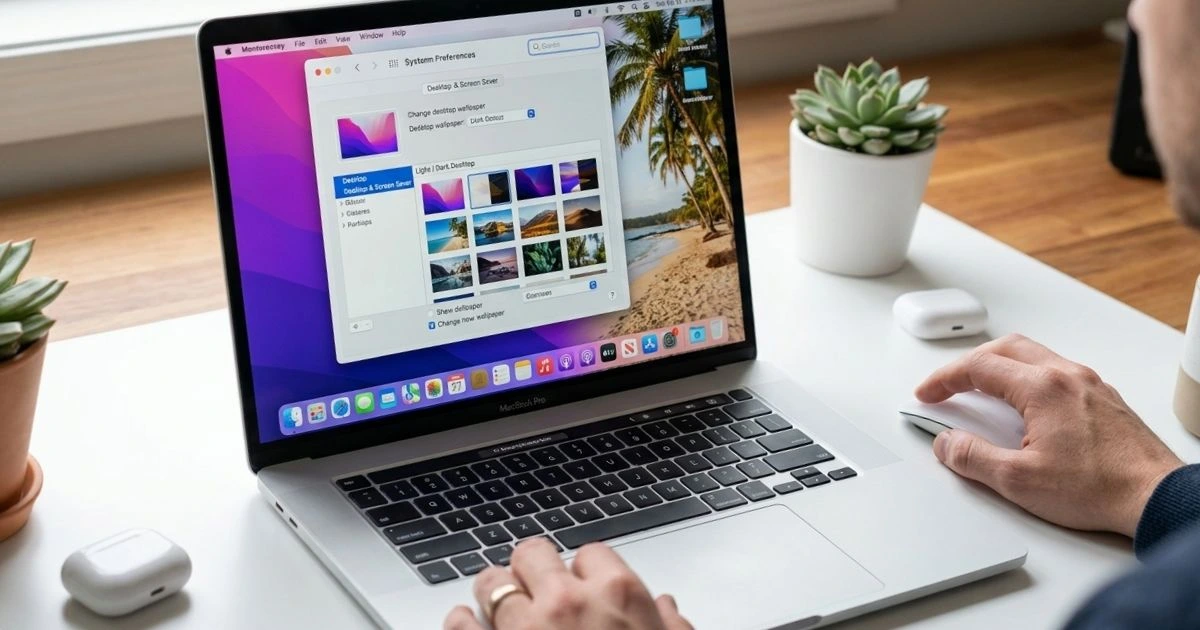
If you’re on macOS Monterey (12), Big Sur (11), or Catalina (10.15), the process uses the older System Preferences panel:
Via System Preferences
- Click the Apple Menu → System Preferences
- Open Desktop & Screen Saver
- Click the Desktop tab at the top
- In the left panel, browse Apple’s built-in folders or click the + button to add your own photo folder
- Click any image on the right to apply it immediately
- Optional: Check the “Change picture” box to set a rotating slideshow
The interface looks different from Sonoma’s System Settings, but the core functionality is identical.
How to Set a Dynamic or Auto-Changing Wallpaper on MacBook
Using macOS Built-In Dynamic Wallpapers
macOS has offered dynamic wallpapers since Mojave — these are wallpapers that shift appearance throughout the day, mirroring sunrise, daylight, sunset, and night. They’re one of the most underappreciated macOS features.
To use them, go to System Settings → Wallpaper and look for the “Dynamic” category. Select any dynamic wallpaper and macOS automatically adjusts it based on your location and time of day.
Setting a Wallpaper Slideshow
If you want variety, set up a slideshow that rotates through a folder of your favorite images:
- In System Settings → Wallpaper, scroll down and click “Add a Folder or Album”
- Select a folder of images from your Mac
- Set the rotation interval: every 5 seconds, 30 minutes, daily, or on login/wake
- Toggle Shuffle if you want random order
Best Sources for MacBook Wallpapers
Finding high-quality wallpapers is easier than ever. For Retina displays, you need images at a minimum of 2560×1600 pixels — anything lower will look soft or pixelated on a sharp MacBook screen.
| Website | Free/Paid | Resolution | Best For |
|---|---|---|---|
| Unsplash.com | Free | Up to 8K | Photography |
| Wallpaperhub.app | Free | 4K–5K | macOS-style |
| Dynamic Wallpaper Club | Free/Paid | 4K–6K | Dynamic wallpapers |
| Free | Varies | Aesthetic/themed | |
| Your own Photos | Free | Varies | Personal memories |
Unsplash is particularly worth bookmarking — it has tens of thousands of professional-grade photographs available for free download, and a dedicated “wallpaper” search category returns images already optimized for desktop use.
Troubleshooting — Wallpaper Not Changing on MacBook
Problem: Wallpaper reverts to default after restart This usually happens when System Settings weren’t saved properly, or when multiple desktop Spaces have conflicting wallpaper assignments. Re-apply your chosen wallpaper and check each Space individually.
Problem: Custom image looks blurry Your image resolution is too low for your Retina display. Replace it with a version of at least 2560×1600 pixels.
Problem: “Set as Desktop Picture” option is missing from right-click menu This occasionally happens on older macOS versions after system updates. Try applying the wallpaper through System Preferences → Desktop & Screen Saver instead, or update your macOS to the latest available build.
Conclusion
Answering “how do I change wallpaper on MacBook” turns out to be one of those satisfying questions with a genuinely simple answer. Whether you’re on the latest Sonoma or an older Monterey build, the process takes under a minute. Use the Sources table to find a stunning 4K image, apply it through the method that matches your macOS version, and give your desktop the refresh it’s been waiting for.
FAQ
Q: How do I change wallpaper on MacBook without System Settings? Right-click any image in Finder and select “Set Desktop Picture.” It’s the fastest shortcut to change your MacBook wallpaper without opening any settings menu.
Q: Why won’t my wallpaper change on MacBook? The most common reasons are conflicting settings across multiple desktop Spaces, a corrupted preferences file, or an image resolution too low for your Retina display. Re-apply via System Settings and ensure your image is at least 2560×1600 pixels.
Q: How do I change wallpaper on MacBook for each desktop Space separately? Switch to each Space using Mission Control, then apply a different wallpaper through System Settings → Wallpaper while in that Space. macOS saves unique wallpaper preferences per Space.
Q: Can I set a video as wallpaper on MacBook? Not natively in macOS. Third-party apps like HiDock or Mango 5Star allow animated or video-based desktop wallpapers if you want that functionality.
Q: What is the best resolution for a MacBook wallpaper? For any MacBook with a Retina display, use wallpapers with a minimum resolution of 2560×1600 pixels to ensure crisp, clear results at full screen.
Switched up your wallpaper? Tell us in the comments what style you went with — minimal, nature, aesthetic, or something completely unique.