How to Add a Card to Cash App: Easy Step-by-Step Guide for Beginners
Table of Contents
You’re out with friends, the bill arrives, and someone says “just send me your share on Cash App.” You open the app — and nothing. No card linked, no way to pay, and that awkward silence stretching across the table. Sound familiar?
If you’ve ever felt stuck like that, you’re not alone. Millions of people download Cash App every year but never fully set it up. The good news? Learning how to add a card to Cash App takes less than three minutes — and once it’s done, you’ll wonder how you ever managed without it.
This guide walks you through every single step, from opening the app to fixing common errors. Whether you’re using an iPhone or Android, a debit card or credit card, it’s all covered right here.
What Is Cash App and Why Should You Link a Card?
Cash App is a mobile payment platform developed by Block, Inc., with over 50 million active users across the United States. It lets you send and receive money, pay bills, invest in stocks, buy Bitcoin, and even get a free Cash Card — a Visa debit card tied directly to your Cash App balance.
But here’s the thing: without a linked card or bank account, your experience is severely limited.
When you add a card to Cash App, you unlock the ability to:
- Fund your Cash App wallet instantly
- Make purchases online and in physical stores
- Send money to friends and family without delays
- Withdraw your balance directly to your debit card
- Set up direct deposit and get paid up to two days early
Simply put, your card is the engine that makes Cash App run smoothly for you.
Types of Cards You Can Add to Cash App
Before you jump into the steps, it helps to know what cards are actually supported.
| Card Type | Supported? | Notes |
|---|---|---|
| Visa Debit Card | ✅ Yes | Most widely accepted |
| Mastercard Debit | ✅ Yes | Fully supported |
| American Express | ✅ Yes | Minor limitations on some features |
| Prepaid Cards | ⚠️ Limited | Often declined |
| Credit Cards | ✅ Yes | 3% fee applies when sending money |
| Business Debit Cards | ✅ Yes | Fully supported |
If you’re using a prepaid card, there’s a strong chance Cash App will decline it. Stick to a standard debit or credit card from a US-based bank for the smoothest experience.
What You Need Before You Start
Getting your card linked is fast, but you’ll want to have a few things ready before you open the app:
- ✅ A verified or active Cash App account
- ✅ Your physical debit or credit card
- ✅ The card’s 16-digit number
- ✅ Expiration date (MM/YY format)
- ✅ CVV code (the 3 or 4-digit number on the back)
- ✅ Your billing zip code
- ✅ A stable internet connection
Got everything? Perfect. Let’s get into it.
How to Add a Card to Cash App — Step-by-Step
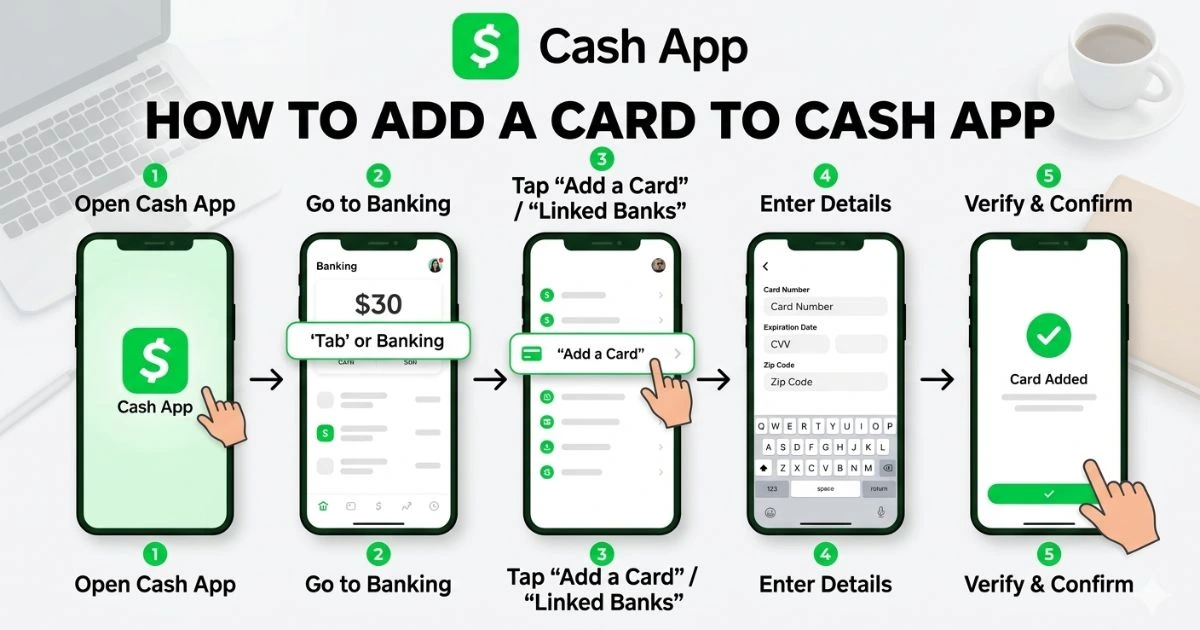
Step 1: Open Cash App on Your Phone
Launch Cash App on your iOS or Android device. Log in using your registered phone number or email address. Make sure your app is updated to the latest version to avoid any glitches during the process.
Step 2: Tap the Bank Icon
On the home screen, you’ll notice icons running along the bottom. Tap the bank icon, which is located at the bottom left corner. This takes you to your financial hub — the section where all your payment methods live.
Step 3: Select “Add a Card”
Once you’re in the banking section, scroll down until you see the option to “Add a Card.” Tap it. You may also see an option to link a bank account here — for now, focus on the card option.
Step 4: Enter Your Card Details
A card entry screen will appear. Carefully fill in:
- Card Number — all 16 digits, no spaces
- Expiration Date — in MM/YY format
- CVV — located on the back of your card
- Billing Zip Code — the zip code associated with your card’s billing address
Take your time here. One wrong digit and the card won’t verify.
Step 5: Tap “Add Card” and Confirm
Once all the details are in, tap Add Card. Cash App will verify your information in seconds. If everything checks out, you’ll see a confirmation message letting you know your card has been successfully linked.
Step 6: Set It as Your Default Card (Optional)
If you plan to add multiple cards, you can choose which one Cash App uses by default. Head into your settings, select your preferred card, and set it as default. This way, every transaction automatically pulls from the card you trust most.
How to Add a Card on iPhone vs Android
The core steps are identical on both platforms, but here are a few platform-specific tips:
On iPhone (iOS):
- Make sure Cash App is updated via the App Store
- Face ID or Touch ID may prompt you to confirm the card addition
- If the screen freezes, force-close the app and reopen it
On Android:
- Update Cash App through the Google Play Store
- Fingerprint authentication may appear during confirmation
- If you’re on a Samsung or Xiaomi device, your screen layout may look slightly different — but the steps remain the same
Common Problems and How to Fix Them
Adding a card usually goes smoothly, but if you hit a wall, here’s what to do:
Card Declined or Not Accepted
- Re-enter your card details and check for typos
- Confirm the card hasn’t expired
- Call your bank to make sure online and third-party transactions are enabled on your account
“Card Already Linked to Another Account” Error
Each card can only be tied to one Cash App account at a time. If you’re seeing this message, log into your other account, remove the card from there, and then try adding it to your current account.
Prepaid Card Not Working
Most prepaid cards don’t work with Cash App’s system. Your best bet is to use a standard debit card from your bank. If you don’t have one, consider opening a free checking account — many online banks offer them with no fees.
App Crashing During Card Entry
- Close the app completely and reopen it
- On Android, clear the app cache from your phone settings
- On iPhone, offload the app and reinstall it
- Make sure your phone’s operating system is up to date
How to Remove or Switch a Card on Cash App
Life evolves — and your payment preferences evolve with it. Here’s how to manage your cards:
To Remove a Card:
- Go to the Banking tab
- Tap on the card you want to remove
- Select Remove Card
- Confirm the action
To Switch Between Cards: Cash App supports multiple linked cards at once. Simply tap the card you want to use as your active default and you’re done. No need to delete the others unless you want to.
Is It Safe to Add Your Card to Cash App?
This is a question worth asking, and the answer is yes — with some smart habits on your end.
Cash App uses 256-bit encryption, the same security standard used by major banks. It’s also PCI-DSS compliant, which means it meets strict industry standards for handling card data. On top of that, you get:
- Two-factor authentication (2FA)
- Real-time fraud monitoring
- Security lock that requires your PIN or biometric before any transaction
To keep your card even safer:
- Never share your Cash App PIN or $Cashtag password with anyone
- Enable the Security Lock feature inside the app settings
- Check your transaction history regularly for anything unfamiliar
- Only send money to people you personally know and trust
Frequently Asked Questions — How to Add a Card to Cash App
How do I add a card to Cash App for the first time? Open the app, tap the bank icon, select “Add a Card,” enter your card number, expiry date, CVV, and billing zip code, then confirm. Your card will be linked within seconds.
Is it possible to add a credit card to Cash App? Yes, you can. Just keep in mind that a 3% fee applies whenever you send money using a credit card.
What is the maximum number of cards I can link to Cash App? You can link multiple debit and credit cards to the same account and switch between them anytime.
Why won’t Cash App accept my card? The most common reasons are incorrect card details, an expired card, an unsupported card type, or the card already being linked to a different Cash App account.
Is it possible to link a prepaid card to Cash App? Most prepaid cards are not supported. Use a standard debit or credit card from a US bank instead.
Is adding a card to Cash App free? Completely free. Fees only apply to specific actions like instant bank transfers or payments made with a credit card.
Final Thoughts — Take Full Control of Your Cash App Experience
You now have everything you need to confidently link your card and start using Cash App the way it was meant to be used. No more awkward moments at dinner, no more delays sending money, and no more fumbling through the app trying to figure out what goes where.
Go ahead — open Cash App right now, follow the steps above, and get your card linked today. Once it’s done, explore everything the platform has to offer: instant transfers, the Cash Card, direct deposits, and more.
And if you found this guide helpful, share it with a friend who’s still struggling to set up their account. A little help goes a long way.