How to Fix 0x80004oo5 Error Windows 11: Easy and Powerful Solutions
Table of Contents
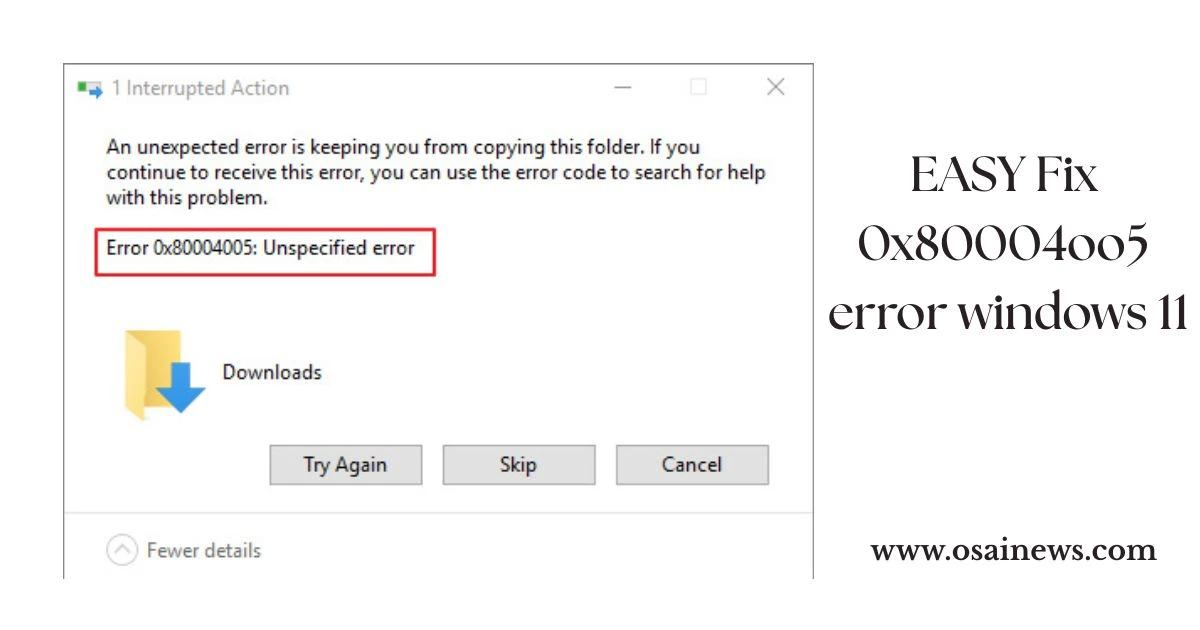
Picture this — you’re deep into a project, your deadline is breathing down your neck, and out of nowhere your screen throws a cold, cryptic code at you: 0x80004005. No explanation. No helpful hint. Just a wall of digital frustration staring back at you.
You’re not alone. Thousands of Windows 11 users hit this exact wall every single day. The good news? This error — as maddening as it feels — is almost always fixable without calling a technician or wiping your system. This guide walks you through every proven solution, from the simplest one-click fixes to deeper system-level repairs, so you can get back to what matters fast.
What Is the 0x80004oo5 Error Windows 11 ?
At its core, the 0x80004005 error Windows 11 translates loosely to “unspecified error” or “access denied.” Microsoft designed it as a catch-all code, which is exactly why it’s so frustrating — the error itself gives you almost nothing to work with.
You’re likely seeing it in one of these situations:
- A Windows 11 update that won’t finish
- A shared network folder you can’t access
- A ZIP or compressed file that refuses to open
- VirtualBox or VMware throwing a fit
- Microsoft Outlook refusing to launch
- A script or installer that keeps failing
The scenario matters, because it points you toward the right fix faster.
What’s Actually Causing This Error?
Before throwing solutions at the problem, it helps to understand what’s underneath it. The 0x80004005 error typically traces back to one of these root causes:
- Corrupted or missing Windows system files
- A blocked or broken Windows Update process
- Antivirus or firewall software blocking an operation
- Registry errors or broken keys
- Insufficient user permissions on a file or folder
- Outdated, incompatible, or corrupt drivers
- Malware interfering with system processes
- A damaged .NET Framework or Visual C++ redistributable
| Trigger Scenario | Most Likely Cause |
|---|---|
| Windows Update fails | Corrupted update cache |
| Can’t open ZIP files | Missing permissions or file association |
| Network share access denied | SMB settings or firewall |
| VirtualBox error | Registry issue or driver conflict |
| Outlook won’t launch | Corrupt PST file or permissions |
How to Fix 0x80004005 Error Windows 11 — Step-by-Step Solutions
Work through these fixes in order. Most users resolve their issue within the first three methods.
Fix 1: Run the Windows Update Troubleshooter
This is your first stop for any update-related trigger. Windows 11 has a built-in tool designed specifically to detect and repair common update failures.
How to run it:
- Open Settings → System → Troubleshoot
- Click Other troubleshooters
- Find Windows Update and click Run
- Follow the on-screen prompts and restart your PC
This takes under five minutes and silently fixes broken update components in many cases.
Fix 2: Clear the Windows Update Cache
If the troubleshooter doesn’t cut it, stale update files are often to blame. Clearing the cache forces Windows to re-download fresh update data.
Open Command Prompt as Administrator, then run:
net stop wuauserv
net stop bits
Navigate to C:\Windows\SoftwareDistribution and delete everything inside the folder. Then restart the services:
net start wuauserv
net start bits
Restart your PC and try updating again.
Fix 3: Run SFC and DISM Scans
Corrupted system files are one of the most common causes of the 0x80004005 error on Windows 11. The System File Checker and DISM tool work together to find and replace damaged files.
- Open Command Prompt as Administrator
- Run:
sfc /scannow— wait for it to complete - Then run:
DISM /Online /Cleanup-Image /RestoreHealth - Restart your PC once both finish
This process can take 15–30 minutes but it’s one of the most effective deep-clean options available.
Fix 4: Temporarily Disable Your Antivirus
Your security software may be flagging a legitimate operation as a threat. This is surprisingly common with third-party antivirus tools and even Windows Defender in aggressive configurations.
- Open Windows Security → go to Virus & Threat Protection → click Manage Settings.
- Toggle Real-time protection off temporarily
- Try your original action again
- Re-enable protection immediately after testing
If this resolves the error, add the relevant file or folder as an exception in your antivirus settings rather than leaving protection disabled.
Fix 5: Fix User Permissions
If your error is specifically “access denied,” your user account may not have the right permissions on a file or folder.
- Right-click the file or folder in question
- Select Properties → Security tab
- Click Edit → select your username
- Check Full Control under the Allow column
- Click Apply → OK
This is particularly useful when accessing shared network folders or files moved from another user account.
Fix 6: Re-Register Key DLL Files
Broken or unregistered DLL files can trigger this error when running scripts, installers, or apps. Re-registering them takes less than a minute.
Open Command Prompt as Administrator and run:
regsvr32 vbscript.dll
regsvr32 jscript.dll
Restart your system after each command. This is especially effective when the error appears during software installations.
Fix 7: Reset Your Network Settings
If the error only appears when accessing shared drives or network folders, your network configuration is likely the culprit.
Execute the following commands in an elevated Command Prompt (run as administrator).
netsh int ip reset
netsh winsock reset
Restart your router and your PC. If you’re still blocked, check whether SMBv2 is enabled via Windows Features — some network share scenarios require it.
Fix 8: Perform a Clean Boot
If you can’t pinpoint the cause, a clean boot strips Windows down to essentials and helps you isolate which program or service is triggering the conflict.
- Press Win + R, type msconfig, then press Enter.
- Open the Services tab → check Hide all Microsoft services → click Disable all.
- Go to the Startup tab → open Task Manager → disable all startup items
- Restart your PC and test
Re-enable services one batch at a time until the error reappears — that batch contains your culprit.
Fix 9: Scan for Malware
Malware can corrupt system files, block access operations, and directly trigger the 0x80004005 error. Run a full scan using Windows Defender’s offline mode for the most thorough check:
- Open Windows Security → go to Virus & Threat Protection.
- Then click Scan Options and choose Microsoft Defender Offline Scan.
- Click Scan now
Your PC will restart and scan before Windows loads, catching threats that hide during normal operation.
Fix 10: Use System Restore
If the error started after a recent update, driver install, or software change, rolling back to a previous restore point is often the cleanest fix.
- Open Control Panel → Recovery → Open System Restore.
- Then select a restore point created before the error occurred.
- Follow the prompts and let your system restart
Your personal files remain untouched — only system settings and recently installed programs are affected.
Quick Comparison: Which Fix Should You Try First?
| Fix Method | Best For | Difficulty | Time |
|---|---|---|---|
| Windows Troubleshooter | Update errors | Easy | 5 min |
| Clear Update Cache | Update failures | Easy | 10 min |
| SFC / DISM Scan | Corrupted system files | Medium | 15–30 min |
| Disable Antivirus | Blocked access | Easy | 2 min |
| User Permissions | Access denied errors | Medium | 5 min |
| Re-register DLL | Script/app errors | Medium | 5 min |
| Network Reset | Shared folder errors | Medium | 10 min |
| Clean Boot | Unknown startup conflict | Medium | 15 min |
| Malware Scan | Virus-related errors | Easy | 20–60 min |
| System Restore | Post-update errors | Easy | 20 min |
How to Keep This Error From Coming Back
Once your system is running clean, a few habits go a long way toward keeping the 0x80004005 error Windows 11 from resurfacing:
- Keep Windows 11 updated on a regular schedule
- Never shut down your PC mid-update
- Create a system restore point before installing new software or drivers
- Conduct a malware scan monthly.
- Keep your drivers current, especially network adapters and display drivers
- Occasionally clear temp files using the built-in Disk Cleanup tool
FAQ — 0x80004005 Error Windows 11
What does the 0x80004005 error mean in Windows 11? It’s a generic “unspecified error” or “access denied” code that Windows throws when a process fails without a more specific explanation. The actual cause depends heavily on what triggered it.
How do I fix the 0x80004005 error without losing my data? Start with the SFC/DISM scan, user permissions fix, or Windows Update troubleshooter — none of these touch your personal files. Only a full PC reset carries data risk, and even then the “Keep my files” option protects most content.
Is it possible for antivirus software to trigger the 0x80004005 error in Windows 11 ? Yes, absolutely. Overly aggressive antivirus tools sometimes block legitimate system operations, especially during updates or when accessing certain file types. Temporarily disabling real-time protection helps confirm whether this is your trigger.
Is the 0x80004005 error a virus? No — it’s an error code, not a virus. That said, malware infection is one of the known causes that can produce this error as a side effect of file corruption or blocked system access.
How long does it take to fix? Simple fixes like running the troubleshooter or adjusting permissions take under 10 minutes. Deeper repairs like SFC scans or clean boots can take 30 minutes to an hour. A full system reset is a last resort and may take 1–2 hours.
Conclusion
The 0x80004005 error Windows 11 is one of those problems that looks scarier than it actually is. In the vast majority of cases, it comes down to corrupted files, permission issues, a blocked update, or a software conflict — all things well within your ability to fix using the methods above.
Start with the simplest solutions first. Run the troubleshooter. Clear the update cache. Check your permissions. Work your way down the list and you’ll almost certainly find your fix before reaching the more advanced options.
Did one of these solutions work for you? Drop a comment below and tell other readers which fix solved your problem — your experience might save someone else hours of frustration. And if you’re still stuck after trying everything here, describe your specific scenario in the comments and get targeted help.