How to Full Screen on PC – Powerful Methods for Any App
Table of Contents
You’re settled in. The lights are low, your favorite show is finally loading, and just as the opening scene hits — the Windows taskbar blinks at the bottom of the screen. A notification pops in the corner. A browser toolbar eats into your view.
Sound familiar?
Whether you’re gaming, binge-watching, presenting to a boardroom, or just trying to focus on a document without visual chaos — knowing how to full screen on PC is one of those skills that quietly transforms how you use your computer every single day.
The good news? It’s not complicated. But most people only know one method — usually F11 — and then feel stuck the moment it doesn’t work. This guide covers every reliable approach for every type of app, plus troubleshooting fixes when things go sideways.
Let’s take your screen back.
What Does Full Screen Mode Actually Mean on a PC?
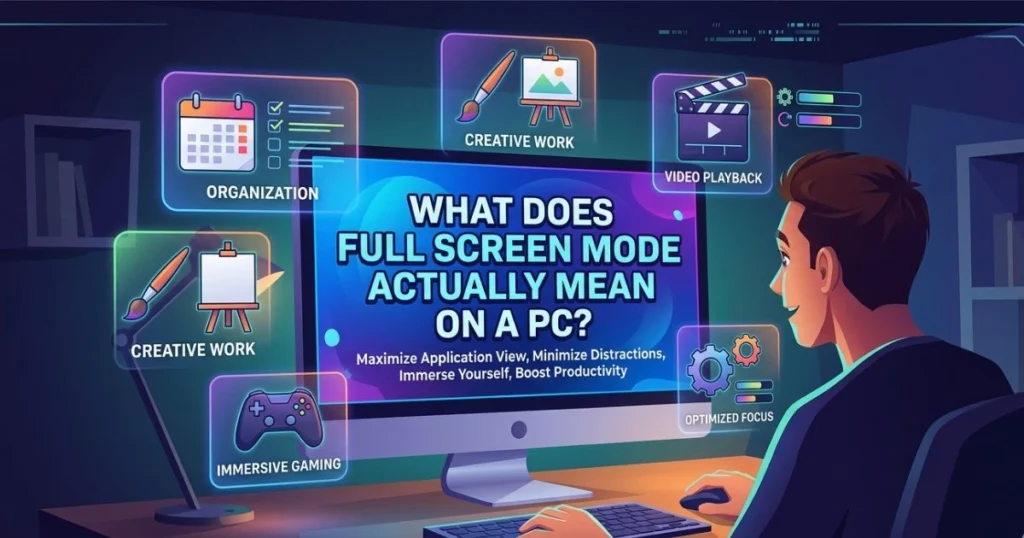
Before jumping into the methods, it’s worth understanding what you’re actually toggling — because not all “big window” modes are equal.
Full Screen vs. Maximized Window — What’s the Difference?
Most people use these terms interchangeably, but they’re technically different things.
When you maximize a window, it expands to fill all visible screen space — but the taskbar at the bottom stays visible, and the title bar at the top of the app remains. You’re working in a big window, not a truly immersive one.
Full screen mode, on the other hand, hides everything. The taskbar disappears. Title bars vanish. Your app or content occupies every single pixel of your display. Nothing else competes for your attention.
For gaming, that distinction also affects performance. Exclusive full screen mode lets your GPU communicate more directly with your monitor, which can reduce input lag and improve frame rates — something a maximized window simply can’t do.
Why Use Full Screen Mode?
Here’s why switching to full screen genuinely matters:
- Deeper focus — No visual distractions pulling your eye away from work
- Better immersion — Movies, shows, and games feel completely different at full display
- Cleaner presentations — Your audience sees content, not desktop clutter
- Performance boost in games — Exclusive full screen reduces latency at the hardware level
- More screen real estate — Every pixel works for you, not against you
Universal Keyboard Shortcuts to Full Screen on PC
The fastest route to full screen on PC is almost always a keyboard shortcut. Here are the ones worth memorizing.
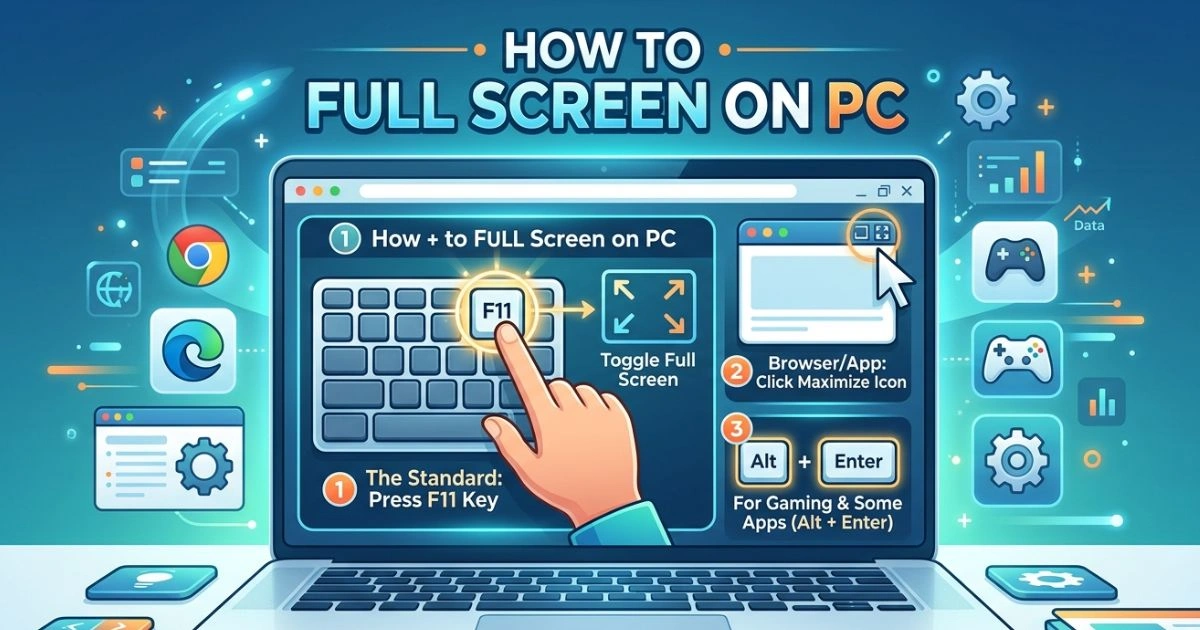
The Most Common Full Screen Shortcut — F11
F11 is the universal go-to for full screen in most Windows environments. Press it once to enter full screen. Press it again to exit. Simple.
It works reliably in:
When you hit F11 in a browser, the address bar, tabs, and all toolbars slide out of view. Your content fills the screen. To come back, just press F11 again, or move your cursor to the top of the screen to temporarily reveal the browser bar.
Other Essential Shortcuts to Know
| Shortcut | What It Does | Where It Works |
|---|---|---|
| F11 | Toggle full screen on/off | Browsers, File Explorer |
| Alt + Enter | Toggle full screen | Games, media players |
| Windows + Up Arrow | Maximize window | All Windows apps |
| Windows + Shift + Enter | Full screen toggle | Some built-in Windows apps |
| F key | Full screen on video | YouTube, Netflix in browser |
| Esc | Exit full screen | Almost every app |
| Ctrl + Shift + F1 | Toggle full screen | Microsoft Excel |
| F5 | Start presentation (full screen) | Microsoft PowerPoint |
Keep this table bookmarked. You’ll refer back to it more than you think.
How to Full Screen on PC in Web Browsers
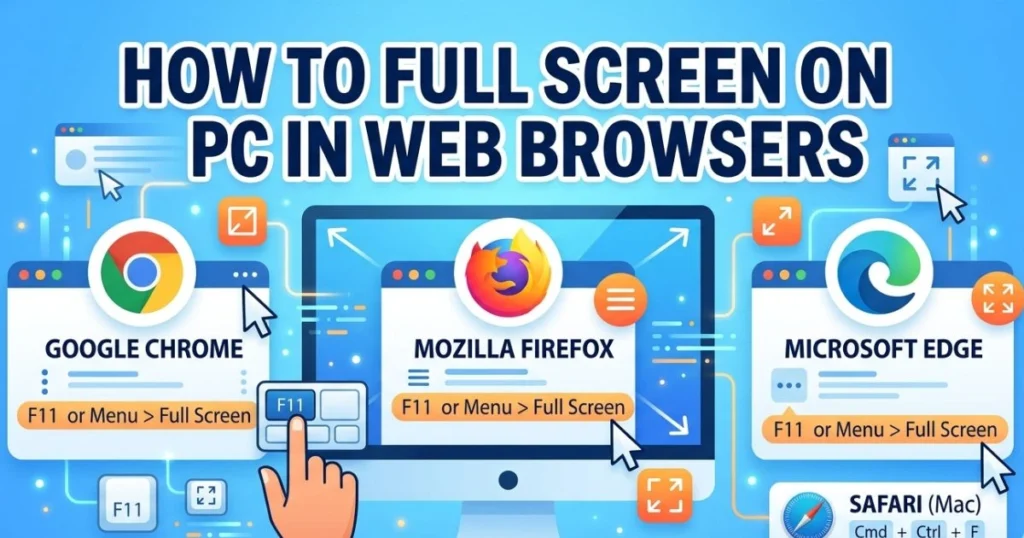
Your browser is probably where you spend most of your screen time. Here’s how to go full screen in each major one.
How to Full Screen in Google Chrome
Chrome gives you two clean ways to go full screen:
- Press F11 on your keyboard — instant full screen, no menus needed
- Click the three-dot menu (top right) → look for the square icon next to “Zoom” — that’s your full screen toggle
When you’re on YouTube inside Chrome, you have an extra option. Hit the F key while a video is playing to go full screen within the player itself. Hit T to enter Theater Mode, which expands the player without hiding the rest of Chrome.
To exit Chrome’s full screen at any time, press F11 or Esc.
How to Full Screen in Mozilla Firefox
Firefox follows the same pattern:
- Press F11 to toggle full screen
- Or go to the View menu → select Full Screen
One useful Firefox feature: when you enter full screen, the browser asks if you want to allow the site to use full screen. You can check “Always allow” for sites you trust. Your toolbars auto-hide and reappear when you move your mouse to the top.
How to Full Screen in Microsoft Edge
Edge, being Chromium-based, behaves almost identically to Chrome:
- Press F11
- Or click the three-dot menu → Full screen icon next to the Zoom controls
Edge also has an Immersive Reader mode (F9) that strips web pages down to readable text — not technically full screen, but a powerful focus tool worth knowing.
How to Full Screen in Opera & Brave
Both browsers respond to F11 the same way Chrome does. If the shortcut doesn’t register, check whether another application is capturing the F11 key (some keyboard management software does this).
How to Full Screen on PC for Games
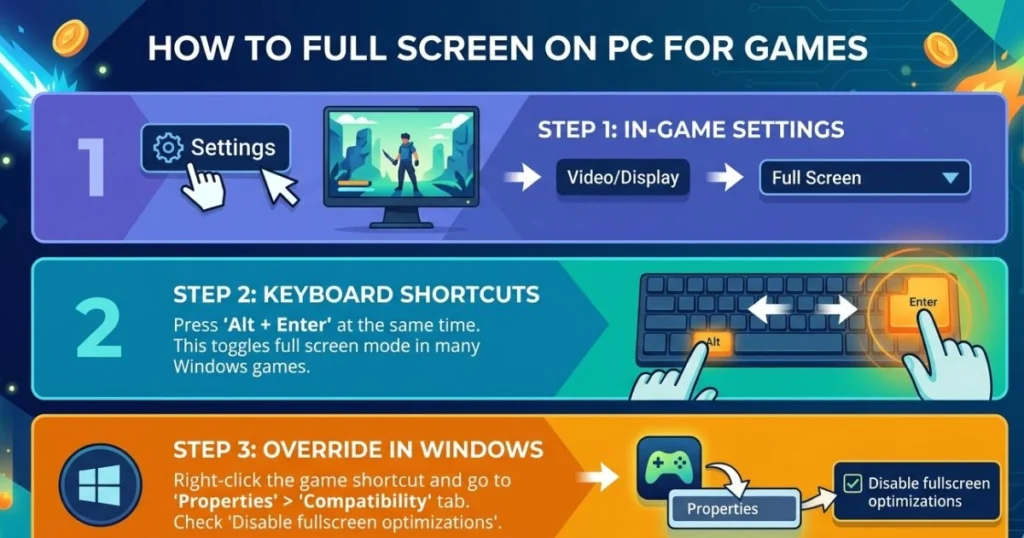
Gaming is where full screen settings matter most — both for the visual experience and for raw performance.
Setting Full Screen in Windows Game Settings
Most modern games let you choose your display mode directly in the settings menu. Look for Display or Video in the options, where you’ll usually find three choices:
- Windowed — Runs in a movable window; lowest performance
- Borderless Windowed (also called Borderless Fullscreen) — Looks full screen but technically isn’t; easier alt-tabbing
- Exclusive Full Screen (or just “Full Screen”) — True full screen; best performance, lowest input lag
For competitive gaming, choose Exclusive Full Screen when available. For casual gaming or frequent multitasking, Borderless Windowed is more convenient.
How to Force Full Screen for Older PC Games
Older games sometimes refuse to go full screen on modern hardware. Here’s how to push them:
- Right-click the game’s .exe file or its shortcut
- Select Properties → click the Compatibility tab
- Check “Run in 640×480 screen resolution” or adjust the compatibility mode
- Apply and launch
For games that still resist, a free tool called DXWnd lets you intercept and force windowed DirectX games into full screen mode. Advanced users can also edit the game’s config or .ini files — look for lines like Fullscreen=0 and change them to Fullscreen=1.
How to Full Screen in Steam Games
Steam gives you a global override option:
- Open your Steam Library
- Right-click the game → Properties → General
- In the Launch Options box, type:
-fullscreen
This forces the game to launch in full screen every time, regardless of in-game settings. To reverse it, change the flag to -windowed.
H4: Borderless Windowed vs. Exclusive Full Screen — Which Should You Choose?
| Feature | Borderless Windowed | Exclusive Full Screen |
|---|---|---|
| Alt-Tab speed | Fast | Slower |
| Performance | Slightly lower | Best possible |
| Multi-monitor support | Better | Can cause issues |
| Overlay apps (Discord) | Works smoothly | Can conflict |
| Input lag | Slightly higher | Lowest available |
If you stream, use Discord overlays, or alt-tab constantly — Borderless Windowed is your friend. If you want maximum frames and minimum lag — go Exclusive Full Screen.
How to Full Screen on PC for Video and Media Players
Full Screen in VLC Media Player
VLC is one of the most flexible players available, and going full screen is effortless:
- Press F to toggle full screen instantly
- Double-click the video to enter/exit full screen
- Or go to View → Fullscreen
For a cleaner experience, go to Tools → Preferences → Video and enable “Hide controls in fullscreen mode”. Your controls will fade after a second of inactivity and reappear when you move your mouse.
Full Screen in Movies & TV App (Windows)
The built-in Windows video app keeps it simple:
- Press Alt + Enter to toggle full screen
- Or right-click the video → select Full Screen
- Double-clicking the video also works in most cases
Full Screen on YouTube in Browser
YouTube has its own full screen system inside your browser:
- Click the full screen icon (four arrows) in the bottom-right corner of the player
- Or press the F key while the player is focused
- Press T for Theater Mode if you want an expanded player without hiding the browser
If you find that YouTube’s full screen feels slightly off on your display, check your browser’s zoom level (Ctrl + 0 resets it to 100%) — zoom above 100% can cause full screen alignment issues.
How to Full Screen on PC in Microsoft Office and Work Apps
Productivity apps have their own full screen behaviors. Here’s what you need to know for the most common ones.
Full Screen in Microsoft Word
Modern versions of Word have a Focus Mode designed to eliminate distractions:
- Go to the View tab in the ribbon
- Click Focus
- Your document expands to full screen with a dark background and nothing else visible
To exit, move your mouse to the top of the screen — a thin bar appears where you can click Close Focus View, or simply press Esc.
In older versions of Word (2010 and earlier), the equivalent was Full Screen Reading under the View menu.
Full Screen in PowerPoint
PowerPoint’s full screen is your presentation mode:
- Press F5 to start from the first slide
- Press Shift + F5 to start from your current slide
- Press Esc at any time to exit
For presenters using dual monitors, Presenter View shows your notes and upcoming slides on your screen while the audience sees only the presentation — activate it from the Slide Show tab.
Full Screen in Excel
Excel’s full screen option hides the ribbon and formula bar for maximum row visibility:
- Press Ctrl + Shift + F1 to toggle the ribbon on and off
- In Excel 2013 and earlier, go to View → Full Screen for a true full screen mode
Note: In newer versions of Excel (2016 onward), the dedicated Full Screen option was removed. The Ctrl + Shift + F1 ribbon toggle is the closest equivalent.
Full Screen in Zoom and Video Conferencing Apps
For Zoom meetings:
- Click the View button (top-right of the meeting window)
- Select Full Screen
- Or press Alt + F (Windows) to toggle
In Microsoft Teams, look for the expand icon when sharing your screen or watching a presentation. Teams also has a Focus Mode in the Education version that minimizes distractions for students.
How to Full Screen on PC Using Windows Settings
Sometimes the best approach is setting things up at the system level so your apps behave the way you want without needing to configure each one individually.
Setting an App to Always Open Full Screen (Maximized)
Windows lets you set individual apps to always launch maximized:
- Locate the app’s shortcut on your desktop or in the Start menu.
- Right-click it → Properties
- In the Shortcut tab, find the Run dropdown
- Change it from “Normal window” to “Maximized”
- Click Apply → OK
Note: This launches the app maximized, not in true full screen — but for most work apps, the difference is negligible.
Full Screen Across Multiple Monitors
Running two or more monitors changes how full screen behaves:
- In most games, full screen will only cover the monitor designated as your primary display
- In Borderless Windowed mode, you can freely move between monitors without the game minimizing
- Media players like VLC can be dragged to any monitor, then sent to full screen on that specific display
If you want a game to span across multiple monitors, you’ll need software like Nvidia Surround or AMD Eyefinity — both available through their respective GPU control panels.
Troubleshooting — Full Screen Not Working on PC?
You’ve tried the shortcuts and nothing happens. Here’s how to diagnose and fix the most common full screen problems.
Why Full Screen Sometimes Fails
The most frequent culprits:
- Conflicting overlays — Discord, GeForce Experience, or antivirus software capturing keyboard shortcuts
- Outdated GPU drivers — Old drivers cause display mode switching failures
- Incorrect scaling settings — Windows display scaling above 100% can interfere with full screen in some apps
- App-specific bugs — Some apps handle full screen poorly after Windows updates
Step-by-Step Fixes for Full Screen Not Working
- Update your GPU drivers — Open NVIDIA GeForce Experience, AMD Adrenalin, or Intel Graphics Command Center and check for updates
- Disable hardware acceleration — In Chrome, go to Settings → System → toggle off “Use hardware acceleration when available,” then relaunch
- Check display scaling — Go to Settings → System → Display → Scale — set it to 100% or the recommended value
- Run the app as Administrator — Right-click the app → “Run as administrator” — this resolves permission-based full screen blocks
- Disable conflicting overlays — Temporarily turn off Discord overlay (Settings → Overlay), Xbox Game Bar (Settings → Gaming → Xbox Game Bar), or any active screen capture software
- Reinstall the app — If nothing else works, a clean reinstall often resolves full screen-specific bugs introduced by partial updates
App-Specific Fixes
Chrome full screen not working: Press F11. If that fails, try Ctrl + Shift + F to open Chrome’s full screen via search, or disable extensions one by one to find a conflict.
Game full screen not working: Delete or reset the game’s config file (usually found in Documents or AppData), then reconfigure display settings from scratch.
VLC full screen not working: Go to Tools → Preferences → Video → Output → change from “Automatic” to “DirectX (DirectDraw) video output” and restart VLC.
Advanced Tips — Full Screen Like a Power User
If you want to go beyond the basics, these tools give you serious control over how your apps use your screen.
Using Microsoft PowerToys for Window Management
PowerToys is a free official Microsoft utility that adds powerful window management features to Windows 10 and 11.
The standout feature is FancyZones — it lets you define custom screen layouts and snap windows into them with precision. You can create a zone that covers your full screen for specific apps, and snap to it every time with a keyboard shortcut.
Download PowerToys from the Microsoft GitHub page or directly through the Microsoft Store.
AutoHotkey for Full Screen Automation
AutoHotkey is a free scripting tool that lets you create custom keyboard shortcuts for virtually anything — including forcing full screen on apps that don’t support it natively.
A simple script example:
^F12::  ; Ctrl + F12
WinSet, Style, ^0xC00000, A  ; Removes title bar
WinMove, A,, 0, 0, %A_ScreenWidth%, %A_ScreenHeight%
return
This removes the title bar and resizes the active window to fill your screen — an effective workaround for stubborn apps.
Full Screen in Virtual Machines
If you’re running Windows inside a virtual machine:
- VMware Workstation: Press Ctrl + Alt + Enter to enter full screen
- VirtualBox: Press Right Ctrl + F (the default Host Key plus F) to toggle full screen mode
Make sure VMware Tools or VirtualBox Guest Additions are installed for smooth full screen switching and proper resolution scaling.
Conclusion — Your Screen, Fully Under Your Control
You now have a complete toolkit for going full screen on PC — no matter what app you’re using, what version of Windows you’re on, or what’s blocking you from getting there.
To recap what you’ve covered:
- F11 is your fastest route for browsers and File Explorer
- Alt + Enter handles most media players and legacy games
- In-game display settings give you the most control over gaming performance
- Windows Properties → Run: Maximized automates full screen launches
- PowerToys and AutoHotkey give you power-user level control
The most important thing? Start using these shortcuts today. Within a week, switching to full screen will feel completely automatic — and you’ll wonder how you ever worked any other way.
Your screen is 100% yours. Take all of it.
FAQ — How to Full Screen on PC
Q1: What is the quickest full screen shortcut on PC? F11 is the fastest universal shortcut for most browsers and Windows apps. For games, Alt + Enter is the standard toggle. On YouTube and Netflix, the F key goes full screen inside the video player.
Q2: How do I full screen any app on Windows 10 or 11? Right-click the app’s shortcut → Properties → Shortcut tab → change the Run dropdown to “Maximized.” For true full screen, use the app’s own display settings or keyboard shortcut — Windows doesn’t have a single universal full screen override for all apps.
Q3: Why is my full screen not working on PC? The most common causes are conflicting overlays (Discord, Xbox Game Bar), outdated GPU drivers, or Windows display scaling set above 100%. Work through the troubleshooting steps above — most cases are resolved by updating drivers or disabling overlays.
Q4: How do I exit full screen on PC? Press Esc or F11 in most apps. For games, Alt + Enter usually works. If you’re stuck, try pressing the Windows key to force your taskbar back, which typically collapses full screen mode.
Q5: Can I run full screen on two monitors at the same time? Not in the traditional sense — full screen covers one display. To extend a game across two monitors, use Nvidia Surround or AMD Eyefinity. For separate full screen apps on each monitor, use Borderless Windowed mode on both.
Q6: How do I full screen a game on PC? Go into the game’s Video or Display settings and choose “Full Screen” or “Exclusive Full Screen.” For Steam games, add -fullscreen to the game’s Launch Options. For older games, use the Compatibility tab in Properties or tools like DXWnd.
Q7: Is exclusive full screen actually better for gaming? Yes — in most cases. Exclusive full screen lets your GPU output directly to your monitor, bypassing Windows compositor. This reduces input lag and can improve frame rates, especially on older hardware. Borderless Windowed is more convenient but carries a small performance cost.
Found this guide useful? Share it with someone who’s still squinting at a half-screen window — they’ll thank you for it.