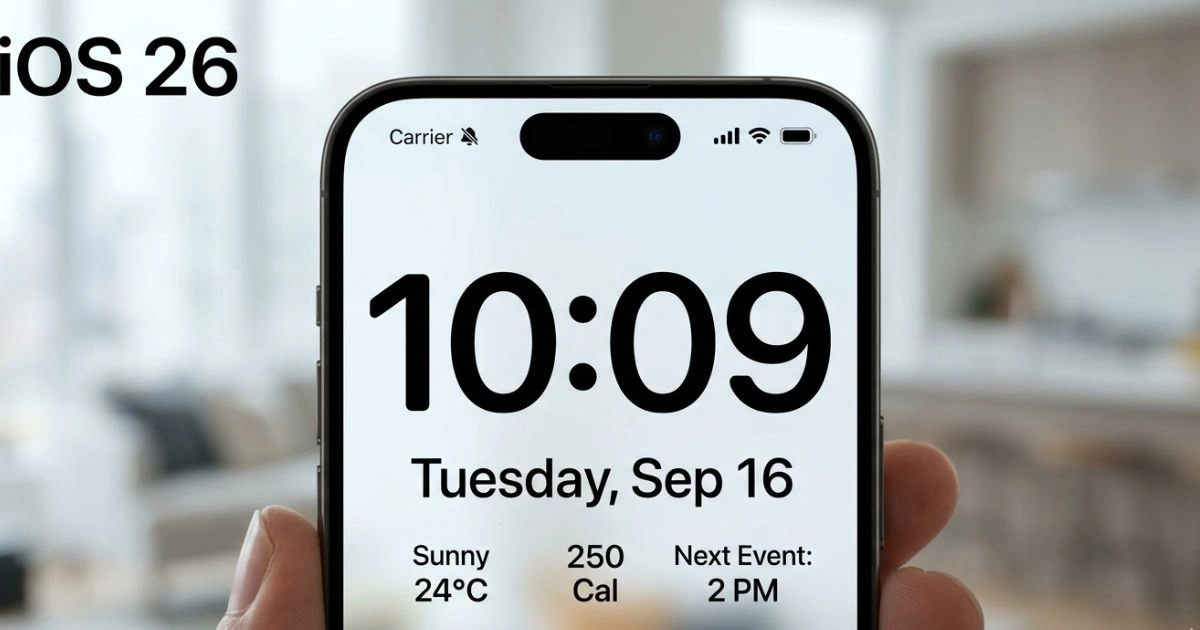
How to Make Time on iPhone Bigger iOS 26 – Useful Accessibility Tips
Table of Contents
You’re running late. You grab your iPhone off the nightstand, glance at the lock screen — and squint. The clock is there, sure, but it feels like it was designed for someone with the eyes of a hawk. Maybe you’ve handed your phone to your mom or dad and watched them hold it at arm’s length just to read the time. Or maybe after a long day staring at screens, your own eyes simply refuse to cooperate.
This isn’t a you problem. It’s a design gap that millions of iPhone users feel every single day. The default clock size on iPhone has always leaned toward minimalism — clean, sleek, small. And while that looks gorgeous in Apple‘s marketing photos, real life is messier. Real eyes get tired. Real light conditions change. Real people need real readability.
Here’s the good news: iOS 26 changes a lot of that. Apple has pushed accessibility further than any previous version, giving you more control over how text, clocks, and widgets appear across your entire device. Whether you want a slightly larger lock screen clock or a full-screen bedside display you can read from across the room, iOS 26 has a path for you.
This guide walks you through every method — step by step — so you can finally make time on your iPhone work for your eyes, not against them.
Why Making the Time Display Bigger on Your iPhone Actually Matters
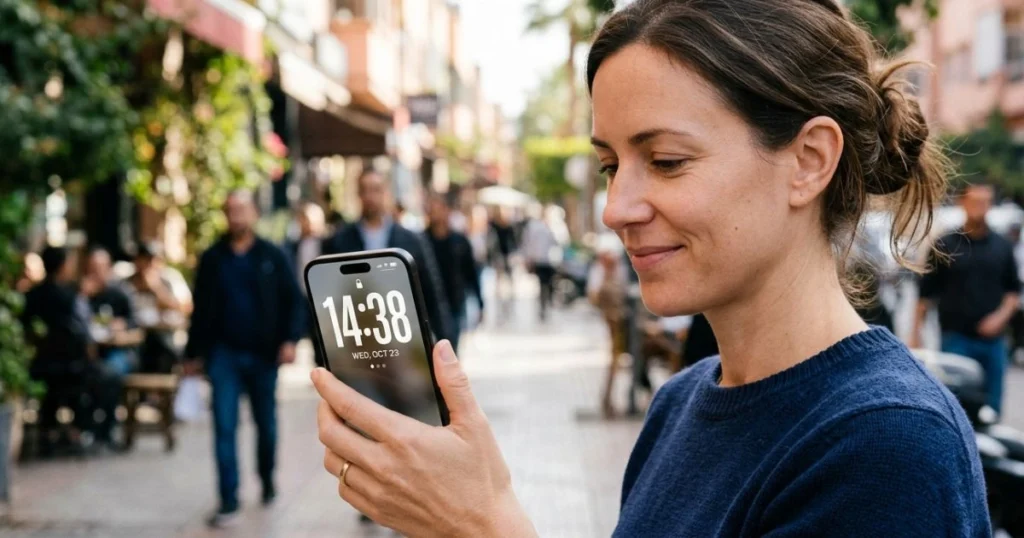
The Real-Life Struggle With Small Text on iPhones
Let’s be direct: small text on smartphones is a genuine daily obstacle for a massive portion of the population. According to the World Health Organization, over 2.2 billion people globally live with some form of vision impairment. But you don’t need a clinical diagnosis to feel the strain.
Anyone who has:
- Stepped outside in bright sunlight and struggled to see their lock screen
- Used their iPhone after dark without their reading glasses
- Tried to check the time quickly while their hands were occupied
- Set up a phone for an elderly parent only to get a call an hour later saying “I can’t read anything”
…knows exactly what this guide is about.
Accessibility features used to feel like a niche corner of the Settings app — something you’d never touch unless you absolutely had to. iOS 26 flips that thinking. These tools are now front and center, designed for everyone, and genuinely useful in everyday situations.
What’s New in iOS 26 for Accessibility and Display
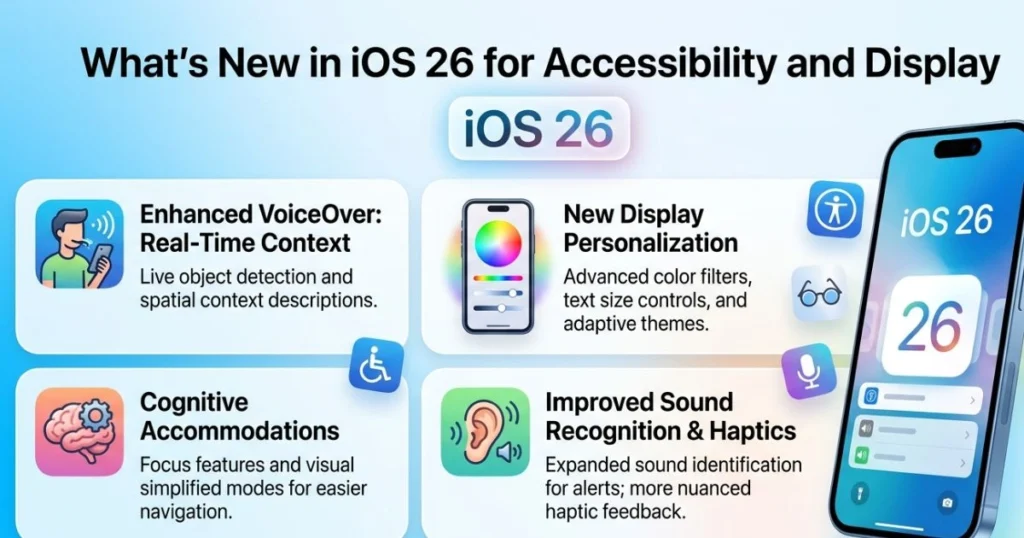
iOS 26 brings a redesigned lock screen customization system, expanded font scaling options, a more flexible StandBy mode, and smarter widget sizing across the board. The clock on your lock screen is no longer a fixed element — it’s a canvas you can shape to your needs.
Key changes in iOS 26 worth knowing:
- Redesigned lock screen editor with more granular clock size control
- Dynamic font scaling that works across system UI, not just third-party apps
- StandBy mode upgrades with new full-screen clock faces and theme options
- Improved contrast tools including updated color filter options
- Accessibility Shortcut now supports more features with triple-click activation
How to Make Time on iPhone Bigger iOS 26 – 5 Proven Methods
Method 1 – Resize the Clock Directly on Your Lock Screen
This is the most direct approach and the one most people don’t know exists. iOS 26 lets you tap into the lock screen editor and physically adjust the clock display.
Here’s how to do it:
- Wake your iPhone and long-press on the lock screen until the customization panel appears
- Tap “Customize” at the bottom of the screen
- Tap directly on the clock area at the top of the lock screen
- A font and size panel will slide up from the bottom
- Drag the size slider to the right to increase the clock size
- You can also tap a different font style for a bolder, more readable look
- When you’re satisfied, tap “Done” in the top right corner
Pro tip: Pair a larger clock font with a dark, minimal wallpaper. A busy background competes with the text — a solid dark image lets the clock dominate the screen the way it should.
This method works on iPhone 12 and all newer models running iOS 26. It doesn’t require any third-party apps and takes under two minutes to complete.
Method 2 – Use Display & Text Size in Accessibility Settings
If you want larger text across your entire iPhone — not just the lock screen clock — this is the setting to reach for. It scales up system-level text including the clock, notifications, labels, and more.
Follow these steps:
- Open the Settings app
- Scroll down and tap Accessibility
- Tap Display & Text Size
- Tap Larger Text
- Toggle on “Larger Accessibility Sizes” at the top
- Drag the font size slider toward the right until you find a comfortable size
- Go back to the previous screen and also toggle on Bold Text — this thickens every character on your display, making it easier to read at a glance
What this changes:
- Clock on lock screen and home screen widgets
- Notification text
- Settings menus
- Most built-in Apple apps
- Many third-party apps that respect Apple’s dynamic type system
This won’t fix apps that hard-code their font sizes, but it handles the majority of your daily interface in one move.
Method 3 – Adjust Text Size Through Control Center
If you find yourself frequently switching between font sizes — say, normal size when you’re fresh in the morning and larger size by evening — Control Center gives you a one-swipe shortcut.
First, add the Text Size control if it’s not already there:
- Go to Settings → Control Center
- Scroll through the list and tap the green + button next to “Text Size”
- Now open Control Center by swiping down from the top-right corner of your screen
- Tap the Text Size icon (it looks like a small and large letter A)
- A vertical slider appears — drag it upward to increase text size
- At the bottom, choose whether to apply it to all apps or just the app currently open
This is particularly useful if you share your phone with someone who prefers a different text size, or if your needs shift throughout the day.
Method 4 – Turn StandBy Mode Into a Giant Bedside Clock
This might be the single most satisfying feature in iOS 26 for anyone who wants a large, beautiful clock display. StandBy mode transforms your iPhone into a smart display when it’s charging horizontally — and the full-screen clock face is stunning and completely readable from several feet away.
To set it up:
- Go to Settings
- Tap StandBy
- Make sure the toggle at the top is turned on
- Plug your iPhone into a charger
- Lay it on its side (landscape orientation)
- StandBy will activate automatically
- Swipe left on the screen to cycle through views until you reach the Clock face
- Swipe up or down on the clock to browse different clock styles
- Choose the full-screen digital clock for maximum size and readability
iOS 26 adds new clock themes to StandBy including high-contrast options, a floating bold style, and a minimal design that shows nothing but the time in massive numerals. For anyone using their iPhone as a nightstand clock, this feature is a genuine game-changer.
Note: StandBy’s always-on display works best on iPhone 14 Pro and later due to the always-on screen hardware. On other models, it activates when you tap the screen.
Method 5 – Use the Zoom Feature for Maximum Enlargement
If the methods above don’t get the text large enough for your needs, the Zoom accessibility feature offers the most powerful magnification on the system. It works like a digital magnifying glass across your entire screen.
Here’s how to enable and use it:
- Go to Settings → Accessibility → Zoom
- Toggle Zoom on
- A zoom window will appear — double-tap with three fingers to activate or deactivate it
- Pinch with three fingers to adjust the zoom level
- Drag with three fingers to move around the screen
You can also switch from the default “Window Zoom” (which shows a floating zoomed box) to “Full Screen Zoom” in the same settings panel if you prefer the entire screen to magnify at once.
This is the most powerful option for users with significant visual impairment, and it works across every screen, every app, and every interface — including the clock.
Customizing the Clock Font and Style in iOS 26
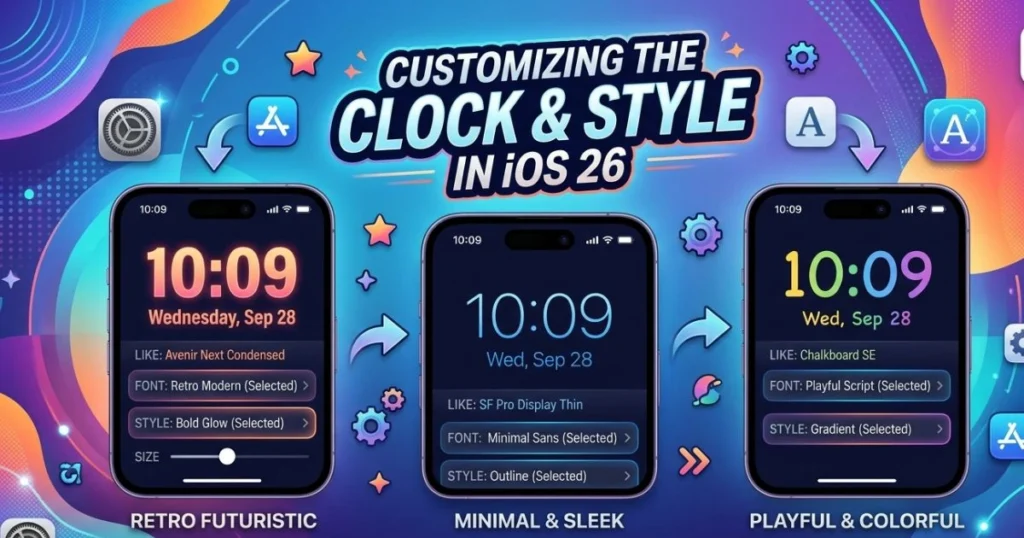
Choosing a Bolder, More Readable Clock Font
Size isn’t everything. A large clock in a thin, light font can still be surprisingly hard to read — especially against a complex wallpaper or in low light. iOS 26 offers several font options in the lock screen editor:
- Rounded – soft and modern, great for casual readability
- Bold System – the clearest option for pure legibility
- Serif – elegant but slightly harder to read quickly
- Compact – tight spacing, useful when you want more lock screen real estate
For most users prioritizing readability over style, Bold System wins every time.
Best Color Combinations for Clock Visibility
The font color of your clock matters as much as its size. Here’s a quick reference for what works and what doesn’t:
| Clock Color | Background Type | Visibility Rating |
|---|---|---|
| White | Dark/black wallpaper | ⭐⭐⭐⭐⭐ Excellent |
| Black | Light/white wallpaper | ⭐⭐⭐⭐⭐ Excellent |
| Yellow | Dark navy wallpaper | ⭐⭐⭐⭐ Very Good |
| Orange | Deep dark wallpaper | ⭐⭐⭐⭐ Very Good |
| Red | White wallpaper | ⭐⭐⭐ Moderate |
| Grey | Any wallpaper | ⭐⭐ Poor |
| Light blue | Light wallpaper | ⭐ Very Poor |
The highest contrast combinations — white on black and black on white — are consistently the easiest to read across all lighting conditions, age groups, and distances.
iOS 26 Accessibility Settings That Help Beyond the Clock
Display Accommodations Worth Turning On
While you’re in the Accessibility menu, several other settings can dramatically improve your day-to-day readability without requiring any changes to how you use your iPhone:
- Increase Contrast — darkens the interface so text stands out more sharply from backgrounds
- Reduce White Point — lowers the intensity of bright whites, reducing glare on high-brightness screens
- Color Filters — useful for color blindness, but also helpful for general readability adjustments
- Smart Invert Colors — inverts display colors while leaving photos and media untouched, creating a dark-mode-like effect on older iOS elements
Each of these works alongside your enlarged clock settings and compounds the overall readability improvement.
How to Set Up the Accessibility Shortcut for Instant Access
Once you’ve found the combination of settings that works for you, the last thing you want is to dig through menus every time you need to switch. The Accessibility Shortcut lets you toggle your preferred feature on and off with three quick clicks of the side button.
To set it up:
- Go to Settings → Accessibility
- Scroll to the very bottom and tap Accessibility Shortcut
- Select the feature you use most — Zoom, Display & Text Size, Color Filters, etc.
- Now triple-click your side button at any time to toggle it on or off
This one tip alone can save you minutes every day and makes accessibility features genuinely easy to integrate into your routine rather than something you set and forget.
Using AssistiveTouch for Easier Navigation
If tapping small buttons is also a challenge, AssistiveTouch adds a floating on-screen button that gives you access to common gestures and shortcuts without needing precise taps on specific targets.
Enable it at Settings → Accessibility → Touch → AssistiveTouch. From there, you can create custom gestures, set up quick-access to Zoom, and navigate your phone with larger, more forgiving touch targets.
Which iPhones Support These iOS 26 Features?
Not every feature discussed in this guide is available on every device. Here’s a clear breakdown:
| iPhone Model | iOS 26 Compatible | StandBy Mode | Lock Screen Clock Resize |
|---|---|---|---|
| iPhone 16 Series | ✅ Yes | ✅ Yes | ✅ Yes |
| iPhone 15 Series | ✅ Yes | ✅ Yes | ✅ Yes |
| iPhone 14 Series | ✅ Yes | ✅ Yes | ✅ Yes |
| iPhone 13 Series | ✅ Yes | ❌ Limited | ✅ Yes |
| iPhone 12 Series | ✅ Yes | ❌ No | ✅ Yes |
| iPhone 11 and below | ❌ No | ❌ No | ❌ No |
If you’re on an iPhone 11 or earlier, upgrading to a newer model will unlock all of these features simultaneously. It’s one of the most tangible everyday benefits of moving to a current-generation device.
Tips for Seniors and Low-Vision Users – Going Further
Enabling Spoken Time on Your iPhone
Sometimes the most effective accessibility tool is one that bypasses the screen entirely. Siri can tell you the time out loud — no squinting required.
Simply say: “Hey Siri, what time is it?”
You can also enable Speak Screen at Settings → Accessibility → Spoken Content. With this on, swiping down from the top of your screen with two fingers will read everything on screen aloud, including clock, notifications, and content.
Large Clock Widgets for Your Home Screen
Your lock screen isn’t the only place to display the time. Adding a large clock widget to your home screen gives you a persistent, glanceable time display without unlocking your phone.
To add one:
- Long-press on your home screen until apps start to jiggle
- Tap the + icon in the top left corner
- Search for “Clock”
- Browse the widget sizes and select the largest option
- Tap “Add Widget” and position it where you want it
Third-party apps like Widgetsmith take this further, letting you customize the clock font, color, and background to create something genuinely large and personal.
Setting Up Accessibility Remotely for Family Members
If you’re helping set up a phone for an elderly parent or relative, iOS 26 supports remote configuration through Family Sharing. You can walk them through settings over a call, or use Screen Sharing in FaceTime to guide them visually. Once the settings are in place, everything just works — no ongoing maintenance needed.
Common Mistakes to Avoid When Adjusting Display Settings
A few missteps can undermine the improvements you’re trying to make:
- Setting Zoom too high — full-screen zoom at maximum level can make navigation feel clunky. Start low and increase gradually
- Changing the lock screen font but not the widget sizes — the clock and your home screen widgets are separate; adjust both
- Ignoring wallpaper contrast — a busy, colorful wallpaper can swallow even the largest, boldest clock text
- Forgetting app-specific font settings — apps like Messages, Mail, and Safari have their own text size sliders inside their settings
- Not saving lock screen changes properly — always tap “Done” after editing or your changes won’t stick
Conclusion
Your iPhone sits in your hand or on your nightstand dozens of times a day. The time it displays should be immediately, effortlessly readable — not something you have to work for.
iOS 26 gives you a toolkit that’s more capable than any previous version. From adjusting the lock screen clock directly to using StandBy mode as a full-screen bedside display, from system-wide font scaling to powerful zoom features — every method in this guide is designed to close the gap between what your iPhone shows you and what your eyes actually need.
The best part? None of this requires technical knowledge, third-party apps, or any real time investment. Most of these changes take under two minutes and the difference is immediately visible.
Pick one method from this guide and try it today. Start with the lock screen clock resize — it’s the quickest win and the one most people notice immediately. Then explore StandBy mode if you charge your iPhone on a nightstand. Build from there.
And if someone in your life is struggling with the same frustration — a parent, a grandparent, a friend — share this guide with them. A few taps in Settings can genuinely change how someone experiences their phone every single day. That’s not a small thing.
FAQ – How to Make Time on iPhone Bigger iOS 26
Q1: Can I make the time bigger on my iPhone lock screen in iOS 26?
Yes, absolutely. iOS 26 includes a built-in lock screen editor that lets you tap on the clock and adjust both its size and font style. Long-press your lock screen, tap Customize, then tap the clock area to access the size slider.
Q2: How to make time on iPhone bigger iOS 26 without downloading any apps?
You don’t need any third-party apps at all. The native Accessibility settings under Settings → Accessibility → Display & Text Size → Larger Text handles this natively. Combine it with the lock screen clock editor for the best results.
Q3: Does increasing text size in iOS 26 affect every app on my iPhone?
It affects most apps — particularly Apple’s built-in apps and any third-party apps that use Apple’s dynamic type system. Some apps that hard-code their font sizes won’t respond, but the majority of your daily interface will scale up.
Q4: What exactly is StandBy mode and how does it create a large clock?
StandBy mode activates when your iPhone is plugged into a charger and placed horizontally. It turns your screen into a smart display, and one of the available views is a full-screen clock face. In iOS 26, new clock themes and sizes are available, making it ideal for nightstand or desk use.
Q5: Is there a way to make the clock bigger on iPhone specifically for elderly users?
Yes — the most effective combination for elderly users is: Larger Text with Larger Accessibility Sizes enabled, Bold Text toggled on, a high-contrast wallpaper (dark background with white clock text), and Spoken Time via Siri for moments when even reading the screen is difficult.
Q6: How do I add a large clock widget to my iPhone Home Screen in iOS 26?
Long-press on your home screen, tap the + icon in the top corner, search for “Clock,” and select the largest widget size available. For even more customization, the free Widgetsmith app lets you build a fully personalized large clock widget.
Q7: Will making the text or clock bigger drain my iPhone battery faster?
No. Font size and display scaling have no meaningful impact on battery consumption. The only display-related setting that significantly affects battery is screen brightness and always-on display features. Enlarging your clock costs you nothing in terms of battery life.
Try one of these methods right now — your eyes will thank you by tomorrow morning.