How to Get Help in Windows (Complete Support Guide)
Table of Contents
We’ve all had that moment. You’re staring at a Windows error message you’ve never seen before, a setting that seems to have vanished overnight, or a feature that suddenly stopped working — and you have no idea where to start. Maybe you’ve spent twenty minutes searching online, clicking through pages that don’t quite match your version of Windows, getting more confused with every tab you open.
That frustration is universal. Windows is an incredibly powerful operating system, but its sheer complexity means that even experienced users run into walls. What most people don’t know is that Windows itself is packed with powerful support tools — most of which go completely unnoticed because they’re tucked away in places users rarely explore.
This complete guide will show you every way to get help in Windows, from the built-in apps on your own computer to Microsoft’s online community and direct support team. By the time you finish reading, you’ll know exactly where to turn the next time Windows throws you a curveball.
Why Knowing How to Get Help in Windows Is Essential
You might be tempted to just Google every problem as it comes up, and while that works some of the time, it has real limitations. Search results vary in quality, may not match your specific Windows version, and can sometimes lead you to third-party sites with outdated or incorrect advice.
Windows has its own ecosystem of help resources that are more accurate, more up-to-date, and specifically designed for your exact system. Knowing how to use them means:
- Faster resolutions — built-in troubleshooters can fix many common issues automatically
- Safer solutions — you’re following Microsoft’s official guidance, not random forum advice
- No cost — most Windows support tools and resources are completely free
- More control — you understand your system better and can handle more issues independently
According to Microsoft, a significant majority of common Windows issues can be resolved without professional help when users know which built-in tools to use. The problem isn’t the tools — it’s that most users simply don’t know they exist.
Built-In Ways to Get Help in Windows
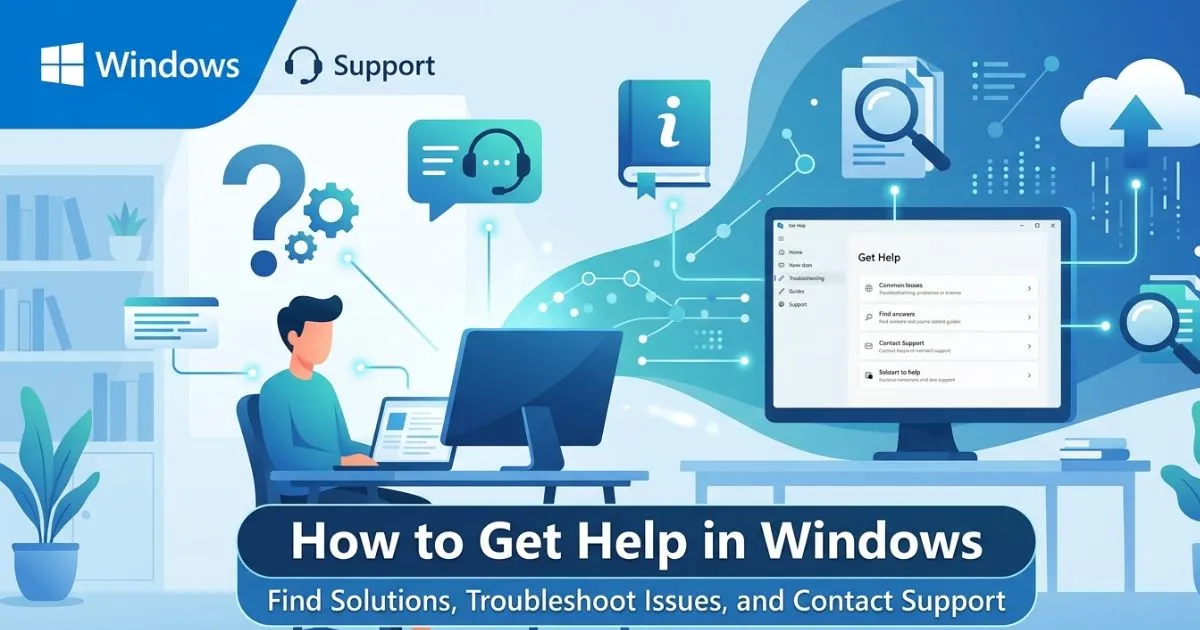
Method 1 — The “Get Help” App (Windows 10 & 11)
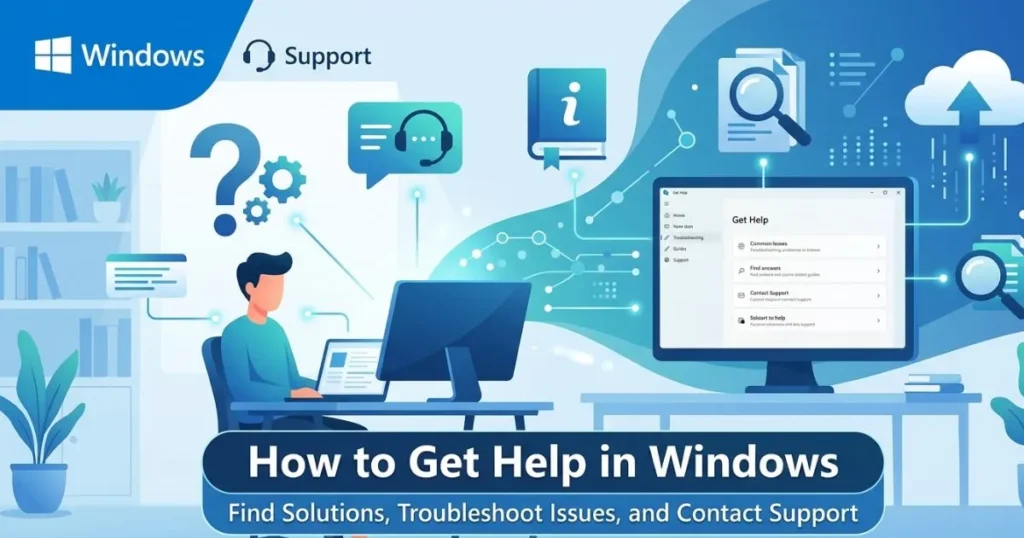
Microsoft’s dedicated Get Help app is the most direct route to official Windows support, and it’s already installed on your computer right now.
How to open it:
- Click the Start Menu and type “Get Help”
- Press Enter to open the app
What it offers:
- An AI-powered virtual agent that responds to natural language questions — you can type “my Wi-Fi keeps disconnecting” and it will guide you through tailored troubleshooting steps
- Guided walkthroughs for common tasks and settings
- Direct escalation to a live Microsoft support agent if the virtual agent can’t resolve your issue
- Links to relevant Microsoft documentation
The Get Help app is best used as your first stop for any Windows problem. Type your issue in plain language and follow the steps it provides. In many cases, you’ll have your answer within minutes.
Method 2 — Windows Search Bar for Quick Answers
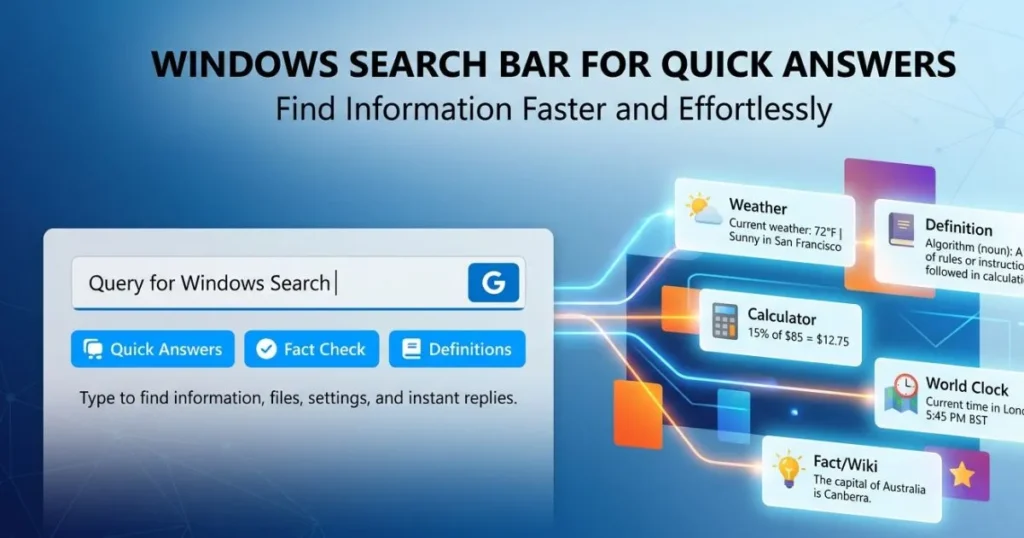
The taskbar search bar isn’t just for finding files — it’s a powerful help tool in its own right.
Simply click the search bar (or press Windows + S) and type your question or the name of the setting you’re looking for. Windows will surface relevant settings, apps, and — in Windows 11 with Copilot integration — AI-generated answers directly in the search results.
For example:
- Typing “how to change screen resolution” will surface a direct link to the Display Settings page
- Typing “Bluetooth not working” will show relevant troubleshooters and settings
- Typing a specific error code will often return links to Microsoft’s official support articles
Best for: Finding settings quickly and getting instant answers to straightforward questions.
Method 3 — Windows Troubleshooters
Windows Troubleshooters are automated diagnostic tools built directly into the operating system. They scan your system, identify issues, and in many cases fix them automatically — no technical knowledge required.
How to access them:
- Open Settings (Win + I)
- Go to System → Troubleshoot
- Click “Other troubleshooters” to see the full list
Available troubleshooters include:
- Internet Connections — diagnoses and fixes Wi-Fi and network issues
- Windows Update — resolves problems with updates not installing
- Playing Audio — fixes sound and speaker issues
- Printer — resolves connectivity and printing problems
- Bluetooth — diagnoses pairing and connection issues
- Video Playback — addresses streaming and playback errors
- Windows Store Apps — fixes apps that won’t open or update
- Power — identifies battery and power management issues
To run a troubleshooter, simply click the “Run” button next to it and follow the on-screen prompts. Windows will scan for the problem, report what it finds, and apply fixes where possible.
Best for: Common, recurring issues that fall into recognized categories. Troubleshooters work remarkably well for Wi-Fi problems, audio issues, and Windows Update failures.
Method 4 — The F1 Key: Context-Sensitive Help
This is one of the most underused Windows shortcuts of all time. Pressing F1 in virtually any Windows application or on the desktop itself will open the relevant help documentation for whatever you’re currently doing.
- Press F1 on the desktop → opens Microsoft Support in your browser
- Press F1 inside File Explorer → opens help for file management
- Press F1 inside Settings → opens documentation for the current settings page
- Press F1 inside Microsoft Office apps → opens the app’s help center
It’s instant, context-aware, and requires no navigation. If you’re ever stuck inside an application, F1 is your immediate lifeline.
Method 5 — The Windows Tips App
Windows ships with a built-in Tips app designed specifically to help new users discover features and get the most out of the operating system.
How to open it: Start Menu → search “Tips” → open the app
The Tips app provides guided tours of:
- Windows 11’s new features
- Personalization and customization options
- Productivity tools like Snap Layouts and Virtual Desktops
- Security and privacy settings
- Accessibility features
Best for: New Windows users or anyone who’s recently upgraded to Windows 11 and wants to discover what’s new.
Online Support Resources for Windows Help
| Resource | URL | Best For |
|---|---|---|
| Microsoft Support | support.microsoft.com | Official step-by-step guides and fixes |
| Microsoft Community | answers.microsoft.com | Peer-to-peer questions and answers |
| Microsoft Learn | learn.microsoft.com | In-depth tutorials and technical docs |
| Microsoft YouTube Channel | youtube.com/Microsoft | Visual walkthroughs and tutorials |
| Windows Release Notes | – | Understanding recent updates and known bugs |
How to Use Microsoft Support Effectively
Microsoft’s support website at support.microsoft.com is a treasure trove of official documentation, but it helps to know how to search it efficiently:
- Search by symptom, not by technical term — type what you see or experience, not what you think it’s called
- Filter by Windows version — make sure you’re reading instructions for Windows 10 or 11, not an older version
- Use error codes — if you have an error code, search it directly for highly specific results
- Use the Virtual Agent — click the chat bubble on any support page to interact with Microsoft’s AI assistant for personalized guidance
How to Post in the Microsoft Community Forum
The Microsoft Community at answers.microsoft.com is an active forum where Microsoft staff and experienced users answer questions daily. Here’s how to use it effectively:
- Create or sign in with your Microsoft account
- Search before posting — your question may have already been answered
- Write a clear, detailed post that includes:
- Your exact Windows version (Win + I → System → About)
- The specific error message or issue you are encountering
- Steps you’ve already tried
- When the problem started
- Mark helpful answers — this helps other users with the same issue
How to Get Help in Windows for Specific Problems
Getting Help with Windows Update Issues
Windows Update problems are among the most common user frustrations. If updates won’t install, are stuck, or show error codes:
- Use the Windows Update troubleshooter (Settings → System → Troubleshoot).
- Check Microsoft’s Windows Update History page for known issues with specific updates
- Use the Windows Update Assistant tool available on Microsoft.com for major version upgrades
Getting Help with Network and Wi-Fi Problems
- Run the Internet Connections troubleshooter
- Try Network Reset: Settings → Network & Internet → Advanced Network Settings → Network Reset
- Use the Get Help app — type “Wi-Fi not connecting” for guided steps
Getting Help with Driver or Hardware Issues
- Open Device Manager by right-clicking the Start button and selecting Device Manager.
- Look for devices with a yellow warning triangle — these have driver issues
- Right-click the problematic device → Update Driver
- Visit the manufacturer’s website for the latest driver if Windows can’t find one automatically
Getting Help with Windows Activation
If Windows shows an activation error, go to Settings → System → Activation and use the Troubleshoot link. For persistent issues, the Get Help app has a dedicated activation support flow.
Getting Help with Blue Screen of Death (BSOD) Errors
A BSOD is alarming but often fixable:
- Take note of the stop code shown on the blue screen.
- Look up that stop code on support.microsoft.com to find detailed guidance.
- Run the System File Checker: Open Command Prompt as Admin and type
sfc /scannow - Check Event Viewer (search in Start Menu) for detailed error logs
How to Contact Microsoft Support Directly
Live Chat Support
For personalized help, go to support.microsoft.com and click “Get support”. Enter your product (Windows) and describe your issue to connect with a live agent via chat.
Remote Assistance with Quick Assist
Windows has a built-in tool that allows a trusted person (or Microsoft support agent) to view or control your screen remotely to help fix your issue.
How to use Quick Assist:
- Press Windows + Ctrl + Q to open Quick Assist
- If you’re the person helping, click “Help someone” and share the code you receive
- If you need help, click “Get assistance” and enter the code provided by your helper
⚠️ Important warning: Be extremely cautious of unsolicited phone calls or pop-ups claiming to be “Microsoft Support” and asking for remote access. Microsoft never contacts users this way. Only use Quick Assist with people you trust or with agents you contact through official Microsoft channels.
Conclusion
Getting help in Windows is far easier than most users realize — once you know where to look. From the AI-powered Get Help app to automated troubleshooters, from the F1 shortcut to Microsoft’s thriving community forum, there’s a solution pathway for virtually every Windows problem you’ll ever encounter.
The key is understanding your options before you actually need them. Bookmark support.microsoft.com, explore the Get Help app today, and next time Windows throws an unexpected error at you, you’ll know exactly what to do — calmly and confidently.
FAQ — How to Get Help in Windows
1. How do I open the Get Help app in Windows 10 and 11? Open the Start menu, type “Get Help,” and hit Enter. Alternatively, you can search for it in the taskbar search bar. The app is pre-installed on all Windows 10 and 11 devices and provides AI-guided support along with access to live agents.
2. Is Windows help support free to use? Yes — all of Microsoft’s built-in help tools (Get Help app, Troubleshooters, Quick Assist, the Microsoft Community forum, and the support website) are completely free to use. Some premium phone or in-person support options may have associated costs, but self-service and chat support are free.
3. How do I get help in Windows without internet access? Without internet access, you can still use the F1 key for offline help documentation, run Windows Troubleshooters (Settings → System → Troubleshoot), use the Windows Tips app, and check the Event Viewer for detailed error logs. Many troubleshooters work entirely offline.
4. Can Microsoft remotely fix my Windows problem? Yes. Microsoft support agents can remotely access your computer with your permission using the Quick Assist tool (Win + Ctrl + Q). This is a legitimate, built-in feature. However, always be cautious — only grant remote access to agents you’ve contacted through official Microsoft support channels.
5. What should I do if the Windows Troubleshooter doesn’t fix my problem? Try the Get Help app first, as it offers more personalized guidance. Then check Microsoft’s support website (support.microsoft.com) using your specific error code or symptom. If the issue persists, post in the Microsoft Community forum or start a live chat with a Microsoft support agent directly.
💡 Did you find a Windows help tool you didn’t know existed? Share this guide with someone who’s been struggling with a Windows issue — and tell us in the comments which method worked best for you. Your experience might be exactly the help someone else needs!