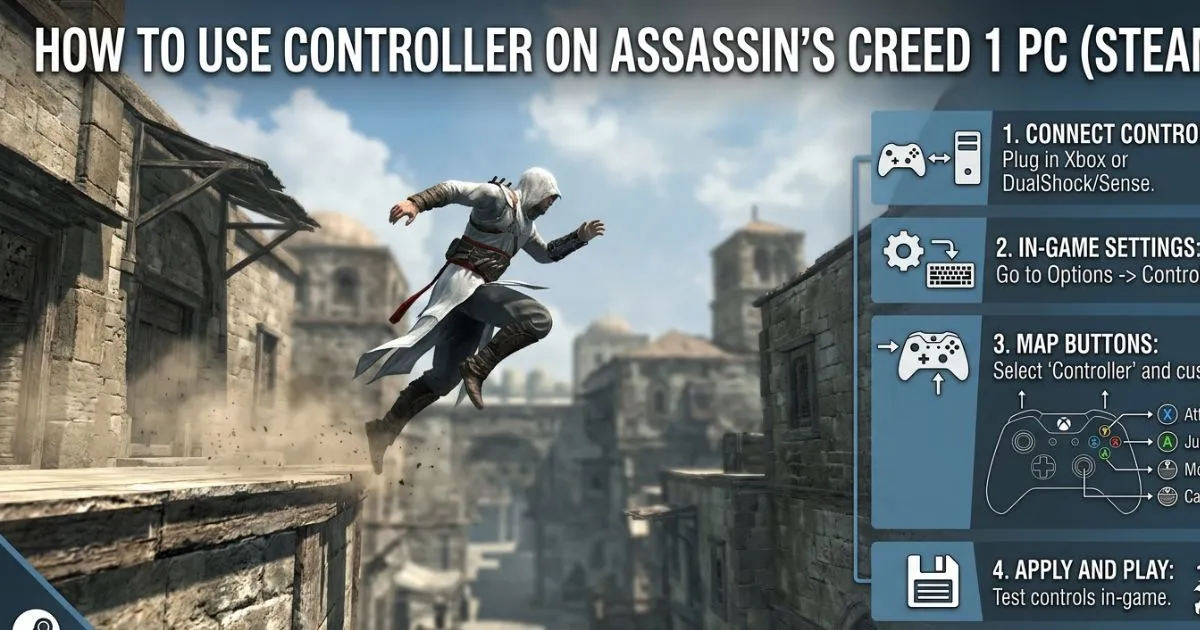
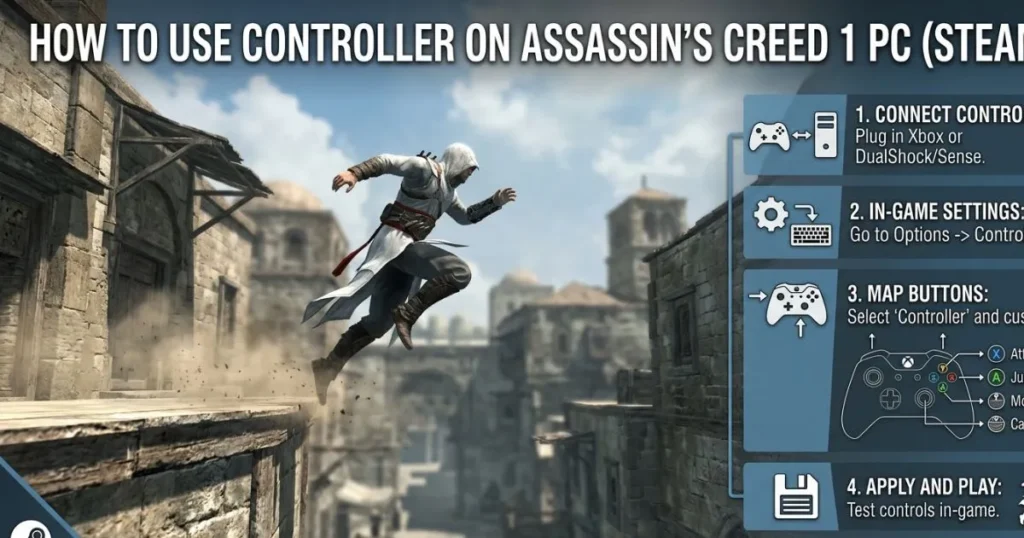
How to Use Controller on Assassin’s Creed 1 PC Steam
Table of Contents
There’s something deeply satisfying about free-running across the sunbaked rooftops of 12th-century Jerusalem as Altaïr Ibn-La’Ahad — but if you’ve tried doing it with a mouse and keyboard on PC, you know it can feel stiff and awkward. Assassin’s Creed 1 was born on consoles, and it shows. The fluid parkour, the flowing combat, the cinematic camera — all of it feels natural with a controller in your hands. If you’ve been wondering how to use controller on Assassin’s Creed 1 PC Steam, this complete guide covers every method, every workaround, and every fix so you can experience this classic exactly the way it deserves.
Does Assassin’s Creed 1 Support Controllers on PC Steam?
The short answer is yes — but with nuance. Assassin’s Creed 1 was originally released for Xbox 360 and PS3 in 2007, and the PC version retains its console DNA. Xbox controllers work natively and provide the best experience, including correct on-screen button prompts. PlayStation controllers require a small workaround, but they work well once configured.
Steam’s controller support system — called Steam Input — adds another layer of compatibility that makes virtually any modern controller work with AC1, even generic gamepads like the Manba.
What Controllers Work with Assassin’s Creed 1 on PC Steam?
| Controller | Compatibility | Notes |
|---|---|---|
| Xbox 360 / Xbox One | ✅ Native | Best experience, correct button prompts |
| Xbox Series X/S | ✅ Native | Plug-and-play via USB or Bluetooth |
| PS4 (DualShock 4) | ⚠️ Workaround | Use Steam Input or DS4Windows |
| PS5 (DualSense) | ⚠️ Workaround | Use Steam Input |
| Manba / Generic XInput | ✅ Usually works | May need Steam Input for full mapping |
| Nintendo Switch Pro | ⚠️ Workaround | Use Steam Input |
If you’re using an Xbox controller, you can largely skip the configuration steps and jump straight to playing. If you’re on PlayStation or a generic controller, the sections below have you covered.
How to Use Controller on Assassin’s Creed 1 PC Steam — Step-by-Step
Step 1 — Connect Your Controller to PC
Before launching Steam, make sure your controller is properly connected:
- Xbox controller: Plug in via USB or connect via Bluetooth — Windows installs the driver automatically
- PS4/PS5 controller: Connect via USB or Bluetooth — Steam will detect it if PlayStation controller support is enabled in Steam settings
- Generic XInput (Manba, etc.): Connect via USB — Windows installs XInput driver automatically
Open the Windows Game Controller settings (joy.cpl via Run) and confirm the controller registers correctly before proceeding.
Step 2 — Enable Steam Input for Assassin’s Creed 1
Steam Input is the bridge that makes controller support truly reliable for AC1. Here’s how to enable it:
- Open your Steam Library
- Right-click on Assassin’s Creed (or Assassin’s Creed: Director’s Cut Edition) in your library
- Select Properties
- Click the Controller tab
- In the “Override for Assassin’s Creed” dropdown, select “Enable Steam Input”
- Close the Properties window
This single step resolves most controller detection issues players encounter with AC1.
Step 3 — Launch the Game and Test
Launch Assassin’s Creed 1 from Steam. Once in the game:
- Navigate to the Options/Settings menu
- Look for Controls — verify the game shows controller inputs (it should display Xbox-style prompts)
- Press buttons on your controller to confirm they register
- Try the analog sticks — Altaïr should respond smoothly to movement
If the game still shows keyboard prompts, make sure no keyboard or mouse input was sent after launching — AC1 auto-detects the last active input device.
How to Configure Controller Layout for Assassin’s Creed 1 on Steam
Using Steam’s Built-In Controller Configurator
Steam’s controller configurator lets you customize the entire button layout. Here’s how to access it:
- With AC1 open (or from the library), press the Steam button on your controller to open the Steam overlay
- Navigate to Controller Configuration
- You’ll see a visual layout of your controller with current bindings
Recommended bindings for Assassin’s Creed 1:
- Left Stick: Movement (Altaïr walking/running)
- Right Stick: Camera control
- A / Cross: Interact, parkour (low profile)
- B / Circle: Assassinate, cancel
- X / Square: Weapon draw
- Y / Triangle: Eagle Vision
- RT / R2: High Profile mode (the most important button — hold for parkour and combat)
- LT / L2: Lock on target
- RB / R1: Head button
- LB / L1: Legs button
- Start: Pause / Map
- Back / Select: Switch weapon
Pro tip: High Profile mode (RT/R2) is the most important button to get right. Almost all advanced parkour and combat actions require holding it. Make sure it sits naturally under your index finger.
Using Community Controller Layouts
Steam has a library of community-created controller configurations specifically for AC1. To browse them:
- In Controller Configuration, click “Browse Configs”
- Select the “Community” tab
- Sort by Most Popular or Most Recent
- Preview and apply a configuration that matches your controller type
Community configs save you the time of manually mapping every button and are often optimized by players who have already put in hours with the game.
How to Use PS4 / PS5 Controller on Assassin’s Creed 1 PC Steam
Using DS4Windows for PlayStation Controllers
DS4Windows is a free application that emulates an Xbox controller from your DualShock 4 or DualSense input, making it fully compatible with AC1’s native Xbox support.
- Download DS4Windows from the official GitHub repository (search “DS4Windows GitHub”)
- Extract the files and run DS4Windows.exe as Administrator
- Follow the first-time setup wizard
- Connect your PS4 or PS5 controller via USB or Bluetooth
- DS4Windows will emulate an Xbox 360 controller — AC1 reads it as native Xbox input
- Launch AC1 via Steam — button prompts will appear as Xbox buttons
Using Steam Input for DualShock / DualSense
If you prefer not to install DS4Windows, Steam Input handles PlayStation controllers natively:
- Open Steam > Settings > Controller
- Enable “PlayStation Controller Support” — toggle on both PS4 and PS5 if applicable
- Enable Steam Input for AC1 in the game’s Properties (as described earlier)
- Steam will translate DualShock/DualSense inputs into recognized game inputs
Important: Don’t run DS4Windows AND Steam Input simultaneously — they conflict with each other. Choose one method and stick with it.
Common Controller Issues in Assassin’s Creed 1 on PC Steam
| Problem | Cause | Fix |
|---|---|---|
| Controller not detected at launch | Steam Input disabled | Enable via game Properties > Controller tab |
| Wrong button prompts on screen | Non-Xbox controller without emulation | Use DS4Windows or enable Steam Input |
| Camera spinning uncontrollably | Analog stick deadzone too low | Adjust deadzone in Steam Input settings |
| Game ignores controller | Mouse/keyboard used at launch | Restart game, use only controller from the start |
| Triggers not working | Outdated Steam Input config | Reset to default, reapply community config |
| Game crashes with controller | Conflicting DS4Windows + Steam Input | Disable one, restart PC, relaunch game |
Tips for the Best Controller Experience in Assassin’s Creed 1 on PC
- Play in Fullscreen mode — Assassin’s Creed 1’s cinematic presentation shines in fullscreen, and it ensures the controller has exclusive input focus
- Enable V-Sync in the game’s graphics settings to prevent camera stuttering during fast pans
- Use a wired connection if you experience any input lag — USB eliminates Bluetooth latency entirely
- Adjust your deadzone if Altaïr drifts while standing still — a small deadzone increase in Steam Input fixes this completely
- The Director’s Cut edition (also on Steam) includes additional content and generally has slightly better PC compatibility — worth grabbing if you have the choice
Conclusion
Using a controller on Assassin’s Creed 1 via PC Steam transforms the experience from a clunky keyboard affair into the fluid, immersive adventure it was designed to be. Xbox controllers work natively with no extra steps. PlayStation and generic controllers need a quick Steam Input or DS4Windows setup — a five-minute process that’s absolutely worth it. Follow this guide, use the troubleshooting table if anything goes sideways, and step into Altaïr’s world the way it was meant to be experienced: controller in hand, thumbs ready.
FAQ: How to Use Controller on Assassin’s Creed 1 PC Steam
1. Does Assassin’s Creed 1 on PC Steam support PS4 controller natively? Not fully natively — AC1 is optimized for Xbox controllers. However, enabling Steam Input (via game Properties > Controller) or using DS4Windows allows your PS4 controller to work seamlessly, though button prompts will display as Xbox buttons.
2. How to use controller on Assassin’s Creed 1 PC Steam without DS4Windows? Enable Steam Input in the game’s Steam Properties under the Controller tab, then configure your controller layout in Steam’s controller configurator. This method works for PlayStation, Switch Pro, and generic controllers without installing any additional software.
3. Why is my controller not working in Assassin’s Creed 1 on PC Steam? The most common cause is Steam Input not being enabled for the game. Right-click AC1 in your Steam Library > Properties > Controller > set to “Enable Steam Input.” Also ensure no keyboard input was registered when launching the game, as AC1 auto-switches to the last active input device.
4. What is the best controller to use for Assassin’s Creed 1 on PC Steam? An Xbox controller (360, One, or Series X/S) gives the best native experience with correct on-screen button prompts. If you already own a PS4 or PS5 controller, it works excellently via Steam Input or DS4Windows with minimal setup.
5. How to fix wrong button prompts when using controller on Assassin’s Creed 1 PC Steam? Wrong button prompts appear when using non-Xbox controllers. To fix this, use DS4Windows to emulate an Xbox controller from your PlayStation input, or use Steam’s built-in PlayStation controller support. Both methods cause AC1 to display standard Xbox button prompts, which match the game’s original console design.
🎮 Ready to relive the beginning of the Creed? If this guide helped you get your controller working in Assassin’s Creed 1 on PC, share it with a fellow fan of the series. Which controller are you using to play? Drop it in the comments below — and let us know how Altaïr’s adventure is treating you!