How to Use PS5 Controller on PC: Complete Setup Guide
Table of Contents
There’s a particular feeling that comes with holding a DualSense controller — the weight of it, the texture of the grips, the satisfying click of the triggers. If you’ve been limiting that experience exclusively to your PS5, you’re leaving a lot on the table. Your PC is perfectly capable of working with the DualSense, and once you know how to use PS5 controller on PC, you’ll wonder why you ever settled for a keyboard and mouse for your favorite single-player games. This guide covers every method — wired, wireless, Steam, and third-party software — so you can pick the one that works best for you.
Why Use a PS5 Controller on PC?
The DualSense isn’t just a controller — it’s one of the most innovative input devices released in years. Its adaptive triggers and haptic feedback system create a tactile connection to games that no other controller on the market currently matches at the same price point. On top of that, if you already own a PS5, you have a premium controller sitting right there that can elevate your PC gaming experience without spending another dollar.
Compatibility is broad and growing. Most modern PC games on Steam support the DualSense natively, and even games without native support can be made to work through a couple of straightforward software solutions.
What You Need to Use a PS5 Controller on PC
Getting set up is simpler than you might think. Here’s what you’ll need depending on your chosen method:
- A DualSense controller (standard or Edge version)
- A USB-C to USB-A cable for wired connection
- A Bluetooth adapter if your PC doesn’t have built-in Bluetooth
- Windows 10 or Windows 11 (both work well)
- Optionally: Steam or DS4Windows software
Method 1 — How to Use PS5 Controller on PC via USB (Wired)
Step-by-Step Instructions
The wired method is the fastest way to get started and requires zero software configuration for most games:
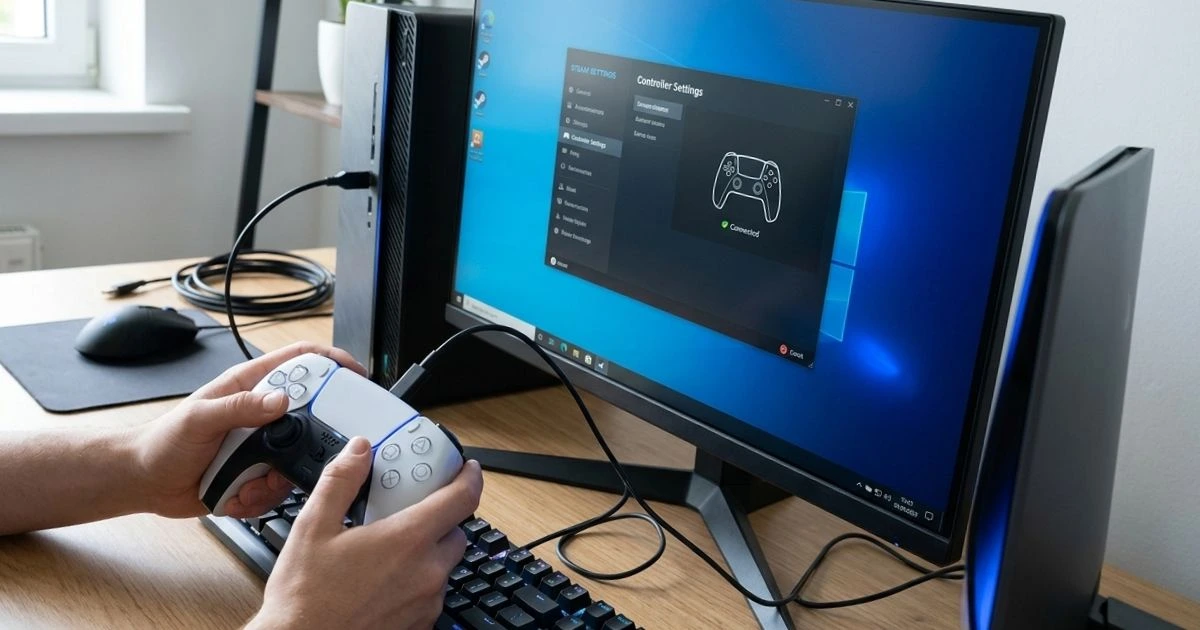
- Insert the USB-C end of the cable into the DualSense.
- Plug the USB-A end into any available USB port on your PC
- Windows will automatically recognize the controller as “Wireless Controller”
- Start your game and adjust the controller input in the settings.
- To verify it’s working, go to Settings → Devices → Bluetooth & other devices and look for “Wireless Controller” under Other Devices
Wired vs. Wireless — Which Should You Choose?
| Aspect | Wired | Wireless |
|---|---|---|
| Input Latency | Very Low | Low |
| Setup Complexity | Simple | Moderate |
| Freedom of Movement | Limited | Full |
| Battery | Charges while playing | Drains battery |
| Best For | Competitive gaming | Casual/couch gaming |
For competitive titles where every millisecond matters, the wired connection is your best bet. For relaxed single-player experiences from your couch, wireless is the clear winner.
Method 2 — Connecting a PS5 Controller to Your PC Using Bluetooth
Step-by-Step Instructions
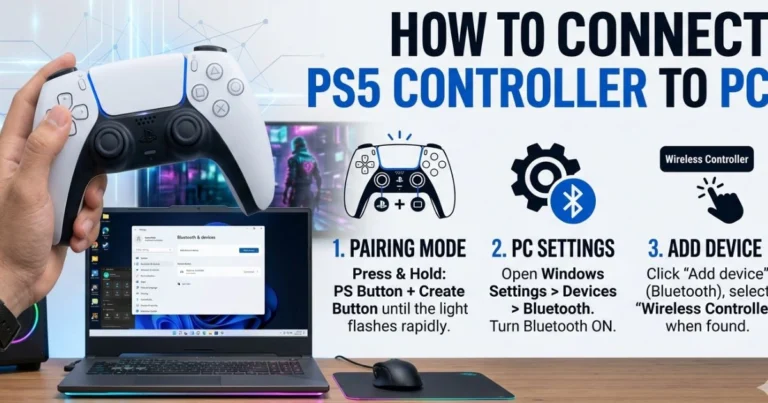
- Open Windows Settings → Devices → Bluetooth & other devices
- Toggle Bluetooth On
- On your DualSense, hold the PS button + Create button simultaneously for about 3 seconds until the light bar begins flashing
- Tap “Add Bluetooth or other device” on your PC.
- Select “Bluetooth” from the menu
- Tap “Wireless Controller” when it appears.
- Click Pair and wait for the confirmation message
Troubleshooting Bluetooth Connection Issues
If your controller isn’t showing up in the device list, the most common culprits are outdated Bluetooth drivers or interference from nearby devices. Update your Bluetooth drivers through Device Manager, and if possible, move other wireless devices away from your PC during initial pairing. For competitive gaming sessions, persistent input lag over Bluetooth is a signal to switch to USB.
Method 3 — Using PS5 Controller on PC with Steam
Steam has excellent native support for the DualSense and is the easiest path if most of your game library lives there.
Enable PlayStation Controller Support in Steam
- Open Steam and go to Settings
- Click Controller
- Select General Controller Settings
- Check “PlayStation Configuration Support”
- Connect your DualSense via USB or Bluetooth
- Steam will automatically detect it and apply button mapping
What Steam Integration Gives You
- Full button remapping for any game in your library
- Touchpad functions as a mouse cursor
- Rumble support in compatible titles
- Partial haptic feedback in select PC-native games like Returnal and Spider-Man Remastered
Method 4 — Running Non-Steam Games with DS4 Windows
Certain non-Steam games don’t natively support the DualSense, as they are designed to work with Xbox controller inputs. DS4Windows solves this by emulating an Xbox controller signal, making your DualSense universally compatible.
What Is DS4Windows?
DS4Windows is a free, open-source application that translates DualSense input into a format Windows and non-Steam games understand. It’s trusted by millions of PC gamers and is actively maintained.
How to Set Up DS4Windows
- Download DS4Windows from ds4-windows.com
- Run the installer and install the required ViGEmBus driver when prompted
- Launch DS4Windows
- Connect your DualSense via USB or Bluetooth
- Your controller will appear in DS4Windows as a detected device
- Use an existing profile or create a new one — the default profile is suitable for most games.
- Launch your game and enjoy full controller support
Best PC Games with Native PS5 Controller Support
PC games vary in how they handle the DualSense controller. These titles offer the deepest integration:
- Returnal (PC) — full haptic feedback and adaptive trigger support
- Marvel’s Spider-Man Remastered — web-swinging tension through adaptive triggers
- Deathloop — weapon resistance through triggers
- God of War (PC) — rumble and trigger effects
As more Sony first-party titles make their way to PC, DualSense support continues to expand.
Conclusion
Now that you know how to use PS5 controller on PC, the only question is which method suits your setup. If you want zero-fuss simplicity, plug in via USB and you’re gaming in seconds. If you prefer wireless freedom, Bluetooth pairing takes under two minutes. And for the deepest game integration, Steam’s controller support or DS4Windows covers every scenario you’ll encounter. The DualSense belongs on your PC — go ahead and make it happen.
FAQ
Q: Does Windows 10 natively support the PS5 controller? Yes. Windows 10 and Windows 11 both recognize the DualSense automatically via USB without any additional software or drivers.
Q: Can I use a PS5 controller on PC wirelessly? Absolutely. Hold the PS button and Create button simultaneously until the light bar flashes, then pair it through your Windows Bluetooth settings like any other device.
Q: Do I need DS4Windows to use a PS5 controller on PC? Not for Steam games — Steam handles it natively. DS4Windows is specifically needed for non-Steam games that only recognize Xbox controller input.
Q: Will I get haptic feedback when using a PS5 controller on PC? Partially. A growing number of PC-native titles support DualSense haptics, but many games offer standard rumble only. Steam’s controller support enables some haptic functions even in older titles.
Q: Is using a PS5 controller on PC safe for the controller? Completely safe. Connecting your DualSense to a PC via USB or Bluetooth causes no wear or damage to the controller whatsoever.
Already gaming with your DualSense on PC? Share your favorite game to play with it in the comments below — the community would love to know.