How Do You Turn Safe Mode Off on an Android – Simple Fixes
Table of Contents
You wake up, grab your phone, and something is just wrong.
Your go-to apps have vanished. The screen looks bare. That game you were playing last night? Gone. Your favorite widgets? Stripped away. And there it is — two small words sitting at the bottom corner of your screen like an uninvited guest: Safe Mode.
Your first instinct might be to panic. Maybe you think your phone is broken, hacked, or about to die on you. Trust me — that feeling is completely normal, and you are far from alone. Thousands of Android users land in this exact situation every single day, usually without having done anything intentional to cause it.
Here is the truth: Safe Mode is not your enemy. It is actually a built-in protection tool designed to help your phone, not hurt it. And more importantly — getting out of it is almost always quick, simple, and something you can do yourself in under two minutes.
This guide covers every working fix, from the easiest one-tap solution to the more advanced steps for stubborn cases. By the time you finish reading, you will know exactly how to turn Safe Mode off on your Android and make sure it does not catch you off guard again.
What Is Safe Mode on Android and Why Does It Matter?
Understanding What Safe Mode Actually Does
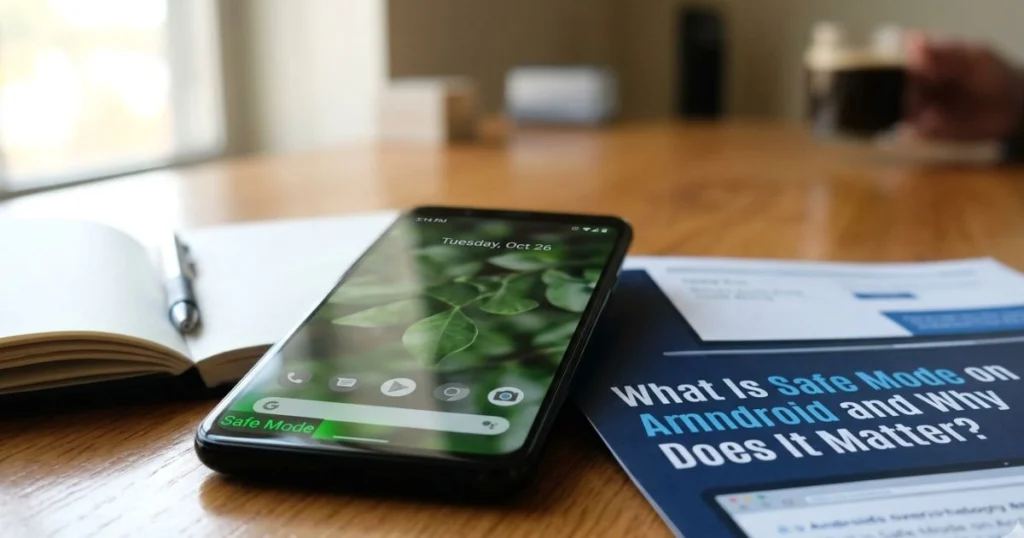
When your Android enters Safe Mode, it essentially boots up using only its original factory software. Every app you downloaded — social media, games, productivity tools, launchers — gets temporarily disabled. The phone runs lean, using only what came pre-installed.
This is intentional. Android engineers designed Safe Mode as a diagnostic environment. If your phone has been crashing, freezing, or behaving strangely, Safe Mode allows the system to isolate whether a third-party app is causing the problem. Think of it like starting your car engine without the radio, air conditioning, or GPS — just the core mechanics running.
The important thing to understand is this: Safe Mode does not delete anything. Your apps, photos, contacts, and data are all still there. They are simply paused until you exit.
How Did Your Phone End Up in Safe Mode?
This is the question most people ask first, and it has several common answers:
- Accidental button press — holding the Volume Down button while restarting is one of the most frequent triggers
- A dropped phone — the impact can sometimes register a button combination that activates Safe Mode on boot
- A buggy or corrupt app — Android may automatically switch to Safe Mode if it detects an app is causing serious instability
- System crash or update issue — a failed update can push the phone into Safe Mode as a protective measure
- Someone else triggered it — kids, curious hands, or an accidental pocket press
The clearest sign you are in Safe Mode is the label “Safe Mode” displayed at the bottom left or bottom center of your screen. It stays there persistently until you exit.
How Do You Turn Safe Mode Off on an Android? – The Simple Fixes
Let us go through every proven method, starting with the simplest. Try them in order — most people are done after Fix 1 or Fix 2.
Fix 1 – Restart Your Android Phone (The Easiest Method)
This is where you start, every time. A plain restart resolves Safe Mode in the vast majority of cases.
Here is how to do it:
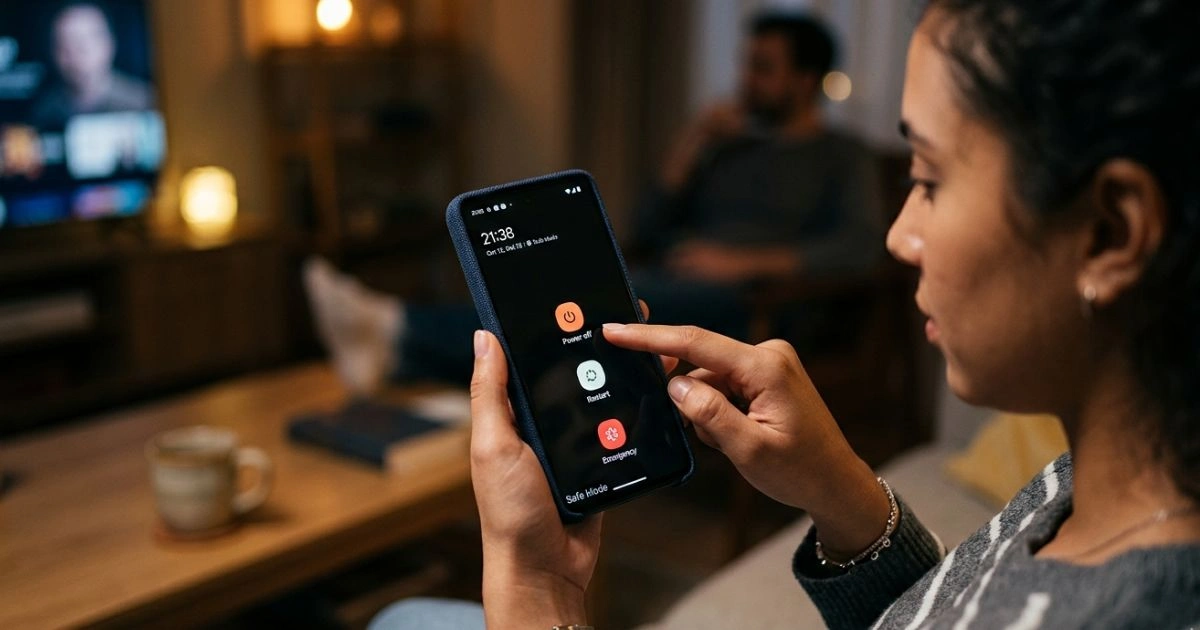
- Press and hold the Power button on your device
- A menu will appear on screen — tap Restart or Reboot
- Allow the phone to shut down and boot back up fully
- Once the home screen loads, check the bottom of your display
- If the “Safe Mode” label is gone, you are done
This works across nearly every Android brand — Samsung, Google Pixel, Xiaomi, Motorola, Oppo, Huawei, and more. It succeeds because Safe Mode is often a temporary state that does not survive a clean reboot unless something is actively triggering it.
If your screen is unresponsive and you cannot tap Restart, try holding the Power button for 10–15 seconds to force the phone off, then power it back on manually.
Fix 2 – Use the Notification Panel to Exit Safe Mode
On many Android devices running version 8.0 and above, the system places a direct notification in your shade when Safe Mode is active.
Steps to follow:
- Place your finger at the very top of the screen and swipe downward to open the notification panel
- Look for a notification that reads something like “Safe mode is on” or “Safe Mode enabled”
- Tap that notification
- A prompt will appear — select Turn Off or Restart
- Your phone will reboot and return to normal operation
This is arguably the most elegant fix because Android is essentially offering you the exit door right there in the notification tray. If you see it, use it — it takes about ten seconds total.
Fix 3 – Hold Power Button and Volume Down Together
If the standard restart menu is not appearing or your touchscreen is partially unresponsive, a hardware button combination can force a restart.
How to perform this:
- Press and hold the Power and Volume Down buttons simultaneously.
- Keep holding for approximately 5 to 8 seconds
- The screen will go dark and the phone will begin restarting automatically
- Release the buttons once you see the manufacturer logo appear
- Let the phone finish booting and check for the Safe Mode label
This method is particularly effective on Samsung Galaxy devices, Xiaomi phones, and several Motorola models. The exact duration may vary slightly depending on your device, so hold the combination a few extra seconds if nothing happens at first.
Fix 4 – Remove and Reinsert the Battery (Older Android Phones)
If you own an older Android device with a removable back panel and battery, this physical reset method works reliably.
Steps:
- Power the phone off completely first
- Remove the back cover by pressing the release tab or sliding it off
- Take the battery out carefully
- Leave the battery out for at least 30 seconds — this clears residual charge
- Reinsert the battery firmly
- Replace the back cover and power the phone on
Phones where this applies include older Samsung Galaxy models (S5 and earlier), certain LG devices, and budget Android phones from brands like Alcatel and BLU. Modern flagship phones no longer have removable batteries, so this fix will not apply to most devices made after 2016.
Fix 5 – Check for a Stuck or Faulty Physical Button
Here is something most guides skip entirely, but it is one of the most common reasons Safe Mode keeps coming back even after multiple restarts.
When your phone boots up, Android scans the physical buttons. If the Volume Down button is registering as “pressed” — whether because it is physically stuck, has debris behind it, or is worn down — the system reads that as an instruction to enter Safe Mode.
How to check and fix this:
- Press the Volume Down and Volume Up buttons several times firmly — you should feel and hear a clean click each time
- Look closely at the button edges for any visible debris, dust, or damage
- Try pressing the stuck button rapidly 10 to 15 times to free it up
- If a button feels mushy, unresponsive, or depressed at rest, that is your problem
- Long-term fix: take the phone to a repair technician to have the button mechanism replaced
This is a small thing that causes a huge headache — and once you identify it, everything else falls into place.
Fix 6 – Uninstall the Problematic App
Remember, Android sometimes enters Safe Mode automatically because it detected an unstable or dangerous app. Safe Mode is essentially telling you: “Something you installed is causing a problem — let me help you find it.”
How to identify and remove the bad app:
- While still in Safe Mode, open Settings
- Navigate to Apps, Applications, or Application Manager (the label varies by brand)
- Sort apps by installation date or scroll through to find recently installed apps
- Look for anything you installed shortly before Safe Mode started appearing
- Tap the suspicious app and select Uninstall
- Restart the phone normally after uninstalling
A strong clue: if Safe Mode started appearing right after you installed something new, that app is almost certainly the cause. APK files downloaded from outside the Google Play Store carry significantly higher risk of causing this kind of system-level disruption.
Fix 7 – Wipe the Cache Partition (Advanced Fix)
Your phone stores temporary system data in a section called the cache partition. Over time — or after a failed update — this cache can become corrupted and cause all sorts of odd behavior, including persistent Safe Mode activation.
Clearing this cache does not delete your personal data, photos, or apps. It only removes temporary files the system will simply rebuild on its own.
Steps for Samsung devices (slightly different on other brands):
- Power your phone completely off
- Press and hold Power + Volume Up + Home button simultaneously (on older Samsung models) or Power + Volume Up (on newer models without a Home button)
- Keep holding until the Android Recovery screen appears
- Use the Volume buttons to scroll down to Wipe Cache Partition
- Press the Power button to select it
- Confirm the action and wait for it to complete
- Select Reboot System Now
For Google Pixel, the combination is Power + Volume Down to reach the bootloader, then navigate from there. Xiaomi and Motorola devices follow similar patterns. A quick search for “[your phone model] recovery mode” will give you the exact combination if the above does not apply.
Fix 8 – Perform a Factory Reset as a Final Option
If every single fix above has failed and your phone refuses to leave Safe Mode, a factory reset will almost certainly solve it. This is the nuclear option — it restores your phone to the state it was in when it left the factory.
Before you do anything else — back up your data:
- Go to Settings → Accounts → Backup
- Enable Google Backup and let it complete
- Manually save any photos to Google Photos or an external drive
Steps to factory reset:
- Open Settings
- Go to General Management (Samsung) or System (Pixel/others)
- Tap Reset then Factory Data Reset
- Read the warning message, then tap Reset and confirm using your PIN.
- The phone will erase everything and reboot fresh
After the reset, Safe Mode will be gone. You can then restore your backed-up data and reinstall your apps selectively — avoiding whatever caused the issue in the first place.
Quick Reference Table – Safe Mode Fix by Android Brand
| Android Brand | Best Fix to Try First | Alternative Fix | Recovery Mode Combo |
|---|---|---|---|
| Samsung Galaxy | Notification Panel | Power + Vol Up | Power + Vol Up + Home |
| Google Pixel | Restart from Power Menu | Power + Vol Down hold | Power + Vol Down |
| Xiaomi / Redmi | Power + Vol Down | Notification Panel | Power + Vol Up |
| Motorola | Restart or Notification Panel | Check stuck buttons | Power + Vol Down |
| Huawei / Honor | Restart | Wipe Cache | Power + Vol Up |
| OnePlus | Restart | Power + Vol Down | Power + Vol Down |
| Oppo / Realme | Restart | Uninstall recent app | Power + Vol Up |
Why Is Your Android Stuck in Safe Mode Even After Restarting?
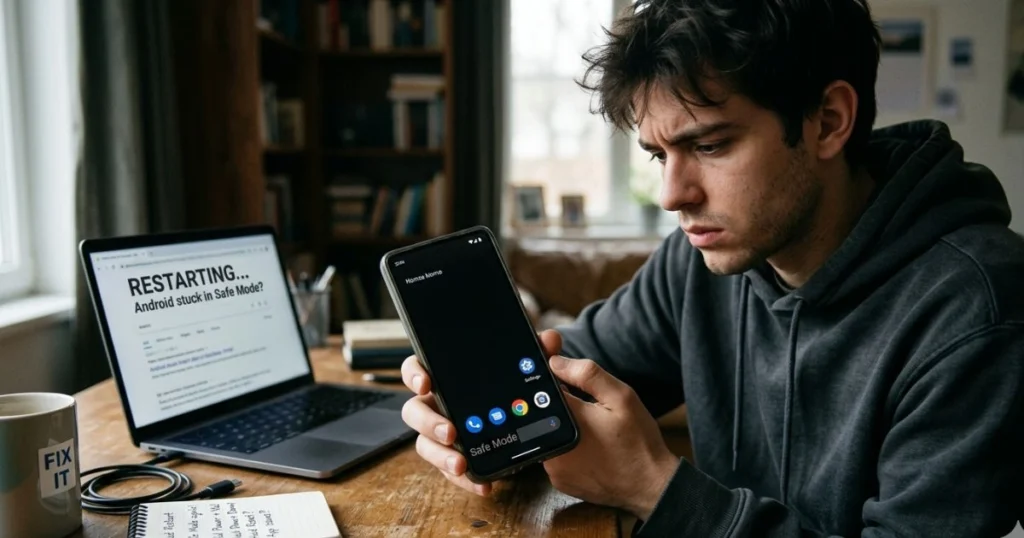
If you have restarted multiple times and Safe Mode keeps coming back, something is actively triggering it on every boot. Here are the most likely culprits:
Common Reasons Safe Mode Keeps Returning
- A stuck Volume Down button sending a continuous hardware signal (Fix 5 covers this)
- A deeply corrupted app that reinstalls itself or runs background services — uninstall it via Fix 6
- Outdated Android OS with a system bug that keeps triggering Safe Mode — check Settings → Software Update
- Corrupted cache partition — addressed directly by Fix 7
- Third-party launcher causing a conflict — while in Safe Mode, try setting the default launcher back to the stock one
How to Dig Deeper Into the Problem
- Go to Settings → Battery → Battery Usage to see which apps are consuming resources abnormally
- Check Settings → Device Care → Diagnostics (Samsung) for any flagged hardware issues
- Look inside your file manager for any unfamiliar APK files sitting in your Downloads folder and delete them
- Run a trusted mobile security scan using apps like Malwarebytes for Android (available in the Play Store)
How to Prevent Safe Mode From Activating Accidentally

Once you are out of Safe Mode, you naturally want to stay out. A few simple habits make a real difference.
Best Practices to Avoid Accidental Safe Mode
- Never hold Volume Down while restarting — this is the single most common accidental trigger
- Only install apps from the Google Play Store — sideloaded APKs from random websites carry real risk
- Keep your Android OS current — go to Settings → Software Update and check regularly
- Use a protective phone case — cases with raised edges around buttons can prevent accidental presses during drops
- Avoid force-closing your phone by holding the power button — always use the proper Restart option from the power menu
A Note for Shared or Family Devices
If children use your phone, it is worth enabling a screen lock before handing it over. Kids pressing multiple buttons simultaneously — which happens constantly — is a surprisingly frequent cause of accidental Safe Mode activation. A PIN lock or fingerprint requirement prevents unsupervised access to hardware-level functions.
Conclusion
Safe Mode feels alarming when it shows up unannounced, but now you know it for what it really is: a safety net built into your Android to protect you, not an error or a sign of disaster.
You have eight solid fixes at your disposal. Start with Fix 1 — the simple restart — because that alone resolves Safe Mode for the overwhelming majority of users in under a minute. If that does not work, move through the list systematically. Check your notification panel, try the hardware button combination, inspect for stuck buttons, remove any suspicious apps, and if needed, clear the cache partition.
Only consider a factory reset after everything else has failed — and always back up your data first.
The key takeaway is simple: you are not helpless when Safe Mode appears. You have a clear, step-by-step roadmap now, and every fix on this list has helped real users get their phones back to normal. Your apps are safe, your data is intact, and your phone is working exactly as it should — Safe Mode is just a door, and now you know exactly how to walk back out.
Try Fix 1 right now. Most people reading this will be back to normal before they even reach Fix 2.
FAQ – How Do You Turn Safe Mode Off on an Android?
Q1: How do you turn Safe Mode off on an Android quickly? The fastest method is pressing and holding your Power button, then selecting Restart from the menu. Most Android phones exit Safe Mode immediately after a standard reboot. The whole process takes under 60 seconds.
Q2: Why does my Android keep going back into Safe Mode after I restart it? This usually points to a stuck Volume Down button that is registering as pressed during boot, or a corrupt app that is triggering Safe Mode automatically. Check Fix 5 for the button issue and Fix 6 for the app solution.
Q3: Does Safe Mode permanently delete my downloaded apps? No — not at all. Safe Mode only hides and disables your third-party apps while it is active. The moment you exit Safe Mode, every app, photo, and file returns exactly as you left it.
Q4: How do you turn Safe Mode off on an Android Samsung phone specifically? On Samsung devices, swipe down your notification panel and look for the Safe Mode notification. Tap it and select Turn Off. Your phone will restart and return to normal. If that notification is not there, use the Power + Volume Down button combination instead.
Q5: Can I still use my Android phone while it is in Safe Mode? Yes, with limitations. All pre-installed apps — phone, messages, camera, settings — remain fully functional. However, every app you downloaded will be disabled until you exit Safe Mode. You can browse basic settings and make calls, but your regular app experience will be unavailable.
Q6: Is it safe to use my Android phone in Safe Mode for an extended period? Safe Mode itself causes no harm to your device. However, staying in it for a long time means you cannot use most of your apps or features. It is best treated as a temporary diagnostic state — identify the problem, fix it, and exit as soon as possible.
Q7: What if none of the fixes work and my phone is permanently stuck in Safe Mode? If all eight fixes have been attempted without success, a factory reset (Fix 8) will definitively resolve the issue. Back up your data to Google Drive first, then proceed with the reset. If even that fails, contact your phone manufacturer’s support line or visit an authorized repair center — there may be a hardware fault involved.