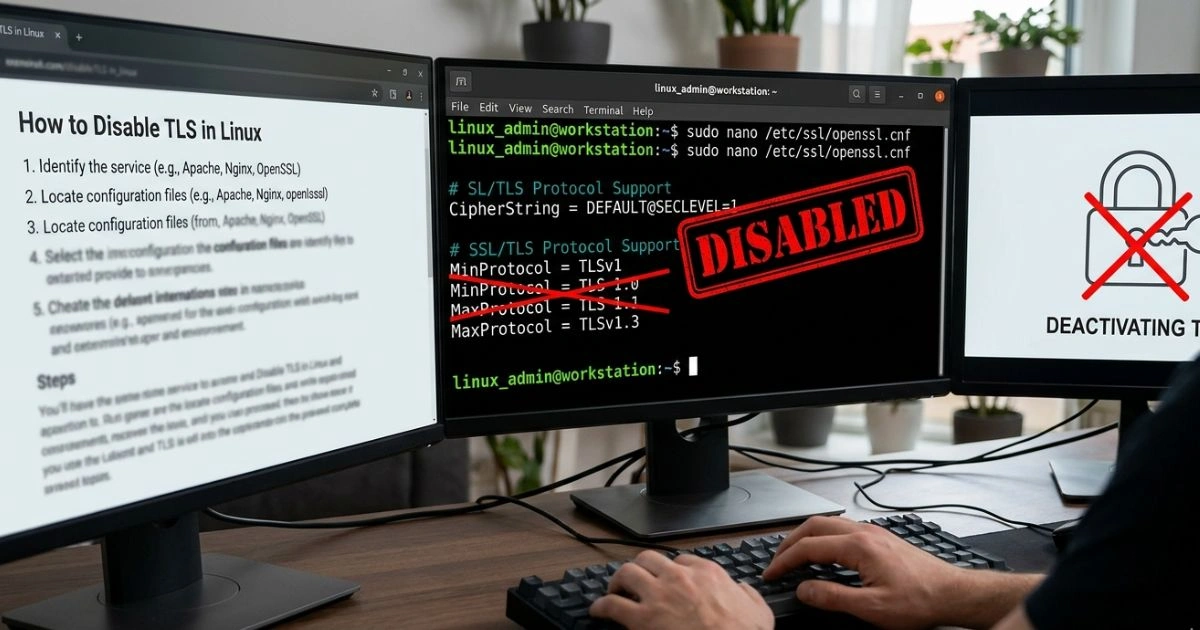
How to Disable TLS in Linux – Expert Steps for Configuration
Table of Contents
You’re deep into a debugging session. The clock is ticking, your staging environment keeps throwing handshake errors, and every search result tells you to enable TLS — not the opposite. Nobody writes about what happens when TLS itself becomes the obstacle.
But here’s the truth: there are completely valid technical scenarios where disabling or restricting TLS is exactly the right call. Legacy integrations, isolated lab environments, internal microservice testing, performance benchmarking on closed networks — these are real situations that real engineers face. And if you’re reading this, you’re probably in one of them right now.
This guide walks you through every major method to disable TLS in Linux, service by service, with commands you can actually copy and use. No fluff. No unnecessary security lectures. Just the steps you need, explained clearly.
What Is TLS and Why Would You Need to Disable It?
Understanding TLS in Linux Environments
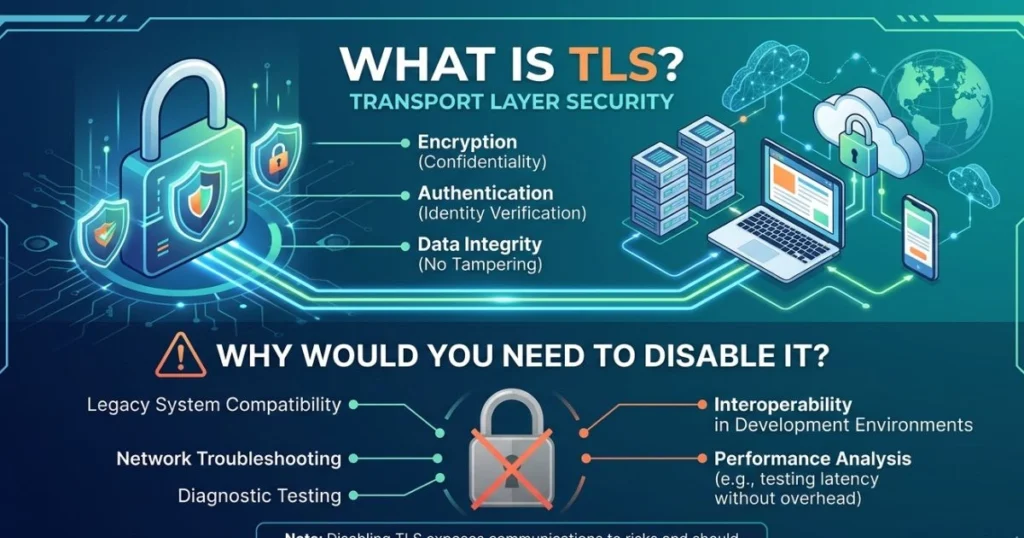
TLS — Transport Layer Security — is the cryptographic protocol that encrypts data moving between a client and a server. In Linux environments, it shows up in nearly every networked service: your web server (Apache or Nginx), your mail server (Postfix), your database connections, your API calls via curl, and system-wide through the OpenSSL library.
When TLS is working correctly, it’s invisible. When it causes problems — version mismatches, expired certificates, handshake failures in test environments — it becomes the loudest thing in your terminal.
Legitimate Reasons to Disable TLS in Linux
Before diving into the steps, it helps to identify where your situation fits:
- Local development and staging environments — where certificates aren’t configured and encryption overhead slows iteration
- Legacy application compatibility — older software built against SSLv3 or TLS 1.0 that can’t negotiate modern protocols
- Internal closed-network communication — services running in air-gapped or fully trusted networks where encryption adds cost without benefit
- CI/CD pipeline testing — automated test runners that hit local endpoints and fail on self-signed certificate errors
- Performance benchmarking — isolating raw throughput by removing encryption from the equation
- Protocol-level debugging — inspecting raw traffic in a controlled environment using tools like Wireshark
Security Warning ⚠️
This needs to be said clearly: disabling TLS on any public-facing or production server is dangerous. Without TLS, all data — including credentials, tokens, and personal information — travels in plain text and is trivially interceptable.
Everything in this guide is intended for:
- Development and testing machines
- Isolated internal networks
- Lab and learning environments
If you’re managing a live server serving real users, the right move is to fix your TLS configuration, not remove it.
Prerequisites Before You Disable TLS in Linux
What You Need Before Starting
Getting this right requires a bit of preparation. Before you touch any configuration file, make sure you have:
- Root or sudo privileges — most TLS config files are system-owned
- A clear understanding of which service is enforcing TLS (Apache, Nginx, Postfix, OpenSSL, curl)
- Knowledge of your Linux distribution — file paths differ between Ubuntu/Debian and CentOS/RHEL
- A backup of your config files — before any edit, copy the original
bash
sudo cp /etc/apache2/mods-enabled/ssl.conf /etc/apache2/mods-enabled/ssl.conf.bakNever skip the backup. A single typo in an SSL config can take down your entire web service.
Tools and Commands You’ll Use
Across all five methods in this guide, you’ll interact with:
openssl— for testing connections and verifying protocol versionscurl— for making HTTP requests with protocol flagsnginxandapache2— web server configurationsystemctl— for restarting and reloading servicesnanoorvim— for editing configuration files
Make sure these are installed before you start:
bash
sudo apt install openssl curl nginx apache2 -y   # Debian/Ubuntu
sudo yum install openssl curl nginx httpd -y     # CentOS/RHEL
How to Disable TLS in Linux – Step-by-Step Methods
Method 1 – Disable TLS in Apache
Apache controls its TLS behavior through the SSLProtocol directive, which lives in the SSL module configuration file.
Step 1 – Open the Apache SSL Configuration File
bash
# On Ubuntu/Debian:
sudo nano /etc/apache2/mods-enabled/ssl.conf

# On CentOS/RHEL:
sudo nano /etc/httpd/conf.d/ssl.conf
Step 2 – Locate the SSLProtocol Directive
Look for a line that reads something like:
SSLProtocol all -SSLv3This tells Apache to support all protocols except SSLv3. Your goal is to modify this behavior.
Step 3 – Modify the Protocol Setting
To disable all TLS for testing purposes:
SSLProtocol -allTo strip only newer versions (for legacy compatibility testing):
SSLProtocol all -TLSv1.2 -TLSv1.3Step 4 – Restart Apache
bash
# Ubuntu/Debian:
sudo systemctl restart apache2

# CentOS/RHEL:
sudo systemctl restart httpd
Step 5 – Verify the Change
bash
openssl s_client -connect localhost:443In the output, look for the Protocol field. It should reflect your change. If TLS is fully disabled and no fallback exists, the connection will fail — which is the expected result in a test environment.
Method 2 – Disable TLS in Nginx
Nginx uses the ssl_protocols directive inside its server block or the main configuration file.
Step 1 – Open the Nginx Configuration
bash
# Global config:
sudo nano /etc/nginx/nginx.conf

# Site-specific:
sudo nano /etc/nginx/sites-available/default
Step 2 – Find the ssl_protocols Line
The default value typically looks like:
ssl_protocols TLSv1.2 TLSv1.3;Step 3 – Comment Out or Reduce the Protocols
For a test environment where you need to support older unencrypted connections:
# ssl_protocols TLSv1.2 TLSv1.3;
ssl_protocols TLSv1;
To disable the SSL block entirely for a specific server block, you can remove the listen 443 ssl directive and route traffic through port 80 only.
Step 4 – Test and Reload Nginx
Always validate your config before reloading:
bash
sudo nginx -t
sudo systemctl reload nginx
If nginx -t returns errors, your syntax is off — fix it before reloading or your server will fail to restart.
Method 3 – Disable TLS System-Wide via OpenSSL
This is the most powerful — and most consequential — method. Modifying the OpenSSL configuration affects every application on your system that uses it.
Step 1 – Locate the OpenSSL Configuration File
bash
# Debian/Ubuntu:
/etc/ssl/openssl.cnf

# CentOS/RHEL:
/etc/pki/tls/openssl.cnf
Open it with:
bash
sudo nano /etc/ssl/openssl.cnfStep 2 – Edit the system_default_sect Section
Find or add this block:
[system_default_sect]
MinProtocol = None
CipherString = DEFAULT@SECLEVEL=0
Setting MinProtocol = None removes the floor on which TLS versions are acceptable. Setting SECLEVEL=0 removes cipher strength requirements — useful for legacy compatibility testing.
Step 3 – Test the Change
bash
openssl s_client -connect example.com:443 -tls1If the handshake completes using TLS 1.0, your system-wide change is in effect.
Method 4 – Disable TLS for curl Commands
When you’re testing APIs or endpoints from the command line, curl gives you per-request control over TLS behavior without touching any system configuration.
Using the –insecure Flag
bash
curl --insecure https://example.comThis skips certificate verification but still uses TLS. It’s the most common flag for development environments with self-signed certificates.
Forcing an Older Protocol Version
bash
curl --tlsv1.0 --tls-max 1.0 https://example.comThis forces curl to negotiate TLS 1.0 specifically, useful for testing server compatibility with older clients.
Bypassing All Certificate Checks
bash
curl -k https://localhost:8443The -k flag is shorthand for --insecure. You’ll see this frequently in development scripts and Docker testing setups.
Method 5 – Disable TLS in Postfix (Mail Server)
If you’re running a mail server and need to disable TLS enforcement — perhaps for internal relay testing or legacy mail client compatibility — Postfix handles this through main.cf.
Step 1 – Open the Postfix Main Configuration
bash
sudo nano /etc/postfix/main.cfStep 2 – Set TLS Security Level to None
smtp_tls_security_level = none
smtpd_tls_security_level = none
The smtp_ prefix applies to outbound connections (Postfix as a client). The smtpd_ prefix applies to inbound connections (Postfix as a server). Setting both to none disables TLS in both directions.
Step 3 – Restart Postfix
bash
sudo systemctl restart postfixVerify the change by checking your mail logs:
bash
sudo tail -f /var/log/mail.logLook for connection lines — they should no longer show TLS negotiation.
Configuration Reference Table
| Service | Config File Path | Key Directive | Restart Command |
|---|---|---|---|
| Apache | /etc/apache2/mods-enabled/ssl.conf | SSLProtocol | systemctl restart apache2 |
| Nginx | /etc/nginx/nginx.conf | ssl_protocols | systemctl reload nginx |
| OpenSSL | /etc/ssl/openssl.cnf | MinProtocol | N/A (system-wide) |
| Postfix | /etc/postfix/main.cf | smtp_tls_security_level | systemctl restart postfix |
| curl | CLI flag | –insecure / –tlsv1.0 | N/A |
How to Verify TLS Has Been Disabled in Linux
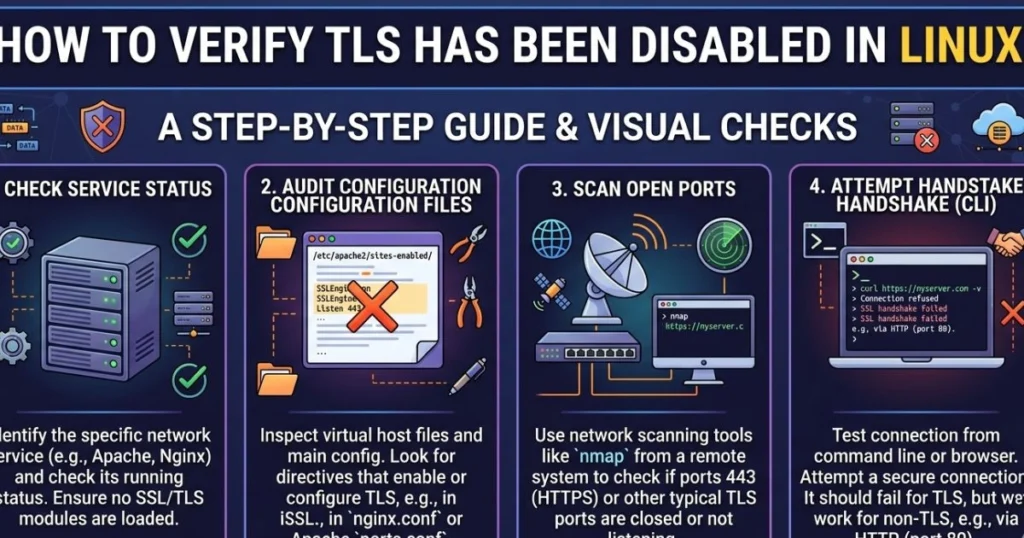
Changing a config file means nothing if you don’t confirm the change took effect. Here are three reliable ways to verify.
Using OpenSSL to Test the Connection
bash
openssl s_client -connect yourdomain.com:443 -tls1_2Read the output carefully:
- “Protocol : TLSv1.2” — TLS is still active at this version
- “handshake failure” — the server rejected the protocol, meaning it’s been restricted or disabled
- “CONNECTED” followed by certificate details — TLS handshake succeeded
Using curl in Verbose Mode
bash
curl -v --tlsv1.2 https://osainews.comThe -v flag shows the full negotiation. Look for lines starting with * — they reveal exactly what protocol was negotiated, what certificate was presented, and whether the handshake succeeded or failed.
Using Nmap for a Full Protocol Scan
bash
nmap --script ssl-enum-ciphers -p 443 yourdomain.comNmap’s ssl-enum-ciphers script lists every TLS version and cipher suite your server currently accepts. If TLS has been disabled, those entries disappear from the output entirely.
How to Re-Enable TLS After Testing
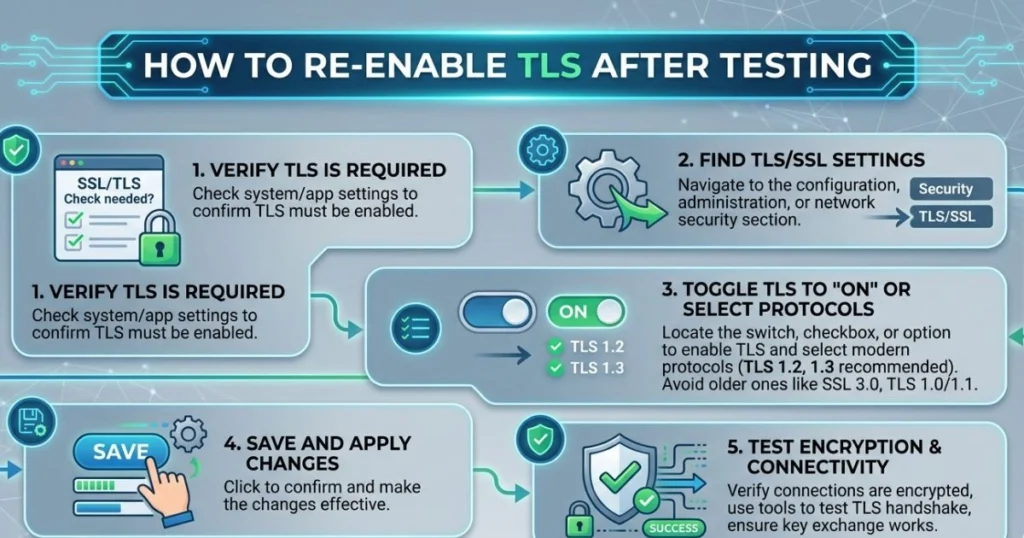
When your testing is done, restoring TLS is just as important as disabling it. Here’s how to revert each method cleanly.
Reverting Apache
Restore the backup you created at the start:
bash
sudo cp /etc/apache2/mods-enabled/ssl.conf.bak /etc/apache2/mods-enabled/ssl.conf
sudo systemctl restart apache2
Or manually restore the SSLProtocol line to:
SSLProtocol all -SSLv3 -TLSv1 -TLSv1.1Reverting Nginx
Uncomment or restore the ssl_protocols line:
ssl_protocols TLSv1.2 TLSv1.3;Then reload:
bash
sudo nginx -t && sudo systemctl reload nginxReverting OpenSSL System-Wide
Remove the MinProtocol = None line or restore it to:
MinProtocol = TLSv1.2Recommended TLS Settings for Production
Once you’re back in production mode, apply these settings as a baseline:
- Disable SSLv2, SSLv3, TLS 1.0, and TLS 1.1 entirely
- Support only TLS 1.2 and TLS 1.3
- Use strong cipher suites — avoid RC4, DES, and export-grade ciphers
- Enable HSTS headers on your web server
- Automate certificate renewal (Let’s Encrypt + Certbot)
Common Errors When Disabling TLS in Linux
| Error Message | Likely Cause | Fix |
|---|---|---|
| SSL_ERROR_RX_RECORD_TOO_LONG | Wrong port or protocol mismatch | Verify port 443 is configured for SSL |
| handshake failure | Cipher suite incompatibility | Adjust SSLCipherSuite or ssl_ciphers |
| Connection refused | Service not restarted after config change | Run systemctl restart for the service |
| certificate verify failed | Certificate still enforcing TLS | Check ssl_verify and certificate path |
| Protocol version mismatch | Client and server TLS versions don’t align | Match protocol versions on both ends |
FAQ – How to Disable TLS in Linux
Q1: Is it safe to disable TLS in Linux?
Only in isolated, non-production environments. Without TLS, all transmitted data is unencrypted and visible to anyone with network access. Never disable TLS on a server that handles real user data, authentication, or sensitive communications.
Q2: How do I disable only TLS 1.0 and 1.1 in Linux without disabling all TLS?
In Apache, use: SSLProtocol all -TLSv1 -TLSv1.1 In Nginx, change your ssl_protocols line to: ssl_protocols TLSv1.2 TLSv1.3; This keeps modern TLS active while removing older, vulnerable versions.
Q3: How to disable TLS in Linux for a single application only?
Edit only that application’s configuration file rather than the system-wide OpenSSL settings. For example, change Postfix’s main.cf without touching /etc/ssl/openssl.cnf, so only mail traffic is affected.
Q4: Can I disable TLS temporarily in Linux?
Yes. Make your configuration change, perform your testing, then restore from your backup or manually revert the directive. Using systemctl to restart services makes the change immediate in both directions.
Q5: How do I check which TLS version is active on my Linux server?
Run:
bash
openssl s_client -connect yourdomain.com:443Look for the line that reads Protocol : in the output. That shows the active TLS version negotiated during the handshake.
Q6: Does disabling TLS affect my SSH connections?
No. SSH uses its own encryption stack (separate from OpenSSL-based TLS) and is not affected by changes to Apache, Nginx, Postfix, or /etc/ssl/openssl.cnf. Your SSH access remains secure regardless of TLS changes.
Conclusion
Disabling TLS in Linux isn’t something you’ll do often — but when you need to, knowing exactly which file to edit and which directive to change makes the difference between a five-minute fix and a three-hour rabbit hole.
To recap what this guide covered:
- Apache — modify
SSLProtocolin your ssl.conf - Nginx — adjust
ssl_protocolsin your server block - OpenSSL system-wide — set
MinProtocol = Nonein openssl.cnf - curl — use
--insecureor--tlsv1.0flags per request - Postfix — set
smtp_tls_security_level = nonein main.cf
Each method is reversible, and your first step before any of them should always be creating a backup.
Use this guide the way it’s meant to be used: as a precise tool for controlled environments. Do your testing, document what you changed, and restore your TLS settings when you’re done. Security debt accumulates fast when temporary configs become permanent ones.
Bookmark this page, share it with your team, and the next time TLS blocks your path — you’ll know exactly how to step around it.
Have a specific service not covered here? Drop a comment with your setup and the exact error you’re seeing — let’s work through it together.