How to Connect PS5 Controller to PC (Easy Guide)
Table of Contents
You picked up your PS5 DualSense for the first time and felt something different. The weight sat perfectly in your hands. The textured grips felt intentional. And when you triggered that first haptic pulse, something clicked — this was not just another controller. This was a piece of engineering that deserved more than a single console.
So here you are, sitting at your PC, wondering if you can bring that same feeling into your favorite games on Steam, your emulator sessions, or your late-night indie game marathons. The answer is yes — and it is simpler than you might expect.
This guide walks you through every method, every fix, and every tip you need to make your DualSense work flawlessly on your PC. No technical background required. Just follow the steps, pick your method, and you will be gaming within minutes.
What You Need Before You Start
Before jumping into the connection process, take two minutes to make sure you have everything ready. Nothing kills momentum faster than realizing mid-setup that you are missing a cable or that your PC does not have Bluetooth.
Here is what you need depending on which method you choose:
| Requirement | Wired Method | Wireless (Bluetooth) |
|---|---|---|
| USB-C to USB-A Cable | ✅ Required | ❌ Not needed |
| Bluetooth (Built-in or Dongle) | ❌ Not needed | ✅ Required |
| Steam (Optional but Recommended) | Optional | Optional |
| Windows Version | Windows 10 / 11 | Windows 10 / 11 |
| Driver Installation | Automatic | Automatic |
One thing worth noting — if your PC does not have built-in Bluetooth, a small USB Bluetooth dongle costs around $10 to $15 and works perfectly. You do not need an expensive upgrade to go wireless.
Method 1 — How to Connect PS5 Controller to PC via USB (Wired)
Why the Wired Method Might Be Your Best Option
If you care about performance above everything else, the wired connection is where you want to start. There is no signal delay, no battery anxiety, and no pairing process to wrestle with. You plug it in, Windows does its job, and you are playing within seconds.
This method is especially strong for:
- Competitive multiplayer games where milliseconds matter
- Long gaming sessions where you do not want to stop and recharge
- Older PCs that do not have Bluetooth capability
- Situations where your Bluetooth connection keeps dropping
Step-by-Step: Connecting via USB
Follow these steps exactly and you will have your controller running in under two minutes:
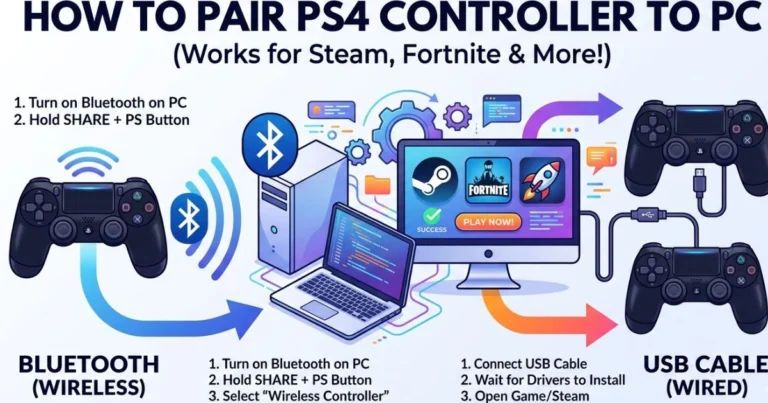
- Take your USB-C to USB-A cable — make sure it is a data cable, not a charge-only cable. Many cheap cables only push power and will not transmit data signals.
- Plug the USB-C end into the port at the top of your DualSense controller.
- Insert the USB-A connector into any open USB port on your computer. Plug directly into your machine rather than through a USB hub for the most reliable connection.
- Wait a few seconds. Windows 10 and Windows 11 will automatically detect the controller and install the necessary drivers in the background.
- Open Device Manager (right-click the Start button → Device Manager) and look under Human Interface Devices or Sound, video and game controllers — you should see “Wireless Controller” listed there.
- Launch your game. Head into the controller settings and configure your buttons if needed.
Pro Tips for Wired Connection
- If Windows does not detect the controller after 30 seconds, unplug it, try a different USB port, and plug it back in.
- Avoid USB extension cables if possible — a direct connection gives you the cleanest signal.
- If you are using an older PC with USB 2.0 ports only, the controller will still work — just use whichever port is available.
- Keep your cable organized with a velcro tie or cable clip to avoid accidentally yanking it during gameplay.
Method 2 — How to Connect PS5 Controller to PC via Bluetooth (Wireless)
Why Go Wireless?
There is something genuinely freeing about cutting the cable. If you game from a couch, a recliner, or just like having your desk clear of wires, Bluetooth is the way to go. The DualSense connects reliably via Bluetooth on most modern PCs, and the input lag — while technically present — is nearly unnoticeable in most game types.
Bluetooth works especially well for:
- Single-player games, RPGs, and story-driven titles
- Couch gaming or living room PC setups
- Situations where cable management is a priority
- Playing at a distance from your monitor or screen
Step-by-Step: Connecting via Bluetooth
Here is exactly how to put your DualSense into pairing mode and connect it to your PC:
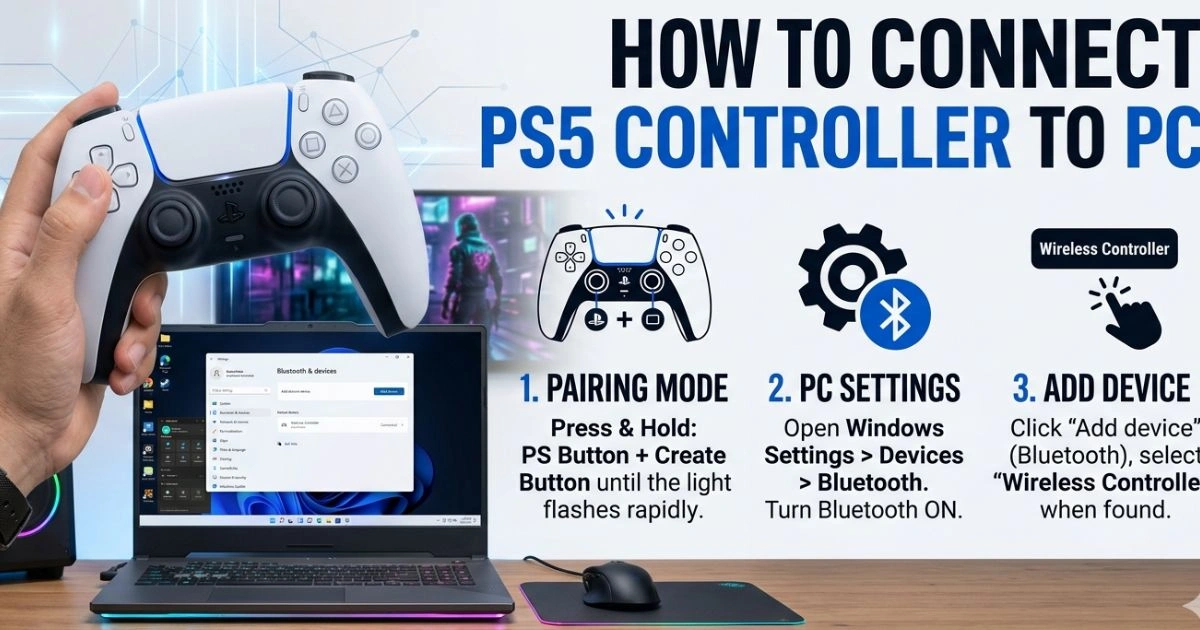
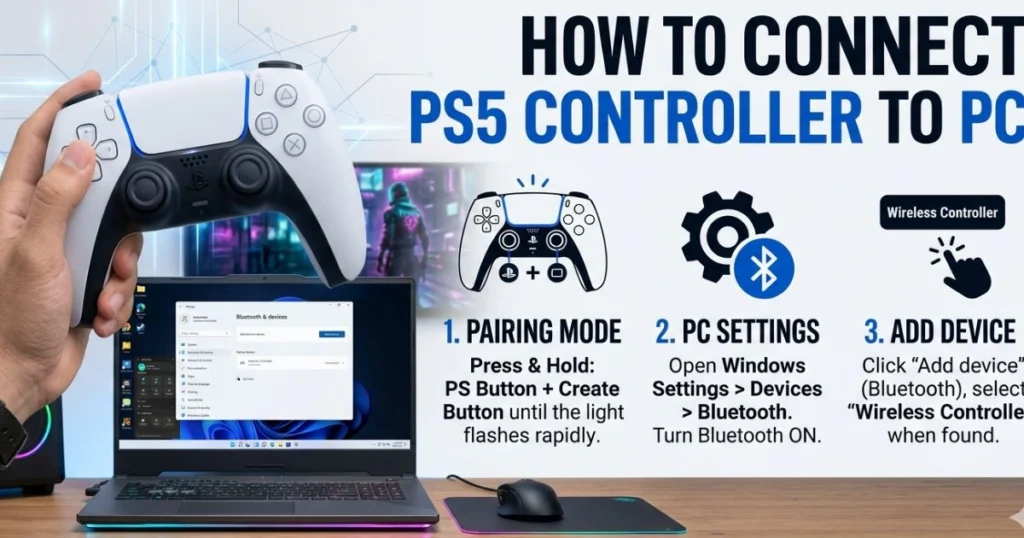
- First, confirm your PC has Bluetooth. Go to Settings → Bluetooth & Devices. If you see a Bluetooth toggle, you are ready. If not, plug in a Bluetooth USB dongle.
- On your DualSense controller, press and hold the PS button and the Create button (the small button to the left of the touchpad) at the same time. Hold both for about three seconds.
- The light bar on the controller will begin flashing rapidly in a double-pulse pattern — this means it is in pairing mode.
- On your PC, go to Settings → Bluetooth & Devices → Add Device.
- Click Bluetooth from the options that appear.
- Your PC will scan for nearby devices. You will see “Wireless Controller” appear in the list — click on it.
- Windows will pair and connect automatically. The light bar on your controller will settle into a steady glow, confirming the connection.
- You are connected. Open your game and start playing.
Bluetooth Troubleshooting Tips
Sometimes Bluetooth pairing does not go smoothly on the first try. Here is how to fix the most common issues:
- Controller does not appear in the list: Turn Bluetooth off on your PC, wait ten seconds, turn it back on, and try again.
- Connection drops frequently: Check for wireless interference. Other Bluetooth devices, Wi-Fi routers, and even microwave ovens can disrupt the signal. Move closer to your PC or remove other devices temporarily.
- Controller shows as paired but unresponsive: Go to Bluetooth settings, remove the device, and pair it again from scratch.
- PC asks for a PIN: Simply press Enter or type 0000 — DualSense does not use a PIN, but some older Windows versions prompt for one anyway.
How to Use Your PS5 Controller on PC with Steam
Why Steam Changes Everything
Steam is the single best tool for getting the most out of your DualSense on PC. Valve has invested seriously in PlayStation controller support, and the results show. When you run your controller through Steam, you unlock features that go well beyond basic button inputs — including a degree of haptic feedback and adaptive trigger support in games that have been optimized for it.
Beyond features, Steam also makes sure your controller is recognized correctly in every game in your library. Without it, some games may read your DualSense as an unknown device or default to generic button labels that do not match what is printed on your controller.
Step-by-Step: Enabling PS5 Controller Support in Steam
- Open the Steam application on your PC.
- In the top-left corner, click Steam → Settings.
- In the left-hand menu, click Controller.
- Click General Controller Settings.
- Check the box labeled PlayStation Configuration Support.
- Your DualSense will now be fully registered inside Steam with proper button recognition, on-screen prompts showing PlayStation button icons, and access to haptic features where supported.
Games That Support Full DualSense Features on PC
Not every game taps into the DualSense’s advanced capabilities on PC, but several high-profile titles do — and the difference is immediately noticeable:
| Game Title | Haptic Feedback | Adaptive Triggers |
|---|---|---|
| Returnal | ✅ Yes | ✅ Yes |
| Spider-Man: Miles Morales | ✅ Yes | ✅ Yes |
| Deathloop | ✅ Yes | ✅ Yes |
| Hogwarts Legacy | ✅ Yes | ✅ Yes |
| Ratchet & Clank: Rift Apart | ✅ Yes | ✅ Yes |
| God of War (PC) | Partial | Partial |
If you own any of these games on PC, connecting through Steam will give you a noticeably richer experience than connecting through any other method.
How to Connect PS5 Controller to PC Without Steam
Not everyone uses Steam, and some games simply do not launch through it. If you play games from the Epic Games Store, GOG, or run emulators, you will want a solution that works outside of Steam’s ecosystem.
Using DS4Windows
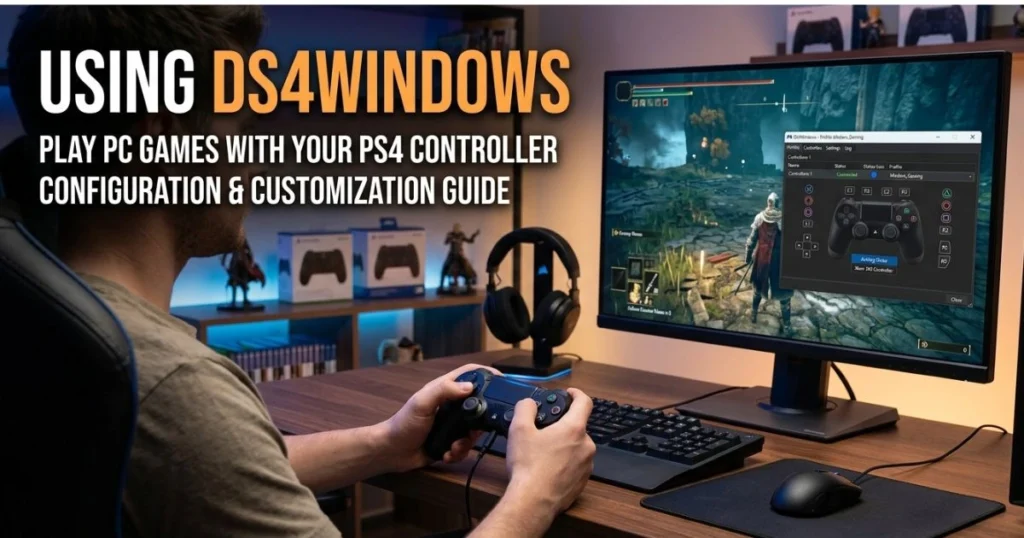
DS4Windows is the most widely used third-party tool for PlayStation controllers on PC, and for good reason — it is free, open-source, actively maintained, and works exceptionally well.
Here is how to get it running:
- Search for DS4Windows and download it from the official GitHub repository (search “DS4Windows GitHub” to find the legitimate source).
- Extract the downloaded ZIP file to a folder on your PC — somewhere easy to find, like your Desktop or Documents folder.
- Run DS4Windows.exe. It will prompt you to install drivers on first launch — follow the on-screen steps.
- Once set up, DS4Windows emulates your DualSense as an Xbox controller (XInput), which means virtually every PC game will recognize it instantly since XInput is the universal standard on Windows.
- Customize your button layout, create game-specific profiles, and even adjust the lightbar color directly within the app.
DS4Windows is particularly useful for emulator gaming — whether you are running RetroArch, RPCS3, PCSX2, or Yuzu, your DualSense will feel right at home.
Using Rewasd for Advanced Users
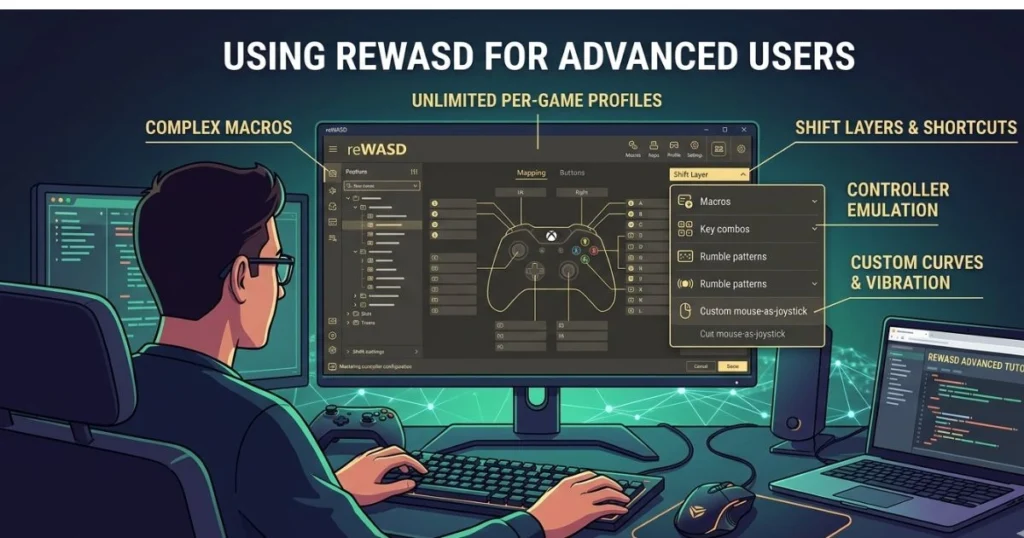
If you want deeper control over your controller — macros, complex button remapping, stick sensitivity curves, or the ability to switch profiles on the fly — Rewasd is worth looking at. It is a paid tool (around $6 for a basic license), but for power users and content creators who game seriously, it offers capabilities that free tools simply cannot match.
Full Method Comparison: Which One Should You Choose?
Use this table to quickly decide which connection method fits your situation best:
| Method | Input Speed | Setup Ease | Haptics on PC | Best For |
|---|---|---|---|---|
| USB Wired | ⚡ Fastest | ⭐⭐⭐⭐⭐ Very Easy | Partial | Competitive gaming |
| Bluetooth (Native) | Fast | ⭐⭐⭐⭐ Easy | Partial | Casual & couch gaming |
| Steam + Bluetooth | Fast | ⭐⭐⭐⭐ Easy | ✅ Best Available | Feature-rich gaming |
| DS4Windows | Fast | ⭐⭐⭐ Moderate | Limited | Non-Steam games & emulators |
| Rewasd | Fast | ⭐⭐ Advanced | Limited | Power users |
Common Problems & How to Fix Them
Even with a straightforward process, things occasionally go sideways. Here are the four most common issues people run into and exactly how to solve them:
Problem 1 — PC Does Not Recognize the Controller
Symptoms: You plug in the controller and nothing happens. Device Manager shows nothing new.
Fix it:
- Try a different USB port (preferably one directly on your PC, not a hub)
- Swap to a different USB-C cable — many cables are charge-only and carry no data
- Open Device Manager, click Action → Scan for hardware changes
- Restart your PC and plug the controller in after Windows fully loads
Problem 2 — Bluetooth Will Not Pair
Symptoms: The controller flashes in pairing mode but never appears in your PC’s Bluetooth list.
Fix it:
- Turn Bluetooth off on your PC, wait ten seconds, and turn it back on
- On the controller, hold the PS + Create buttons until the light resets, then try pairing mode again
- Go to Bluetooth settings and delete any old “Wireless Controller” entries before pairing fresh
- If you have a USB Bluetooth dongle, try unplugging and replugging it
Problem 3 — Wrong Button Labels In-Game
Symptoms: Your game shows Xbox button icons (A, B, X, Y) instead of PlayStation icons (Cross, Circle, Square, Triangle), or buttons do the wrong things.
Fix it:
- Enable PlayStation Configuration Support in Steam settings
- If the game is not on Steam, use DS4Windows to handle button mapping
- Check if the game has a native controller option in its settings menu
Problem 4 — No Haptic Feedback or Adaptive Triggers
Symptoms: The controller works fine, but you feel none of the signature DualSense features.
Fix it:
- Make sure you are running the game through Steam with PlayStation Configuration Support enabled
- Check whether that specific game has DualSense support on PC — not all games do
- Look for community mods on Nexus Mods — some popular titles have fan-made haptic support patches
Tips to Get the Most from Your DualSense on PC
Getting connected is just the beginning. Here are practical tips that will genuinely improve your experience over time:
- Update your controller firmware by connecting it to your PS5 periodically. Sony pushes firmware updates that can improve PC compatibility and fix bugs.
- Charge before long sessions — DualSense battery life runs between 6 and 8 hours of active use, which is shorter than many PC controllers.
- Create separate profiles in Steam or DS4Windows for different game genres. A racing game layout feels very different from an FPS setup — customizing per genre makes a real difference.
- Use a short cable for wired play — a 1.5 to 2 meter cable keeps your desk tidy and your connection clean.
- Dim the lightbar through DS4Windows if you find it distracting during night sessions. It also saves a small amount of battery in wireless mode.
- Test your controller using the free website Gamepad Tester (search it in your browser) — it lets you verify every button and stick is registering correctly before you launch a game.
Conclusion
Your PS5 DualSense controller is not just one of the best console controllers ever made — it is also one of the most capable controllers you can use on a PC right now. Whether you go wired for the cleanest performance, wireless for total freedom, or run through Steam for the richest feature set, every method covered in this guide works reliably and consistently.
The process takes minutes. The payoff lasts every single gaming session going forward.
Pick the method that matches your setup, follow the steps, and get back to doing what actually matters — playing the games you love, on your terms, with a controller that feels like it was built for your hands.
Now it is your turn. Grab your DualSense, pick your connection method, and make it happen. If you found this guide useful, share it with a friend who is still gaming with a mouse and keyboard — they will thank you for it. And if you run into any issues along the way, drop your question in the comments. Every problem has a fix, and you are one step away from it.
FAQ — How to Connect PS5 Controller to PC
Q1: Can I connect a PS5 controller to a PC? Absolutely. Your PS5 DualSense controller connects to any Windows 10 or Windows 11 PC either through a USB-C cable or via Bluetooth. No special hardware beyond what you likely already have is required.
Q2: How can I connect my PS5 controller to a PC without using Bluetooth? Use a USB-C to USB-A cable. Plug the USB-C end into your controller and the USB-A end into your PC. Windows will automatically detect it and install drivers within seconds.
Q3: Does the PS5 controller support haptic feedback on PC? Yes, but selectively. Games that have been specifically updated to support DualSense features on PC — particularly those available through Steam — will deliver haptic feedback and adaptive trigger resistance. The list of supported titles is growing steadily.
Q4: Do I need to install drivers to use a PS5 controller on PC? No manual driver installation is needed. Windows handles this automatically the moment you plug in the controller. For advanced features and non-Steam games, DS4Windows adds an extra layer of compatibility.
Q5: How do I connect my PS5 controller to PC wirelessly? Hold the PS button and Create button simultaneously until the light bar flashes rapidly. Then go to your PC’s Bluetooth settings, click Add Device, select Bluetooth, and choose Wireless Controller from the list.
Q6: Why is my PS5 controller not being detected on PC? The most common causes are a charge-only USB cable (with no data transfer capability), a faulty USB port, or an outdated driver. Try a different cable, a different port, and restart your PC. DS4Windows can also resolve recognition issues in many cases.
Q7: Is DS4Windows free and safe to use? Yes on both counts. DS4Windows is a free, open-source application hosted on GitHub and used by millions of PC gamers worldwide. Always download it from the official GitHub repository to ensure you are getting the genuine version.
Q8: Can I use my PS5 controller on PC for emulators? Yes — and it works beautifully. DS4Windows emulates the DualSense as an Xbox controller, which means emulators like RetroArch, PCSX2, and RPCS3 will recognize it without any additional configuration.